
Free print color tool
RGB to CMYK converter for colors and figures
Type a HEX code or RGB values to get CMYK percentages, or enter CMYK to get RGB back, with every step of the formula shown. To convert an image to CMYK, load a PNG, JPEG or WebP figure, compare a rough print preview with the original, and download a CMYK TIFF at the DPI you need. Nothing is uploaded.
- Free, no sign-up
- HEX, RGB and CMYK both ways
- Whole figures to CMYK TIFF
- Runs in your browser
Try a color
#1F77B4 in CMYK
- C83%
- M34%
- Y0%
- K29%
RGB 31, 119, 180 · Total ink 146%
Not flagged as very saturated. Small shifts in print are still normal, and the printer's profile decides the final numbers.
RGB to CMYK formula, step by step
r = R / 255, g = G / 255, b = B / 255 = 0.122, 0.467, 0.706
K = 1 − max(r, g, b) = 1 − 0.706 = 0.294 → 29%
C = (1 − r − K) / (1 − K) = (1 − 0.122 − 0.294) / 0.706 = 0.828 → 83%
M = (1 − g − K) / (1 − K) = (1 − 0.467 − 0.294) / 0.706 = 0.339 → 34%
Y = (1 − b − K) / (1 − K) = (1 − 0.706 − 0.294) / 0.706 = 0.000 → 0%
The standard device-independent formula. Print shops convert with an ICC profile for their press and paper, so their numbers for the same color differ.
Drop a PNG, JPEG or WebP figure here, or
The image is converted in your browser and never uploaded.
Uses the same standard formula as the color converter. Most journals ask for RGB figures, so keep the RGB original and send CMYK only when a printer or journal asks for it.
Convert an image to CMYK
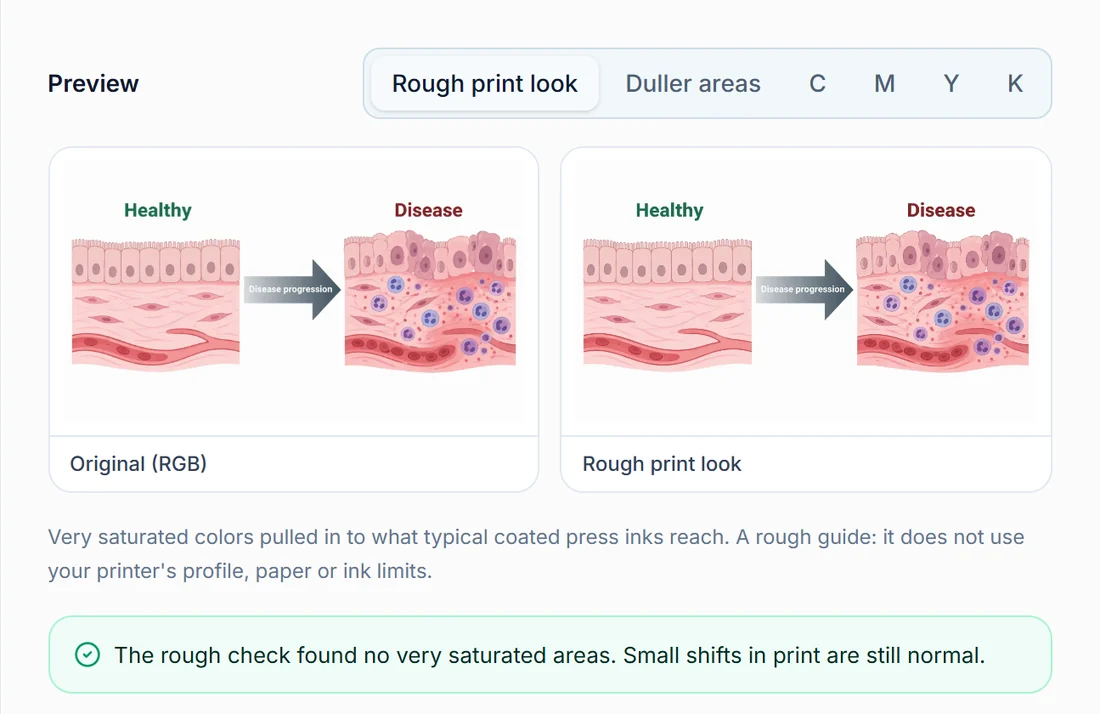
See the rough print look next to the original, the areas likely to print duller, and the C, M, Y and K plates, then download a CMYK TIFF.
How to use it
Convert RGB to CMYK in three steps
Enter a color to read its CMYK values and the formula, or switch to Whole image to convert a figure to a CMYK TIFF. Everything runs in your browser.
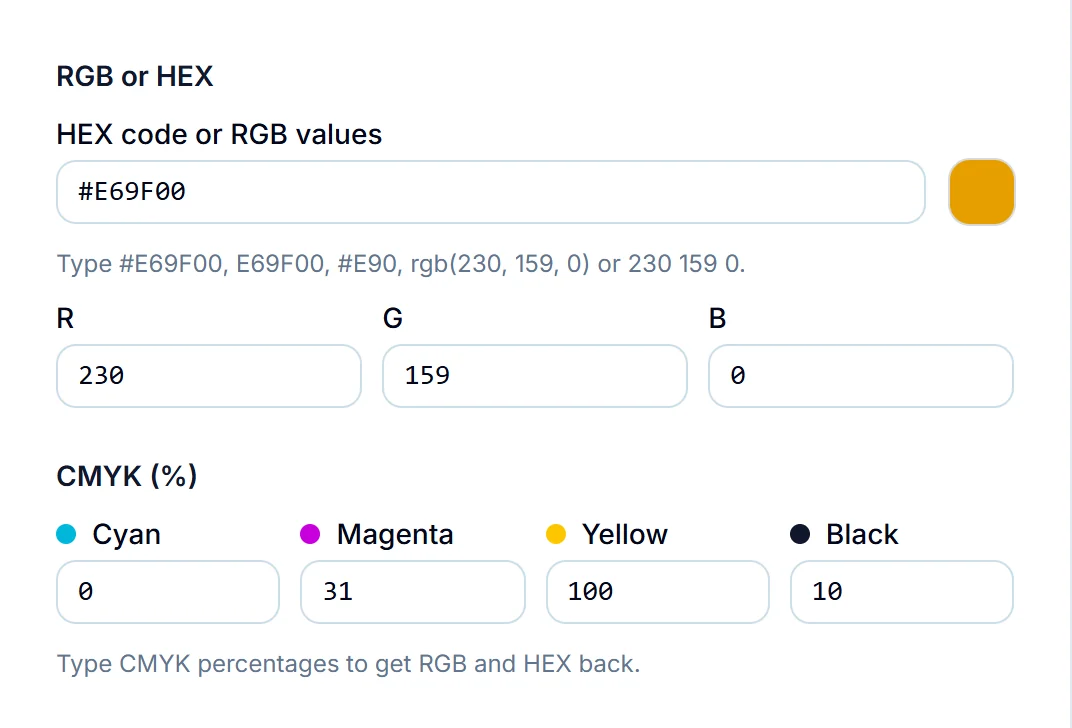 1
Enter a color
Type a HEX code or RGB values, or type CMYK percentages to get RGB and HEX back. The color picker and the presets below the fields work too.
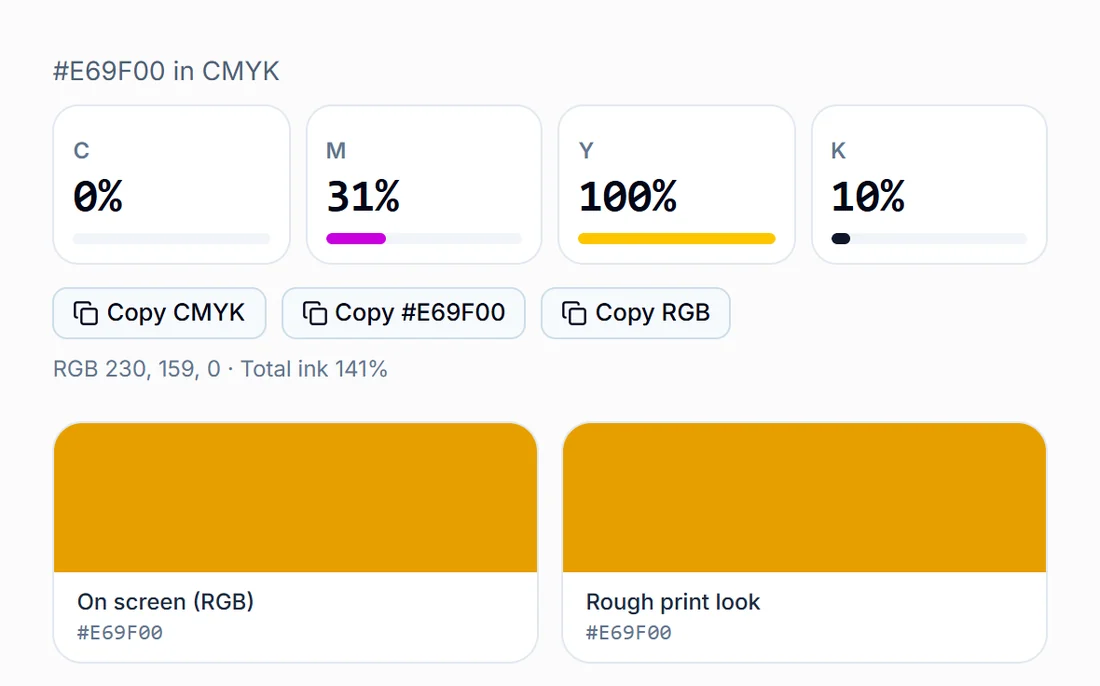 2
Read CMYK and the formula
The four ink percentages appear with copy buttons, above the color and its rough print look. The saturation check and the formula, step by step, follow below.
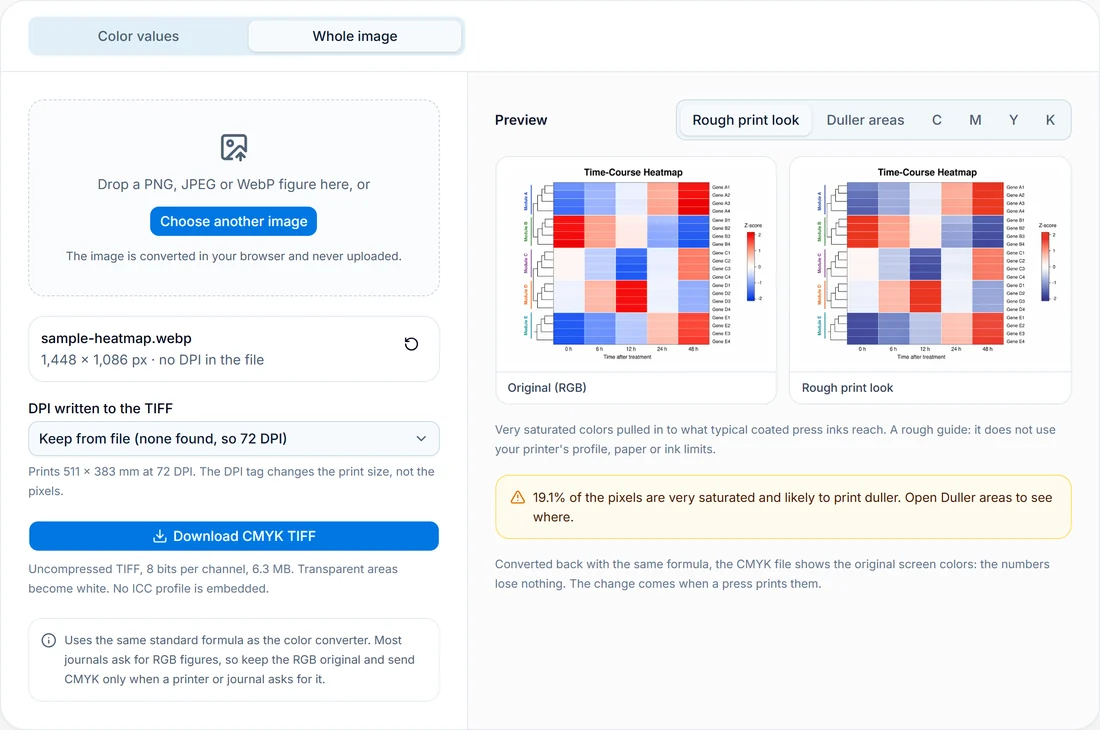 3
Convert a whole figure
Switch to Whole image, drop a PNG, JPEG or WebP, compare the rough print look with the original, choose the DPI and download the CMYK TIFF.
Two colors and four figures through the converter
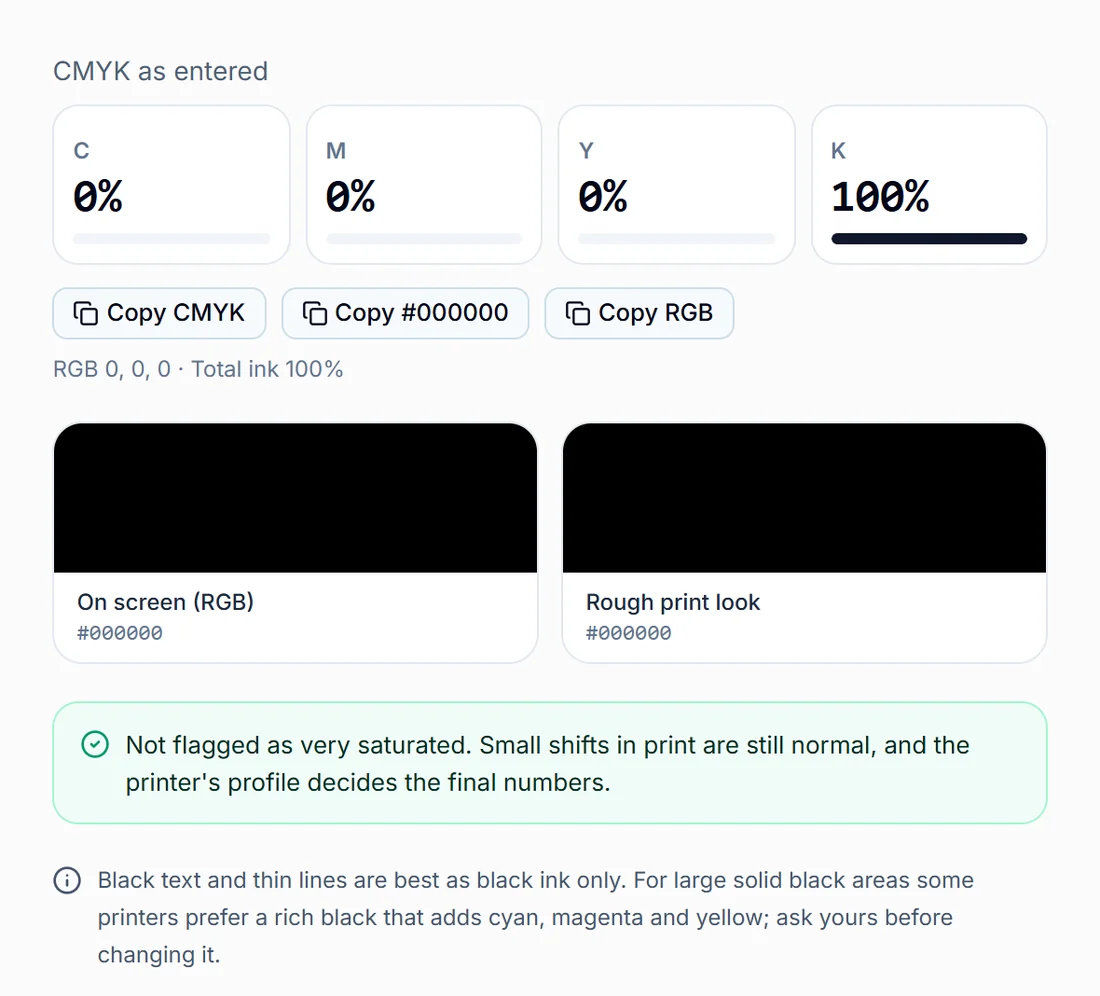
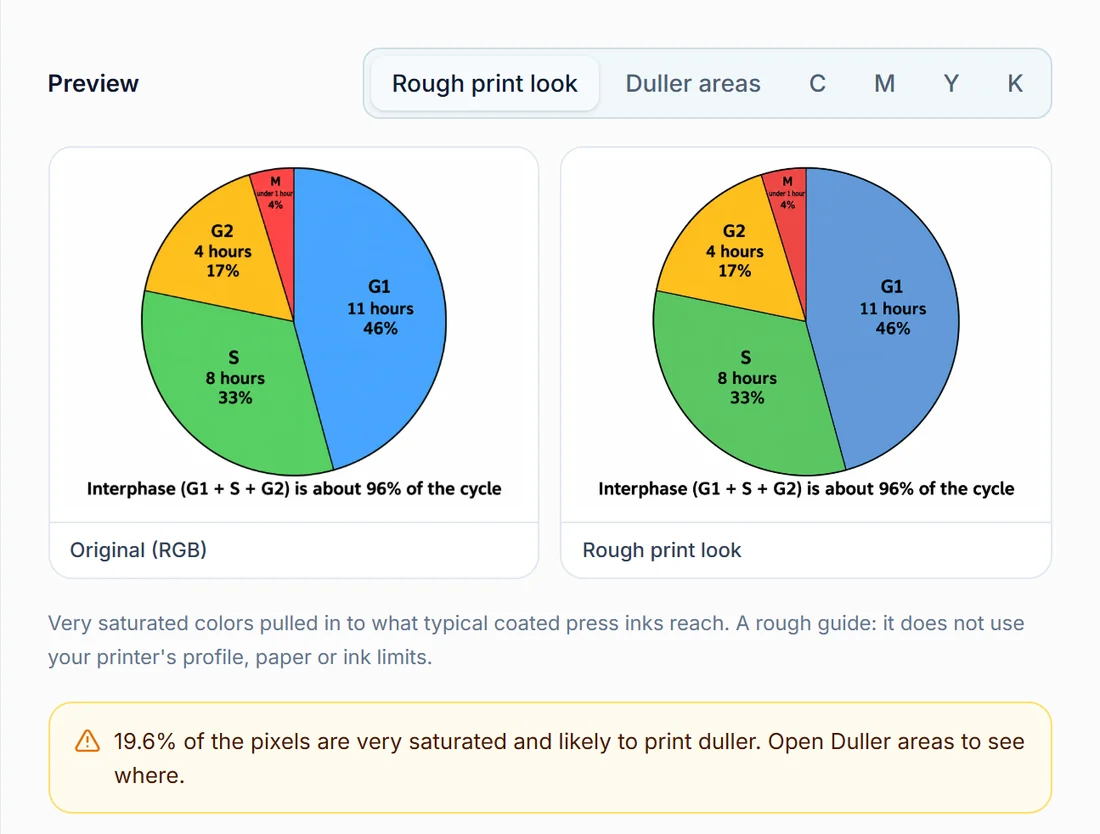
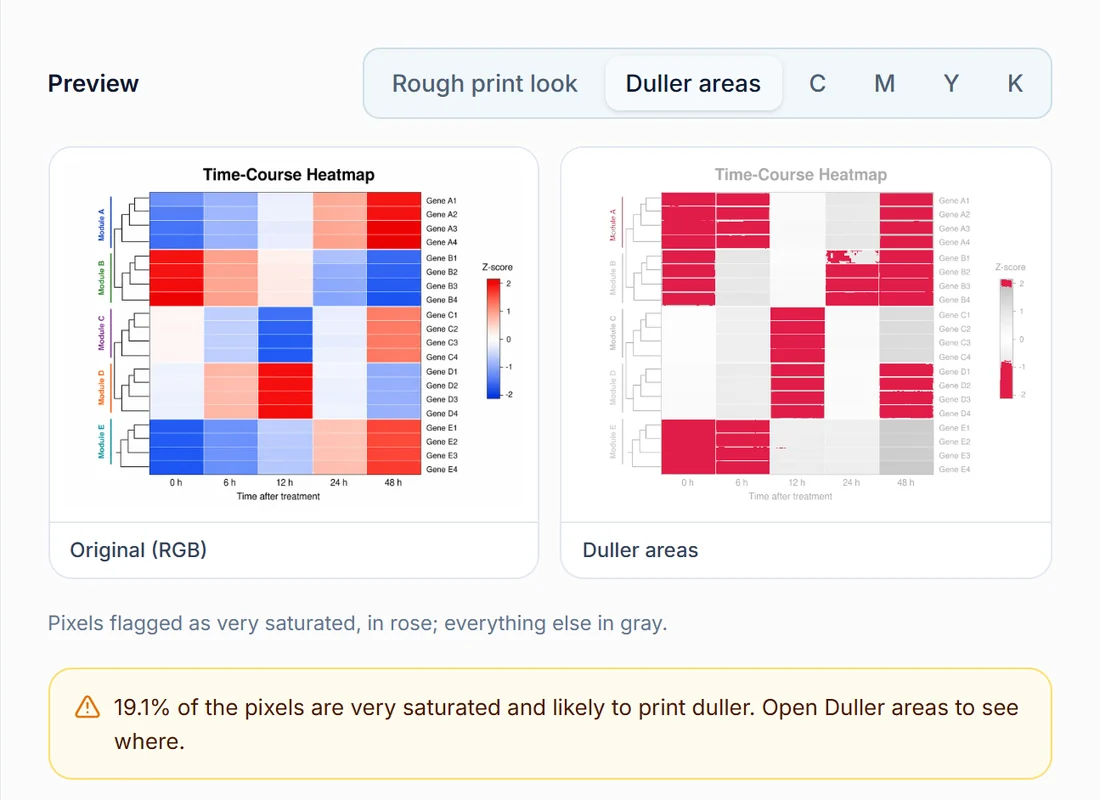
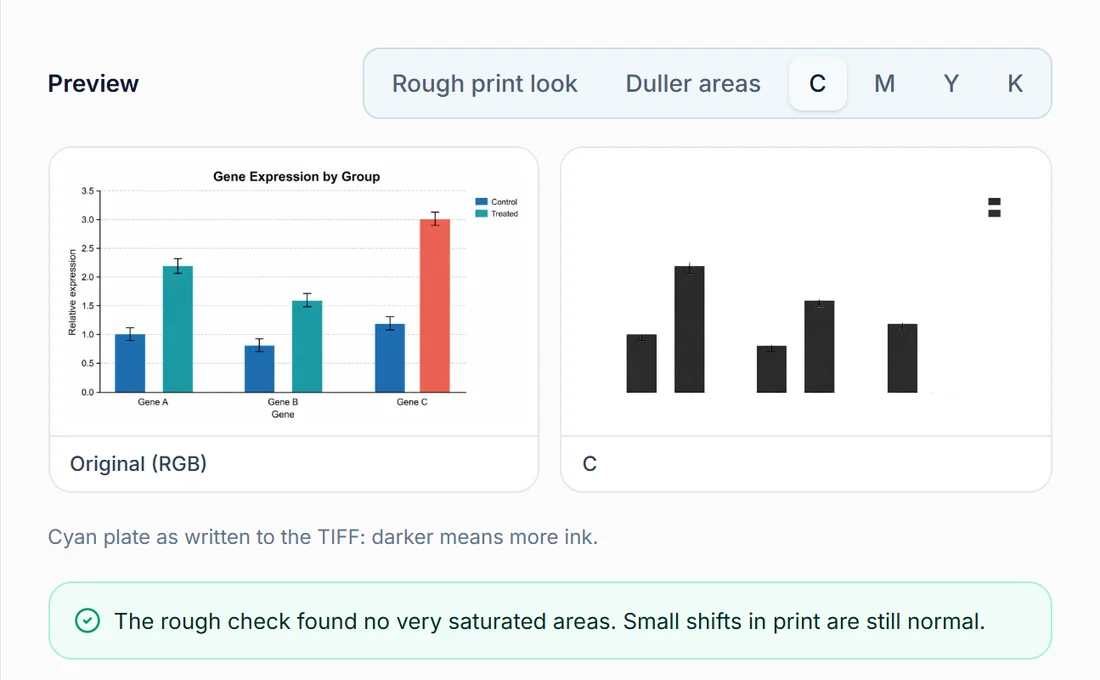
Real states of the converter: single colors in both directions and our own figures in the Whole image tab, with the values exactly as it showed them.
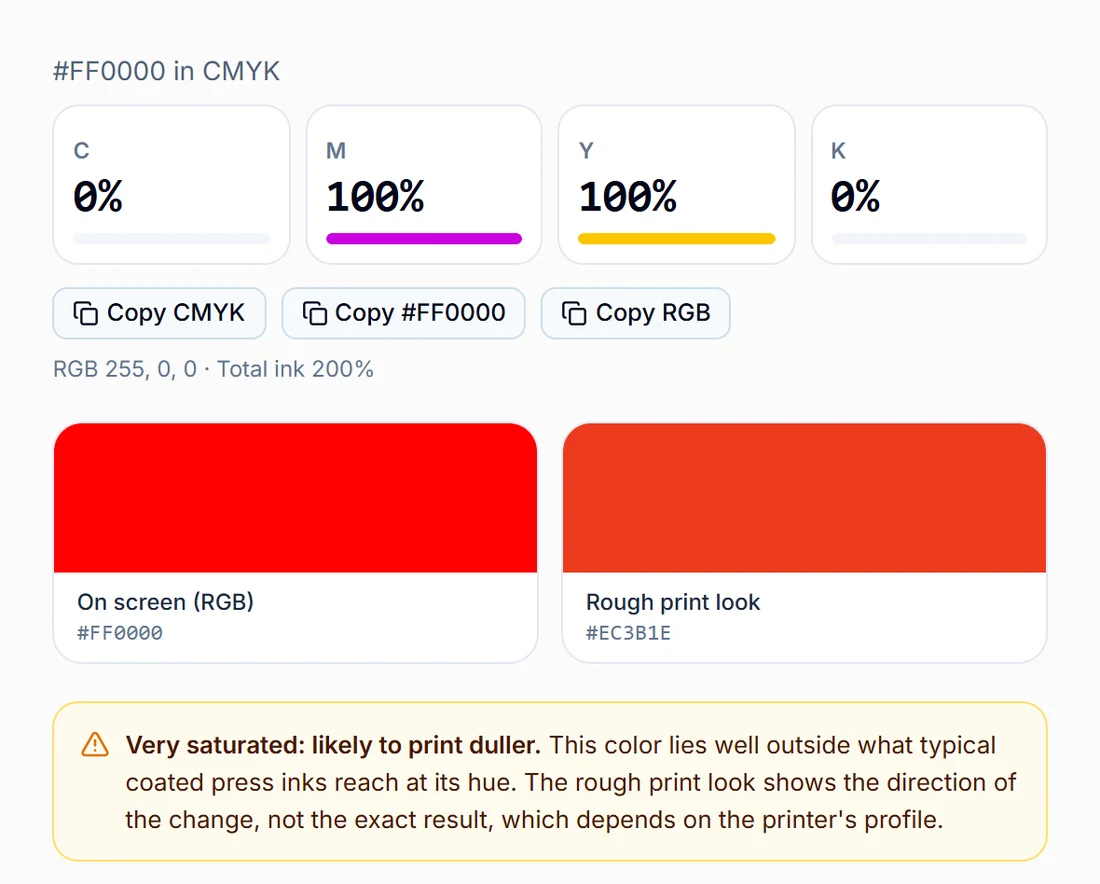
Guide
RGB, CMYK and printing your figures
The conversion formula, why printers get different numbers, which colors print duller, what journals ask for, and what the CMYK TIFF contains.
How to convert RGB to CMYK
This converter uses the standard formula given in most references. Scale each RGB value to the range 0 to 1, take black (K) as what the brightest channel leaves, and share the rest between cyan, magenta and yellow.
- r = R / 255, g = G / 255, b = B / 255
- K = 1 − max(r, g, b)
- C = (1 − r − K) / (1 − K), M = (1 − g − K) / (1 − K), Y = (1 − b − K) / (1 − K)
- Back to RGB: R = 255 × (1 − C) × (1 − K), and the same for G with M and for B with Y.
- Example: Okabe-Ito orange #E69F00 (230, 159, 0) gives K = 1 − 0.902 = 0.098, so C 0%, M 31%, Y 100%, K 10%.
Black stays black
Pure black #000000 converts to C 0, M 0, Y 0, K 100, which suits text and thin lines. For large solid black areas some printers prefer a rich black that adds cyan, magenta and yellow; ask yours before changing it.
Okabe-Ito orange, step by step
#E69F00 · RGB 230, 159, 0
- 1Scale to 0 to 1r 0.902, g 0.624, b 0.000
- 2Black from the brightest channelK = 1 − 0.902 = 0.098
- 3The rest as C, M and YC 0.000, M 0.309, Y 1.000
- C0%
- M31%
- Y100%
- K10%
Why your printer's CMYK numbers differ
The formula treats the inks as ideal and the same everywhere. Real inks, papers and presses are not, so print shops convert with an ICC profile that describes their press and paper, such as a FOGRA profile for coated paper in Europe or a GRACoL or SWOP profile in North America. The same RGB color comes out as different CMYK numbers in each profile, and none of them matches the formula exactly.
- Use the formula values as a starting point for slides, mockups and quick checks.
- If your printer sends a profile, convert with it in software that supports ICC profiles, such as Adobe Photoshop (Edit > Convert to Profile) or Affinity Photo.
- A profile also sets the total ink limit and how much black replaces cyan, magenta and yellow in dark colors. The formula does neither.
- With the formula, total ink always stays below 300%, because one of cyan, magenta and yellow is always zero.
This converter
Same numbers for every press
Your print shop
Numbers depend on the profile
Colors that print duller than on screen
A screen makes color by adding red, green and blue light; a press subtracts light with cyan, magenta, yellow and black ink on paper. The colors each can show overlap but differ: saturated RGB reds, greens, blues and purples, and the brightest cyans, lie outside what process inks reach, so they print duller or shift in hue.
- The converter flags very saturated colors with a rough check against the solid ink colors that ISO 12647-2 sets for coated paper, and shows a rough print look next to the screen color.
- Pure RGB green #00FF00, blue #0000FF and cyan #00FFFF are clear cases. Muted chart colors such as matplotlib's default blue #1F77B4 are not flagged.
- The check is a rough guide, not a profile conversion: the exact result depends on your printer's press, paper and profile.
- Fluorescence micrographs, with bright green, red or blue signal, are typical figures that lose saturation in CMYK.
Most saturated colors at each hue
- sRGB screen
- Coated offset press
CIELAB a* and b* (D50). Press: the solid inks and two-color overprints of ISO 12647-2 for coated paper. Screen: the sRGB primaries and secondaries. Lightness is not shown, so this is a sketch.
Do journals want RGB or CMYK figures?
Mostly RGB. Nine of the 14 publisher guides in our journal figure requirements table state a color mode, and all of them ask for or prefer RGB: Nature Portfolio, Cell Press, PLOS, Elsevier, Springer, Frontiers, MDPI, PNAS and eLife. Nature Portfolio, Elsevier and PNAS note that figures are converted to CMYK for print. A profile conversion to CMYK clips the colors a press cannot print, and they do not come back if the file is converted to RGB again.
- Submit RGB unless your journal's own instructions ask for CMYK.
- Print shops that produce posters, flyers or printed covers may ask for CMYK. Ask which profile they want.
- Keep the RGB original either way, and convert a copy.
Color mode in publisher guides
- Nature PortfolioRGB; artwork is converted to CMYK for print
- Cell PressRGB
- PLOSRGB (8 bit/channel) or grayscale only
- ElsevierRGB preferred unless the journal guide for authors says otherwise; converted to CMYK for print
- SpringerRGB (8 bits per channel)
- FrontiersRGB
- MDPIRGB, 8 bits per channel (encouraged)
- PNASRGB (original); converted to CMYK for print
- eLifeRGB
From our journal figure requirements table; the other five guides in it do not state a color mode.
What the CMYK TIFF download contains
The Whole image tab converts every pixel with the same formula and writes a TIFF that print software reads as CMYK: 8 bits per channel, uncompressed, with the DPI you choose stored in the file.
- Separated color (PhotometricInterpretation 5) with the CMYK ink set, one byte each for C, M, Y and K in every pixel.
- Transparent areas are flattened onto white first; the file has no alpha channel.
- The DPI is kept from your file or set to 300, 600 or 1,000. It changes the print size, not the pixels, so check that the pixels suffice with the Image DPI Checker.
- No ICC profile is embedded, so other software reads the numbers with its default CMYK profile and may show the colors somewhat differently.
- Uncompressed files are large: width × height × 4 bytes, about 32 MB for a figure of 4,000 × 2,000 pixels.
Preview before you download
Switch the preview to the C, M, Y and K plates to see where each ink goes, or to Duller areas to see which parts of the figure are very saturated.
A small figure and its four plates
Computed with the same formula as the TIFF download. Darker means more ink.
Frequently asked questions
Quick answers on the formula, white and black, accuracy, journal color modes, converting images, dull colors, and how other software shows the TIFF.
How do I convert RGB to CMYK?
Divide R, G and B by 255 to get r, g and b. K is 1 minus the largest of the three. Then C = (1 − r − K) / (1 − K), and the same for M with g and Y with b. Multiply by 100 for percentages. The converter above does this as you type and shows each step.
What are the CMYK values of white and black?
White #FFFFFF is C 0, M 0, Y 0, K 0: no ink, so the paper shows. Black #000000 is C 0, M 0, Y 0, K 100 with this formula. Printers may build large black areas as a rich black with some cyan, magenta and yellow added.
Is this converter accurate enough for printing?
It is exact for the formula, but no formula predicts a particular press. Printers convert with an ICC profile for their press and paper, so their CMYK numbers for the same RGB color will differ. Use these values for planning, and let your printer or a profile conversion set the final numbers when color has to match.
Should journal figures be RGB or CMYK?
RGB, unless your journal says otherwise. Nine of the 14 publisher guides in our journal figure requirements table state a color mode, and all of them ask for or prefer RGB: Nature Portfolio, Cell Press, PLOS, Elsevier, Springer, Frontiers, MDPI, PNAS and eLife. Nature Portfolio, Elsevier and PNAS note that figures are converted to CMYK for print. The Nature figure guidelines page shows an example.
How do I convert an image to CMYK?
Open the Whole image tab, drop in a PNG, JPEG or WebP figure, choose the DPI, and download the CMYK TIFF. The conversion runs in your browser. For a print job with a named profile, convert the RGB original with that profile instead.
Why do bright colors look dull after converting to CMYK?
Process inks cannot reach the most saturated colors a screen shows, especially pure greens, blues and purples. A profile conversion moves those colors to the nearest printable ones, which look duller. The formula on this page keeps the numbers, but a press still cannot print those colors, which is why the tool flags them.
Why does my CMYK TIFF look different in other software?
The TIFF holds plain CMYK numbers without an embedded ICC profile. Image editors show such files through their default CMYK profile, which assumes a particular press and paper, so the colors can look somewhat different from the RGB original.
Related tools
Check what journals ask for, prepare the file, or work on the colors themselves.
Nature figure guidelines
Widths, resolution, fonts and file formats for Nature, including its RGB color mode.

Journal figure requirements
Column widths, DPI, file formats and color mode from the guides of 14 publishers.
Image DPI checker
Check whether a figure has enough pixels for 300, 600 or 1,000 DPI at its print width.
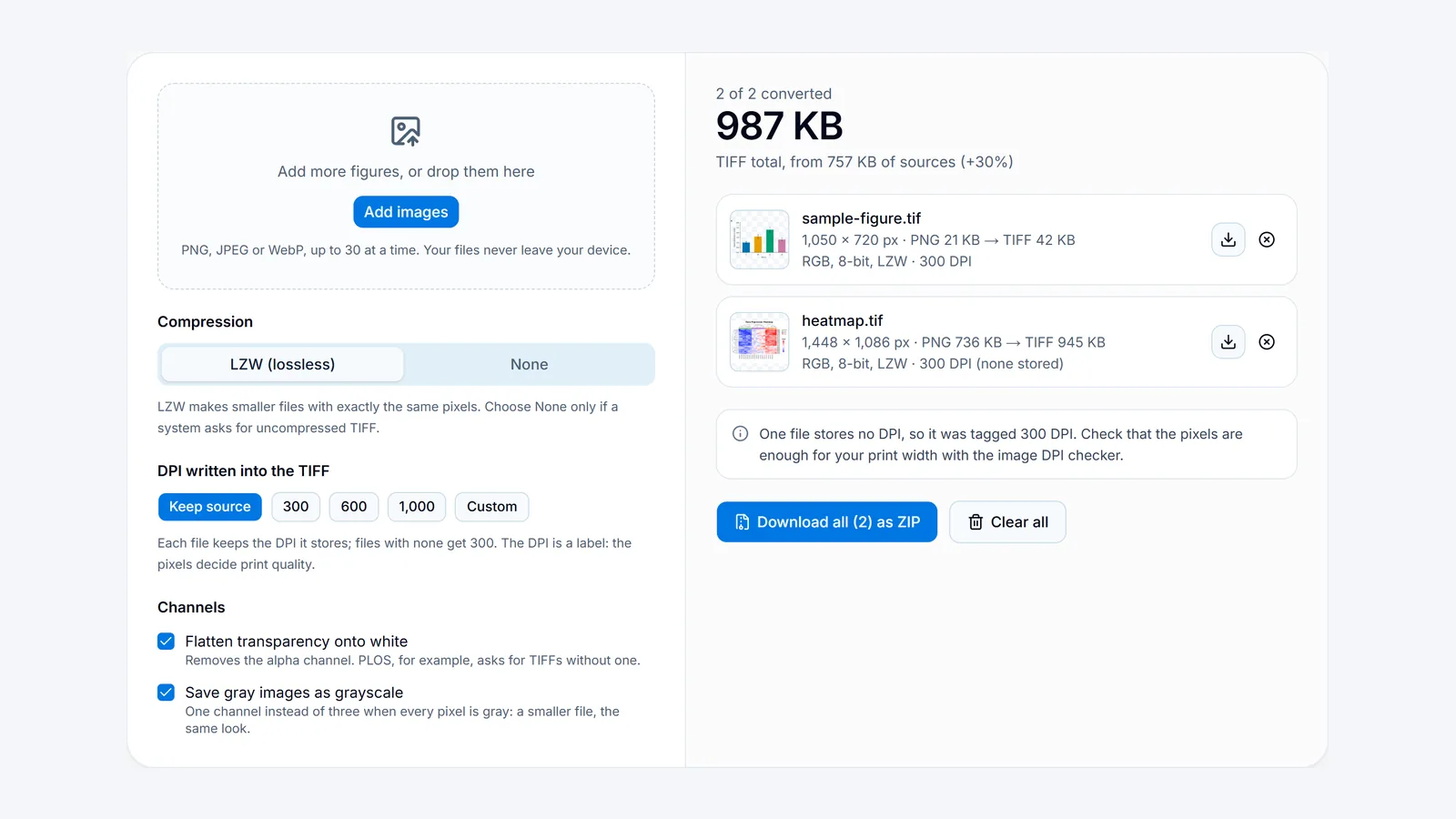
PNG to TIFF converter
Convert PNG or JPEG figures to TIFF with LZW compression and the DPI journals ask for.
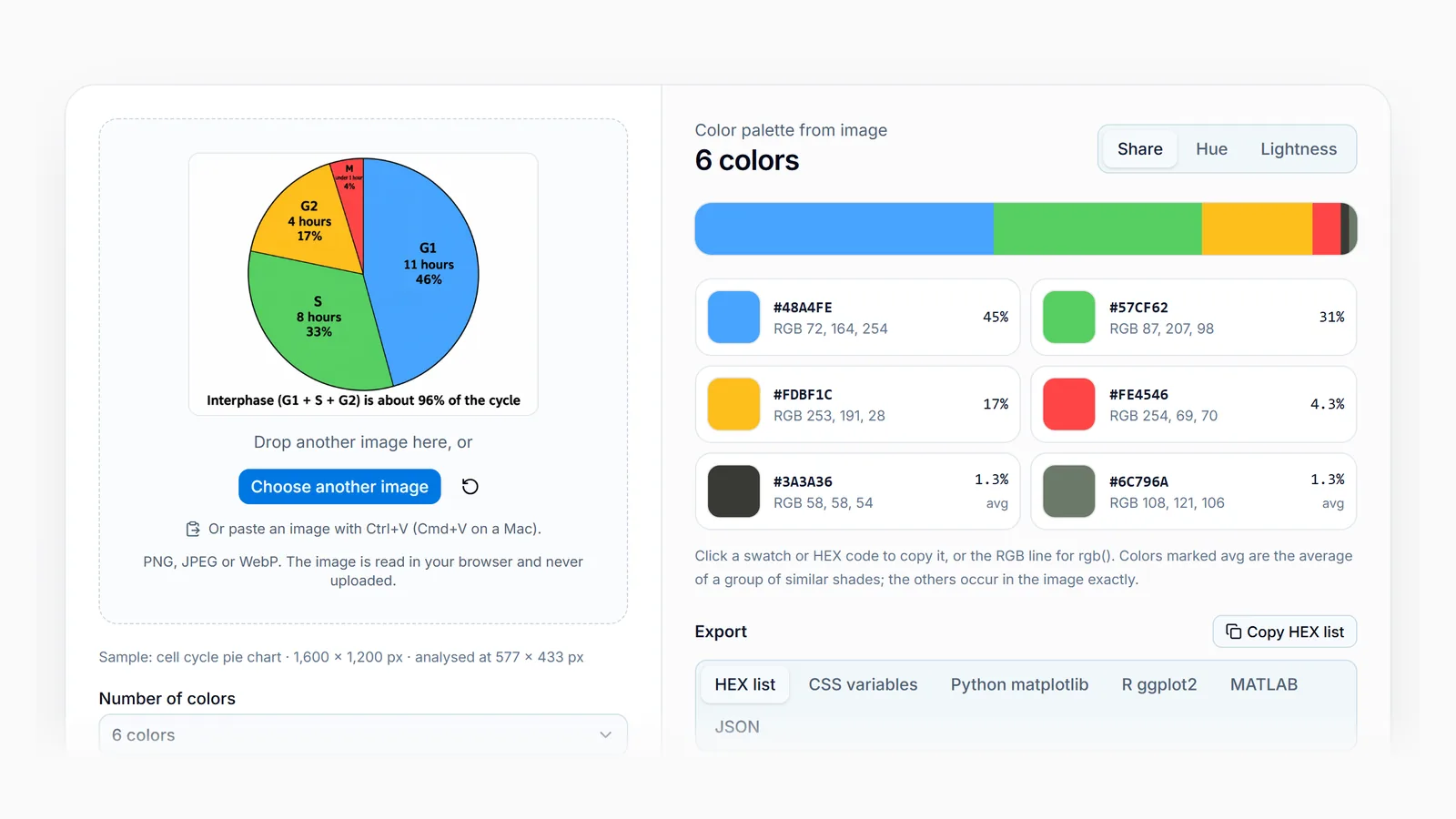
Color palette from image
Extract the main colors of a figure as HEX and RGB, with code for matplotlib and ggplot2.
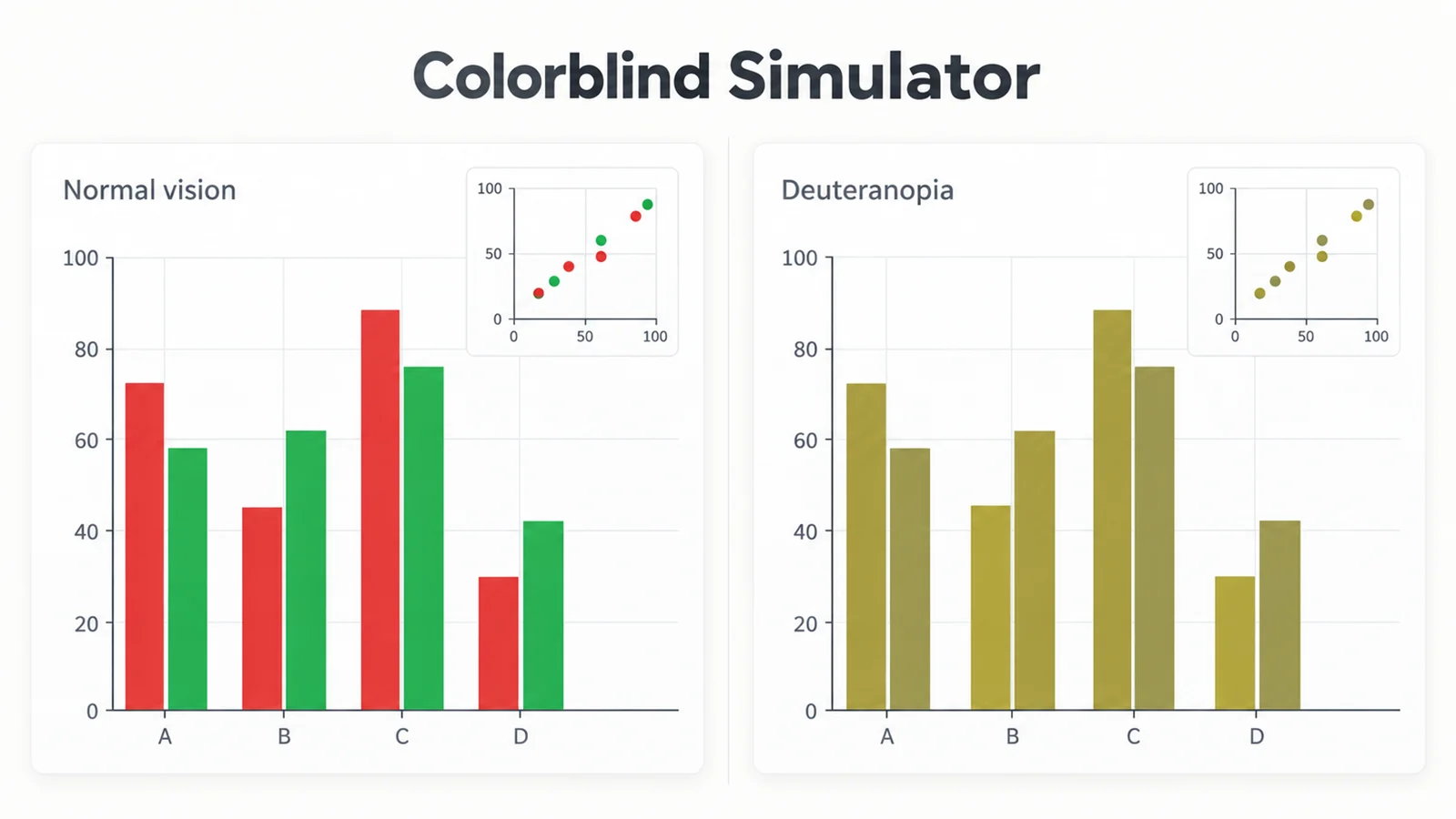
Colorblind simulator
Preview a figure with deuteranopia, protanopia and tritanopia, and flag clashing colors.
Printing a poster?
The AI scientific poster maker turns an abstract or study summary into a conference-ready research poster. Convert it here if your print shop asks for CMYK.
Open the poster maker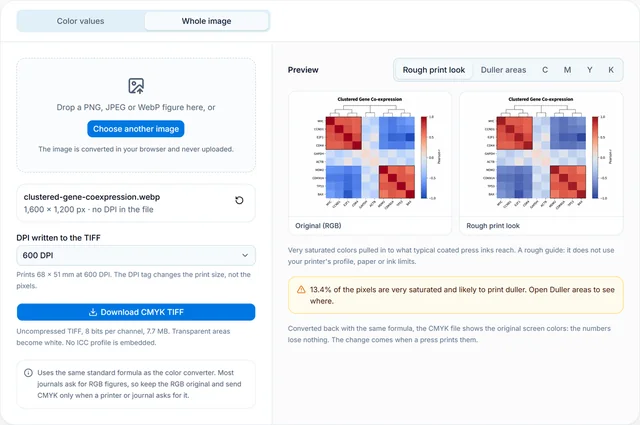
Last checked: November 25, 2026. Sources: Nature research figure guide; PNAS digital art guidelines (PDF); PLOS ONE figures; TIFF 6.0 specification.