
Free sequence diagram tool
Sequence diagram generator: UML sequence diagrams from plain text
Write who sends what to whom, one message per line, and get a clean UML sequence diagram: lifelines, activation bars, synchronous, asynchronous and reply messages, objects created and destroyed, and alt, opt, loop and par frames. Prefer not to type syntax? The builder adds participants, messages and fragments from short forms. Free, in your browser, with SVG, PNG and PDF export.
Everything runs in your browser: nothing is uploaded, and the diagram is drawn exactly from your code. Undo with Ctrl+Z.
Step by step
How to draw a sequence diagram
Six steps from an empty page to an exported figure. Type them as code or add each piece from the Build tab.
- 1
List the participants
Decide who takes part, left to right in the order they first act: usually the person or system that starts the interaction on the left. Add each one with participant Name (a box) or actor Name (a stick figure).
- 2
Write the messages in time order
One line per message, top to bottom: Scientist->>LIMS: submit plate. Use ->> for a call the sender waits on, -) for a message it does not wait on, and -->> for the reply.
- 3
Show when a participant is busy
Add + after the arrow to start an activation bar on the receiver (A->>+B) and − on the reply to end it (B-->>-A). The bars make nested calls easy to follow.
- 4
Frame alternatives, options and loops
Wrap messages in alt … else … end for if-else, opt … end for an optional step, loop … end for repetition and par … and … end for parallel work. Write the condition after the keyword.
- 5
Add notes and lifecycle events
Note right of LIMS: text explains a step. create participant starts a lifeline part-way down; destroy ends one with a cross. Number the messages with the autonumber option.
- 6
Export the diagram
Download SVG or PDF for reports and papers, PNG for slides, or copy the code as a Markdown block for a README, where it renders on GitHub and GitLab.
Templates
Sequence diagram examples, from lab automation to sign-in
Every template is a complete diagram that follows the UML notation. Open one in the editor and change the participants and messages to match your system.
Notation reference
Sequence diagram symbols and their code
The UML 2.5.1 symbols of a sequence diagram, what each one means, and the line that draws it here. Add puts a working example into the instrument control diagram.
| Symbol | Element and meaning | Code in this tool |
|---|---|---|
Lifeline A participant, with a dashed line down the page; time runs downwards. | participant LIMS | |
Actor A person or external system that takes part, drawn as a stick figure. | actor Technician | |
Synchronous message Solid line, filled arrowhead: the sender waits for the call to finish. | A->>B: call() | |
Asynchronous message Solid line, open arrowhead: the sender does not wait. | A-)B: event | |
Reply message Dashed line back to the caller, with the return value. | B-->>A: result | |
Self-message A call a participant makes on itself. | A->>A: check() | |
Activation bar Execution specification: the participant is busy handling a call. | A->>+B: call()
B-->>-A: done | |
Create message Dashed line, open arrowhead to the new participant’s box, which starts here. | create participant Run
A--)Run: new() | |
Destruction The lifeline ends in an X. | destroy Run
A-xRun: close | |
Combined fragment A frame with an operator (alt, opt, loop, par, break, critical) and guards in brackets. | alt [ok]
…
else [failed]
…
end | |
Note A comment beside a lifeline, or across two. | Note over A,B: text | |
Lost and found messages An arrow ending at (lost) or starting from (found) a small filled circle. | No symbol in this tool; describe the sender or receiver in a note. |
Common mistakes
Six sequence diagram mistakes to avoid
Every reply drawn as a solid arrow
WrongB->>A: result, which reads as a new call from B to A.
RightReplies are dashed: B-->>A: result. Keep solid arrows for calls and signals.
Asynchronous work drawn as a call
WrongShop->>Mail: send receipt, as if the shop waited for the email to go out.
RightUse the open arrowhead for fire-and-forget messages: Shop-)Mail: send receipt.
Activation bars that never end
Wrongactivate Server with no deactivate, so the bar runs to the bottom (or the diagram will not draw).
RightPair every + with a − (A->>+B … B-->>-A), or activate with deactivate.
opt used for if / else
WrongTwo opt frames, one for success and one for failure.
RightUse one alt frame with two operands: alt [valid] … else [invalid] … end.
A diagram for every path at once
WrongNested alt frames inside loops inside alt frames until nothing is readable.
RightDraw the main scenario, then one diagram per important variation, or use a state machine diagram for all paths.
Messages labelled with the arrow, not the operation
WrongLIMS->>Ctrl: sends request.
RightName the operation or event and its data: LIMS->>Ctrl: startRun(P-104, protocol).
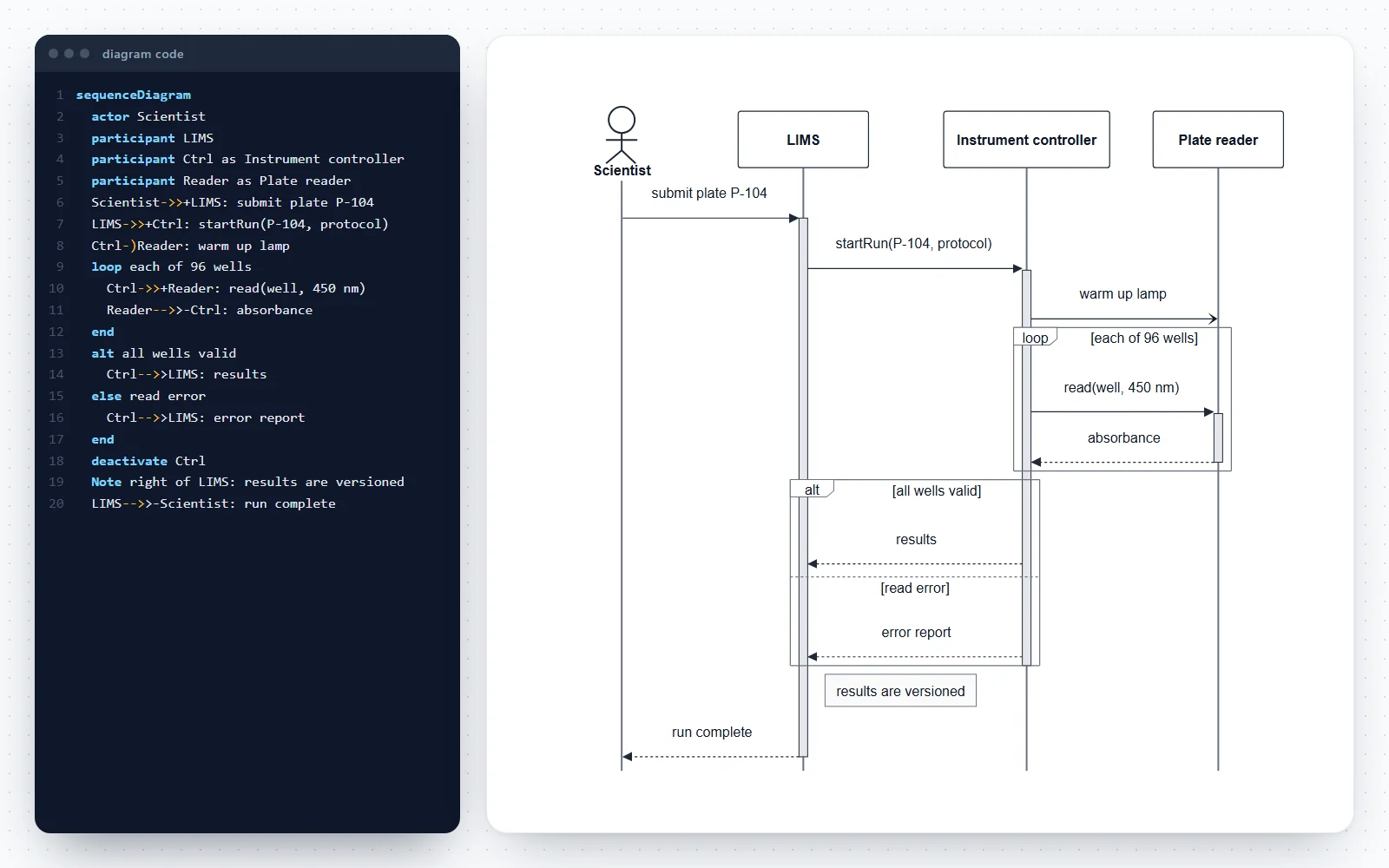
How this sequence diagram generator works
The code on the left and the diagram on the right stay in step: change a line and the diagram redraws, use the builder and the code is written for you.
- Code tab: a line-numbered editor. Errors are marked on their line with a plain-English explanation, and the last good diagram stays visible while you fix them.
- Build tab: add participants and actors, messages of every type, activation bars, combined fragments, notes, and created or destroyed participants. Each form previews the exact code before it is added.
- Style tab: four figure styles, text size, message numbering and an option to repeat the participant boxes under the diagram for long interactions.
- Seven templates, including a plate reader run controlled from a LIMS, a sequencing core submission, a user sign-in, a checkout and the TCP handshake.
- Everything is saved in your browser automatically. Undo and redo cover every change, typed or built.
What is a sequence diagram?
A sequence diagram is a UML interaction diagram that shows how participants exchange messages over time. Participants are spread across the top, each with a dashed lifeline running down the page; messages are horizontal arrows between lifelines, and time flows from top to bottom.
- It answers “who calls whom, in what order, and what comes back?” for one scenario, such as a successful login or a failed instrument run.
- Participants can be people (actors), software objects, services, devices or whole systems. In UML 2 the lifeline head is written name : Type, for example ctrl : InstrumentController, and is not underlined.
- A sequence diagram shows one or a few scenarios, not every possible path. For all the states an object can be in, use a state machine diagram; for the overall flow of work, an activity diagram or flowchart.
- People also search for it as a “sequential diagram” or a “diagram sequence”: the UML name is sequence diagram.
Message types: synchronous, asynchronous, reply, create and destroy
The arrowhead and the line style say what kind of message it is. UML 2.5.1 distinguishes them precisely.
- Synchronous call: solid line, filled arrowhead. The sender waits for the call to finish, as when a controller asks a plate reader for one well’s reading. Code: A->>B: read(well).
- Asynchronous message: solid line, open arrowhead. The sender carries on without waiting, as with an event or a queued job. Code: A-)B: warm up lamp.
- Reply: a dashed line back to the caller, carrying the return value. Code: B-->>A: absorbance.
- Create: a dashed line with an open arrowhead pointing at the new participant’s box, which starts at that point on the page. Code: create participant Run, then A--)Run: new().
- Destroy: the participant’s lifeline ends in a large X. Code: destroy Run, then A-xRun: close.
- Self-message: an arrow that leaves and returns to the same lifeline, for a call an object makes on itself. Code: A->>A: validate().
- Lost and found messages (an arrow ending at, or starting from, a small filled circle) are part of UML but have no symbol here; use a note to say where the message goes.
Activation bars (execution specifications)
An activation bar is the thin rectangle on a lifeline that shows when that participant is busy carrying out a call, including any calls it makes in turn.
- Start one with + on the incoming message (A->>+B: run()) and end it with − on the reply (B-->>-A: done), or write activate B and deactivate B on their own lines.
- Bars can nest: if B calls itself or is called again while busy, a second bar is drawn slightly offset.
- Every activate needs a matching deactivate. An unmatched one is the most common reason a sequence diagram will not draw.
- Activation bars are optional. Leave them out of a high-level diagram, and add them when the nesting of calls matters.
Combined fragments: alt, opt, loop, par, break and critical
A combined fragment is a frame around part of the diagram, labelled with an interaction operator in a small pentagon. Conditions, called guards, are written in square brackets.
- alt: alternatives, like if / else if / else. Only the operand whose guard is true happens. Code: alt [guard] … else [guard] … end.
- opt: an optional part that happens only if its guard is true; an alt with a single operand.
- loop: the content repeats while the guard holds, or a fixed number of times, as in loop each of 96 wells. UML also allows loop(min, max).
- par: the operands run in parallel; their messages may interleave in any order. Code: par … and … end.
- break: if the guard is true, the fragment runs and the rest of the enclosing interaction is skipped, as for an error that stops a run.
- critical: a region that must not be interleaved with other messages, such as moving a plate with a robot arm.
- UML 2.5.1 defines six more operators: seq (weak sequencing, the default), strict, neg (invalid traces), assert, ignore and consider. They are rare in practice and are not drawn by this tool; a note can stand in for them.
Sequence diagrams for lab automation and research software
Anywhere several systems hand work to each other, a sequence diagram makes the hand-offs and the waiting visible. That is common in modern labs.
- Instrument control: a LIMS or scheduler starts a run, the controller drives the instrument, readings come back, and errors take an alternative path (the instrument control template).
- Lab automation: a scheduler coordinating a liquid handler, a robot arm, an incubator and a plate reader, with parallel steps and a critical transfer.
- Core facility workflows: sample submission, run creation, data delivery and closing the run, with participants created and destroyed.
- Data services and APIs: a client, an API, a cache and a database, the clearest way to document which calls hit the database.
- In a methods section or a software paper, one sequence diagram often explains a data flow more precisely than a paragraph.
Sequence diagram, communication diagram or flowchart?
Several diagrams show behaviour. Pick the one that fits the question you are answering.
- Sequence diagram: the order of messages between named participants in one scenario. Best when timing and waiting matter.
- Communication diagram: the same messages, numbered 1, 1.1, 2… along links between objects. Better when the structure of the links matters more than the timing.
- Activity diagram or flowchart: the steps of a process and its decisions, without saying which participant sends which message.
- State machine diagram: the states one object goes through and the events that change them, across all scenarios.
- Timing diagram: how the state of each participant changes against a time axis, for hardware and real-time systems.
A web sequence diagram tool that writes text, not pixels
Like other web sequence diagram tools, this one turns text into a drawing, so the diagram is easy to change and to keep alongside code.
- The code is the Mermaid diagram syntax, which GitHub, GitLab and many wikis render directly: a diagram in a README stays identical to the one you exported here.
- Inserting a message is a one-line change: the layout of every other message moves down automatically.
- Text is easy to review and version, and it is accessible: the code is a readable description of the diagram.
- Paste code from an existing document or from an AI chat to check and render it; errors are reported with their line number.
Tips for readable sequence diagrams
A sequence diagram becomes hard to read long before it becomes wrong. These habits keep it clear.
- One scenario per diagram. Show the main success path first, and put error handling in an alt frame or a second diagram.
- Order participants so most arrows point right: the initiator on the left, back-end systems on the right.
- Name messages after operations or events (startRun(plateId), results ready), not after the arrow (“sends to”).
- Keep diagrams to about 15–25 messages. Number them (autonumber) when the text refers to steps.
- Use the same participant names as in the class diagram, so the two diagrams can be read together.
Frequently asked questions
Is this sequence diagram generator free?
Yes, with no sign-up, no watermark and no limits. The editor runs in your browser, nothing is uploaded, and your diagram is saved on your device so it is still there when you return.
How do I make a sequence diagram from text?
Start with the line sequenceDiagram, list the participants (participant LIMS, actor Scientist), then write one message per line in time order, such as Scientist->>LIMS: submit plate. The diagram is drawn as you type. The templates above the editor are complete examples to copy from.
Can I make a sequence diagram without writing code?
Yes. The Build tab adds participants, messages, activation bars, fragments, notes and created or destroyed participants through short forms, and shows the code each form adds. You can also open a template and only change the names.
What is the difference between a synchronous and an asynchronous message?
A synchronous message is a call the sender waits on until it completes: solid line, filled arrowhead (->>). An asynchronous message is sent without waiting, like an event or a job put on a queue: solid line, open arrowhead (-)). Replies to synchronous calls are dashed (-->>).
How do I show if / else, loops and parallel steps?
Use combined fragments. alt with else gives alternatives, opt an optional step, loop a repetition and par … and … parallel branches, each closed with end. Write the condition after the keyword, for example loop each of 96 wells.
What are activation bars and do I need them?
Activation bars (execution specifications in UML) are thin rectangles on a lifeline showing when a participant is busy handling a call. They are optional but make nested calls easy to follow. Add + after an arrow to start one and − on the reply to end it.
How do I show an object being created or destroyed?
Write create participant Name just before the message that creates it; its box then starts at that point instead of at the top. To end a lifeline with a cross, write destroy Name just before the message that destroys it.
Is a “sequential diagram” the same as a sequence diagram?
Usually, yes. “Sequential diagram” and “diagram sequence” are common ways of searching for the UML sequence diagram. If you mean the steps of a process in order, without participants exchanging messages, a flowchart or workflow diagram is the better fit.
Does the code work in GitHub, GitLab or a wiki?
Yes. The editor uses the Mermaid diagram syntax, which GitHub and GitLab render in Markdown files. Use More, then Copy as Markdown block, and paste it into a README or an issue.
How do I number the messages?
Turn on Number the messages in the Style tab, or add the line autonumber under sequenceDiagram. Each message then carries a sequence number you can refer to in text.
Can participants have long names or types?
Yes. Give each participant a short name for the code and a label to display: participant Ctrl as Instrument controller. In UML style you can write the label as name : Type, such as ctrl : PlateReaderController.
How big can a sequence diagram be?
There is no fixed limit, but readability drops beyond about 8 participants or 25 messages. Split long scenarios into several diagrams, and use Repeat participants at the bottom for tall diagrams.
Which format should I export for a paper or a presentation?
SVG or PDF for papers, theses and posters: they are vector files with real text that can be edited in Illustrator, Inkscape or PowerPoint. PNG at 2× or 4× for slides and web pages, or Copy image to paste straight into a document.
Why does my diagram show an error?
A line does not follow the syntax. The status shows the line number, the line is marked red, and the message explains the problem, such as a message without text after the colon or a fragment without end. The last diagram that worked stays on screen until it is fixed.
Related diagram tools
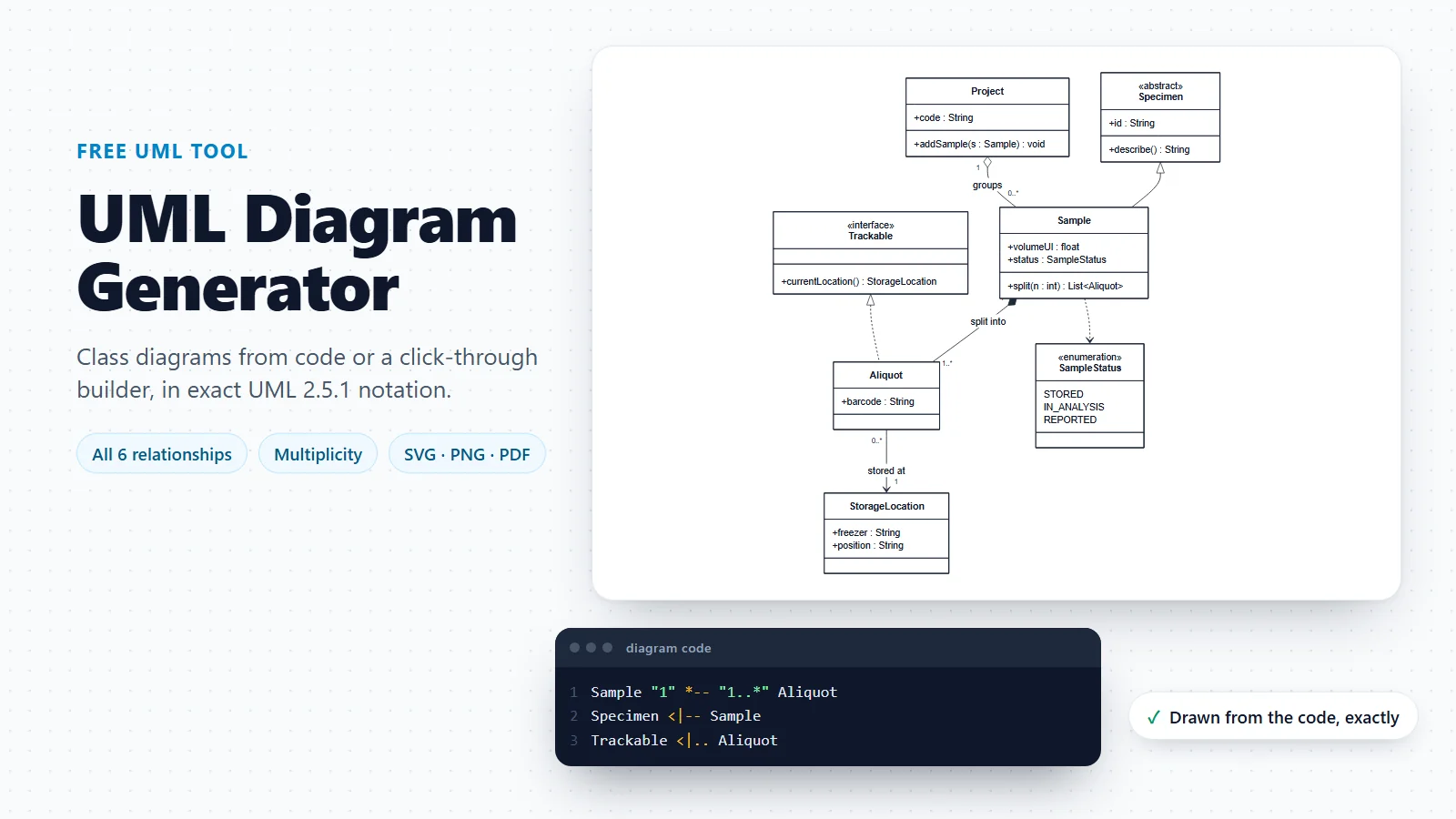
UML Diagram Generator
Class diagrams with every UML relationship, plus a guide to all 14 UML diagram types.
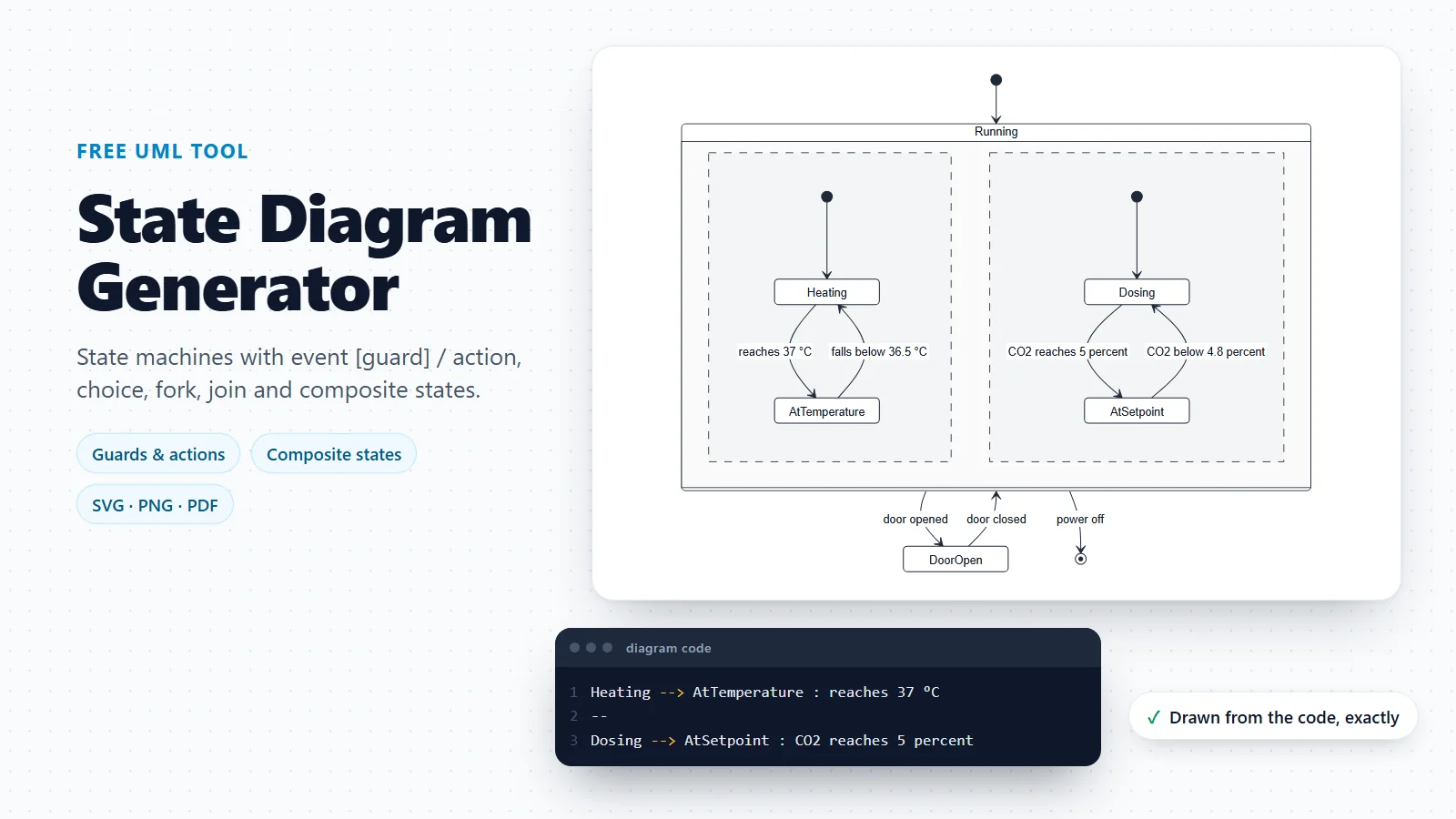
State Diagram Generator
The states one object passes through, with guards, actions, choice, fork, join and composite states.
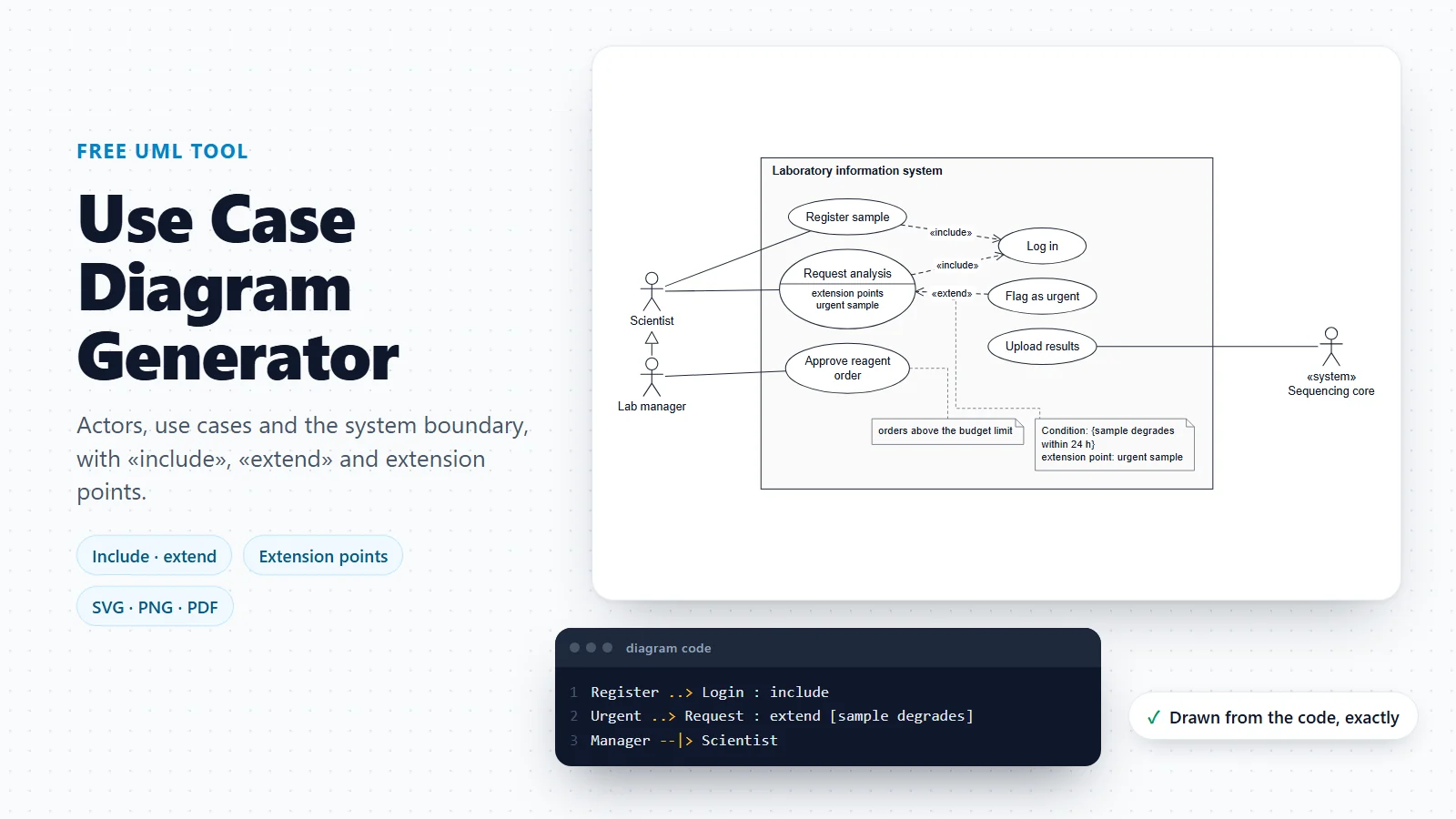
Use Case Diagram Generator
The actors and goals behind each scenario, with «include» and «extend» between use cases.
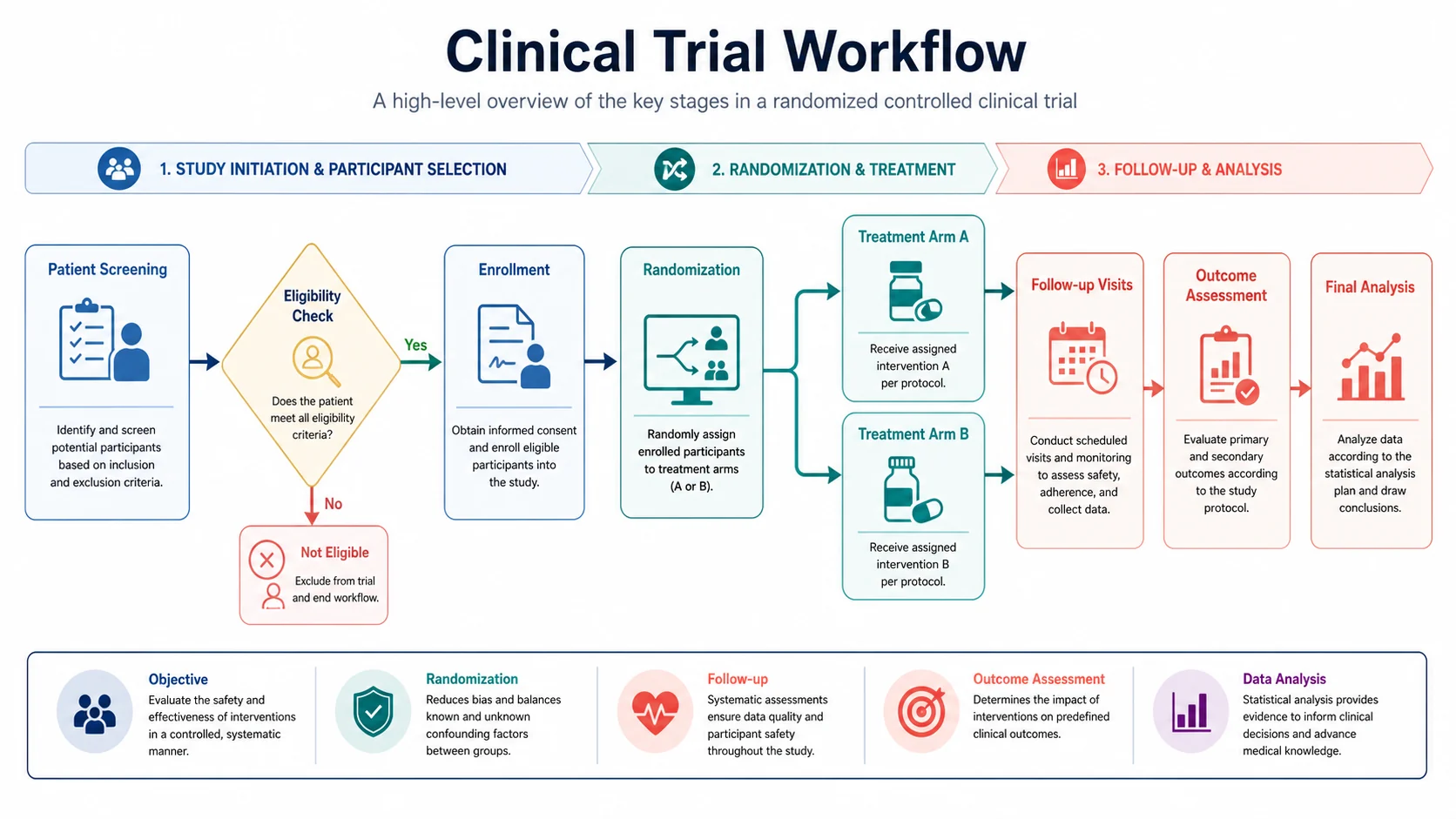
Workflow Diagram Generator
A flowchart of the steps and decisions in a process, from a short description.
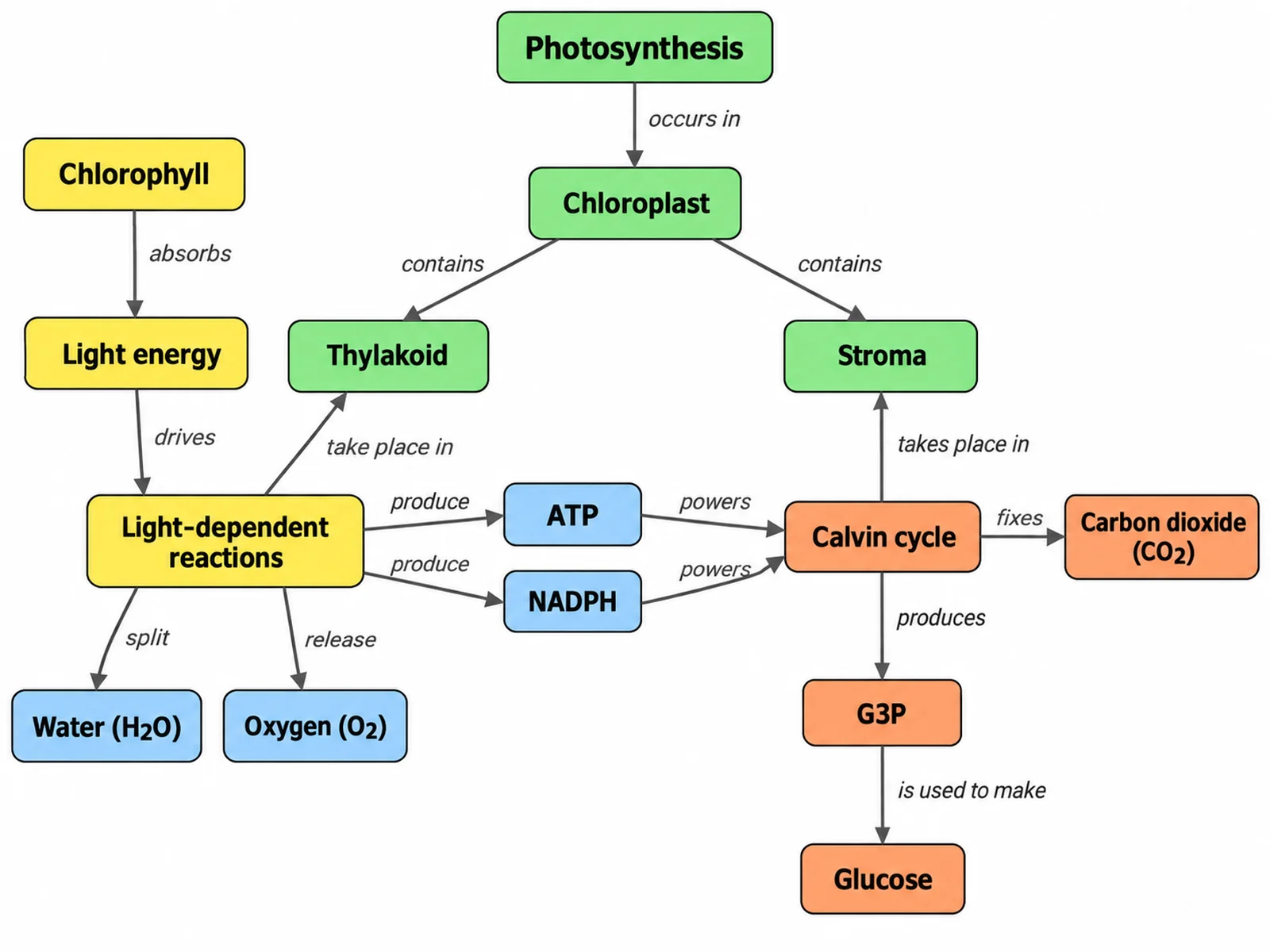
Concept Map Generator
Ideas and how they relate, with labelled arrows, for planning and teaching.
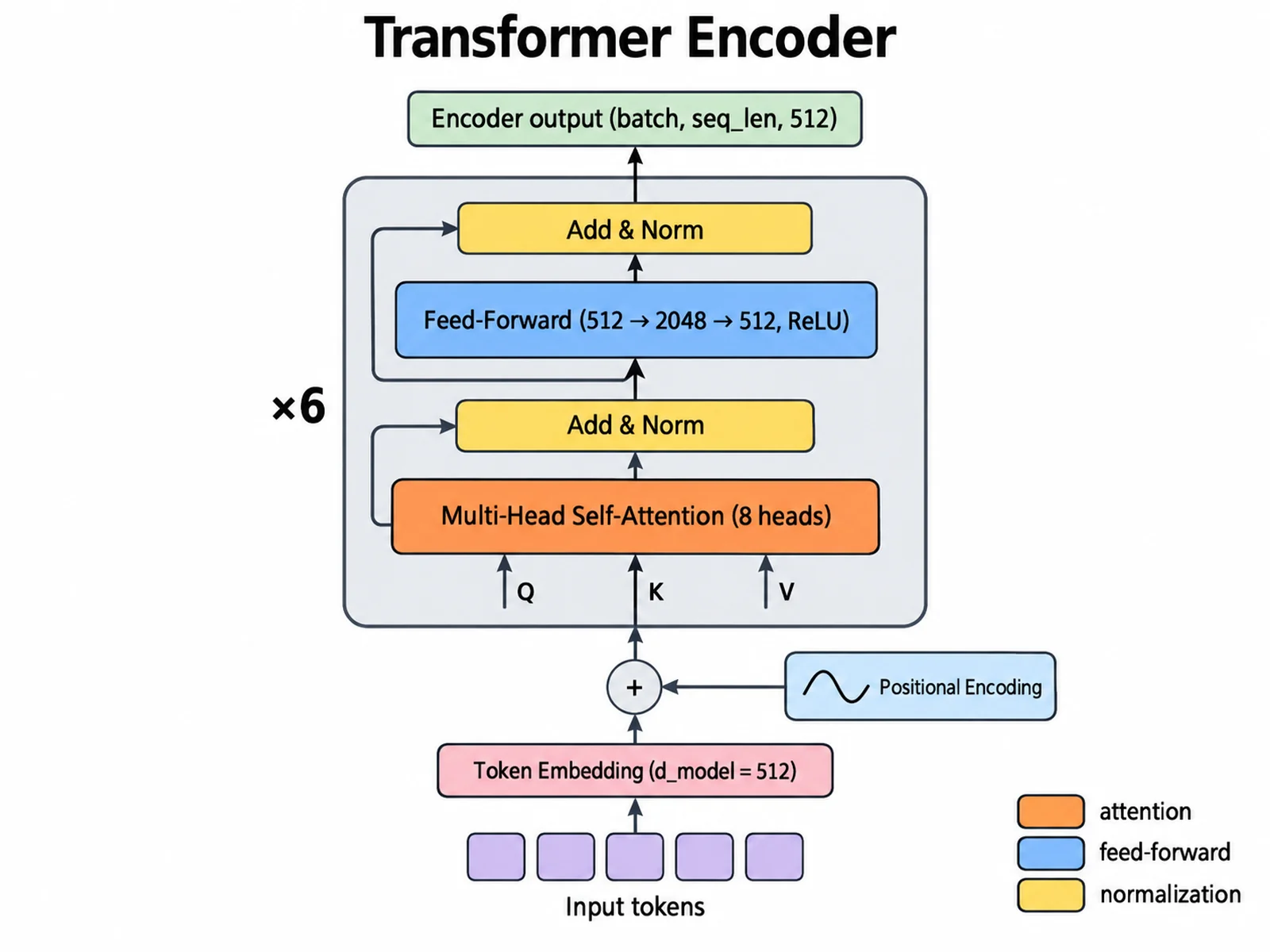
Neural Network Diagram Generator
Architecture figures for machine-learning models and data pipelines.
Mapping a whole process rather than one conversation?
When the question is “what happens next?” rather than “who calls whom?”, a flowchart reads better. The workflow diagram generator turns a description of a process into one.
Open the workflow diagram generator