
Free tool
Change Image DPI for PNG, JPEG and TIFF Figures
Change the DPI of an image without changing a single pixel: load a PNG, JPEG or TIFF, pick 300, 600, 1,000 or your own value, and download the same figure with the new DPI written into its metadata. Need a set number of pixels for a journal column? Switch to resizing for a print width. Everything runs in your browser, so your figure never leaves your device.
- Runs in your browser, nothing uploaded
- Pixels untouched when only the DPI changes
- PNG, JPEG and TIFF
- Journal column presets
Drop a figure here, or
PNG, JPEG or TIFF. Your files never leave your device.
One image, 2,000 px wide, under four DPI tags
The pixels stay the same; only the printed width changes.
- 72 DPI705.6 mm (27.78 in)
- 96 DPI529.2 mm (20.83 in)
- 300 DPI169.3 mm (6.67 in)
- 600 DPI84.7 mm (3.33 in)
How to use it
Change the DPI of an image in three steps
Load a figure, choose the new DPI, and download the same file with the new value written into it. Nothing is uploaded.
 1
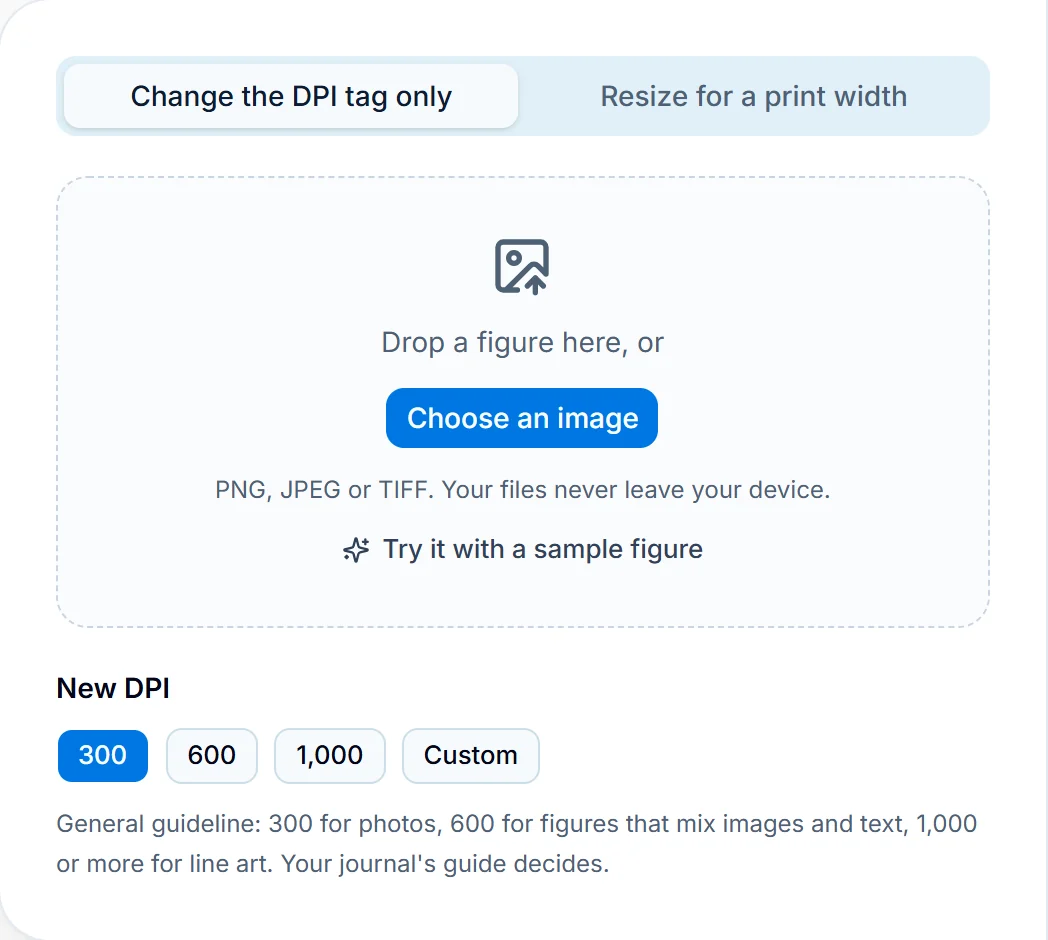
Load your figure
Drop a PNG, JPEG or TIFF on the box or choose a file. Keep Change the DPI tag only to leave every pixel as it is, or switch to resizing for a print width.
 2
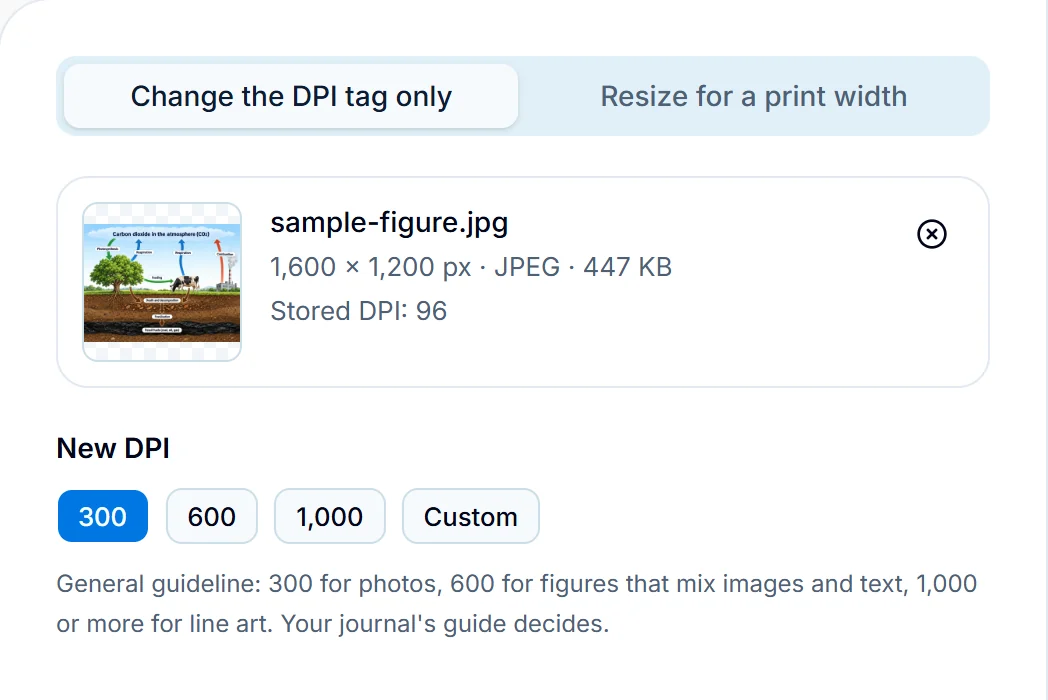
Choose the new DPI
The tool shows the pixel size and the DPI the file stores, here 96. Pick 300, 600 or 1,000, or type your own value.
 3
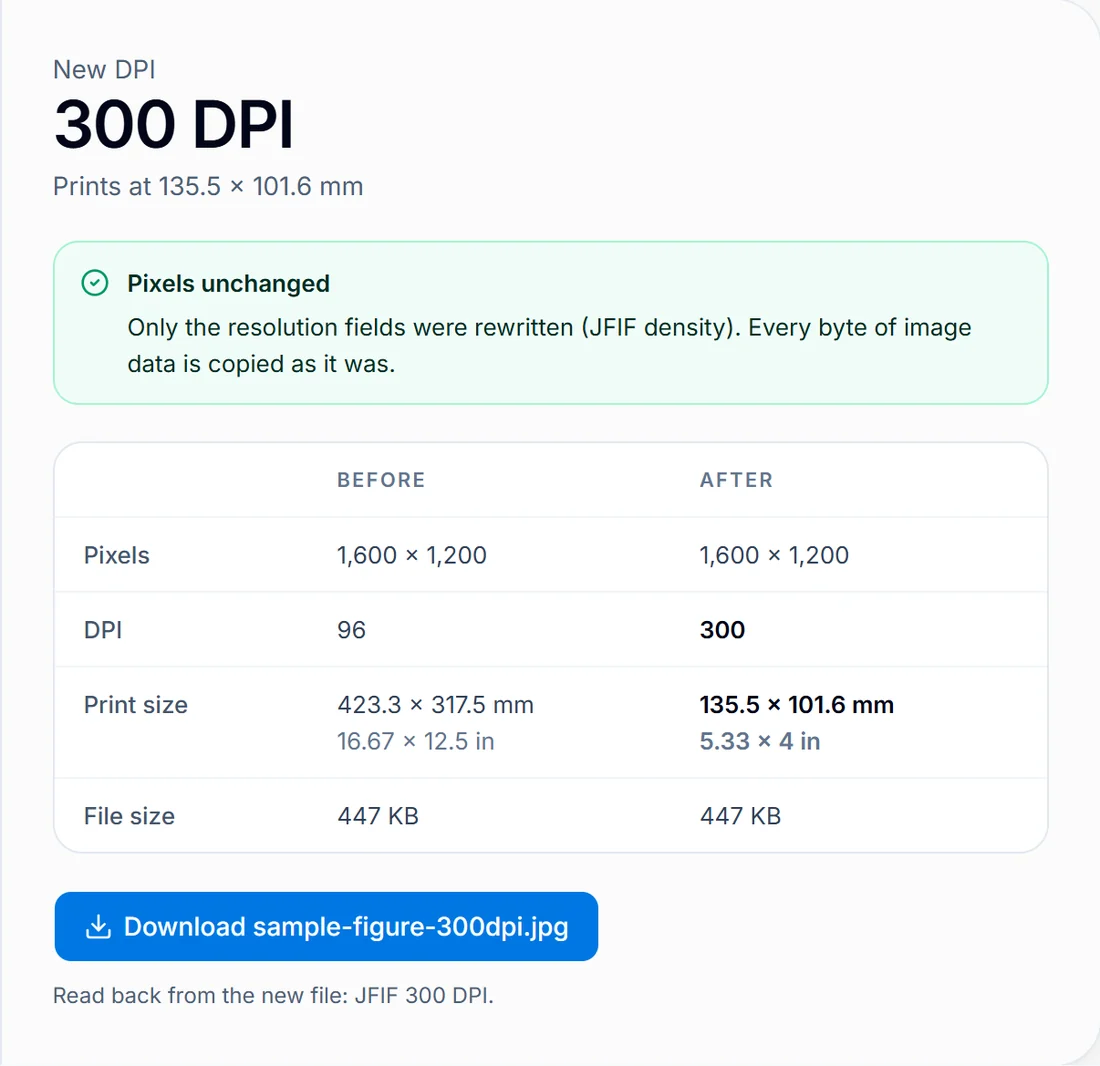
Check and download
Read the new print size and the before and after table, then download. The tool reads the new file back to confirm the DPI.
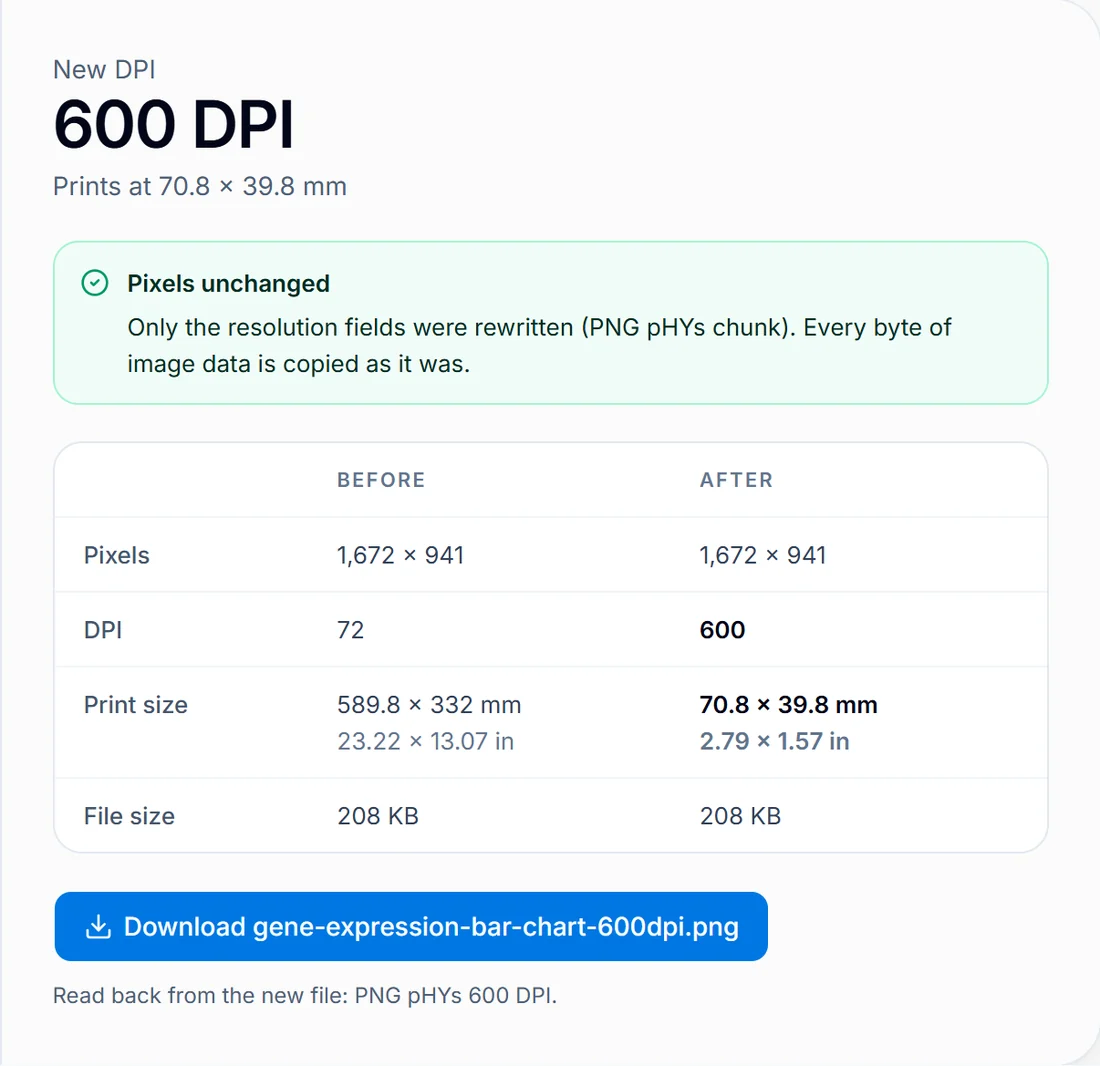
Five of our figures through the DPI tool
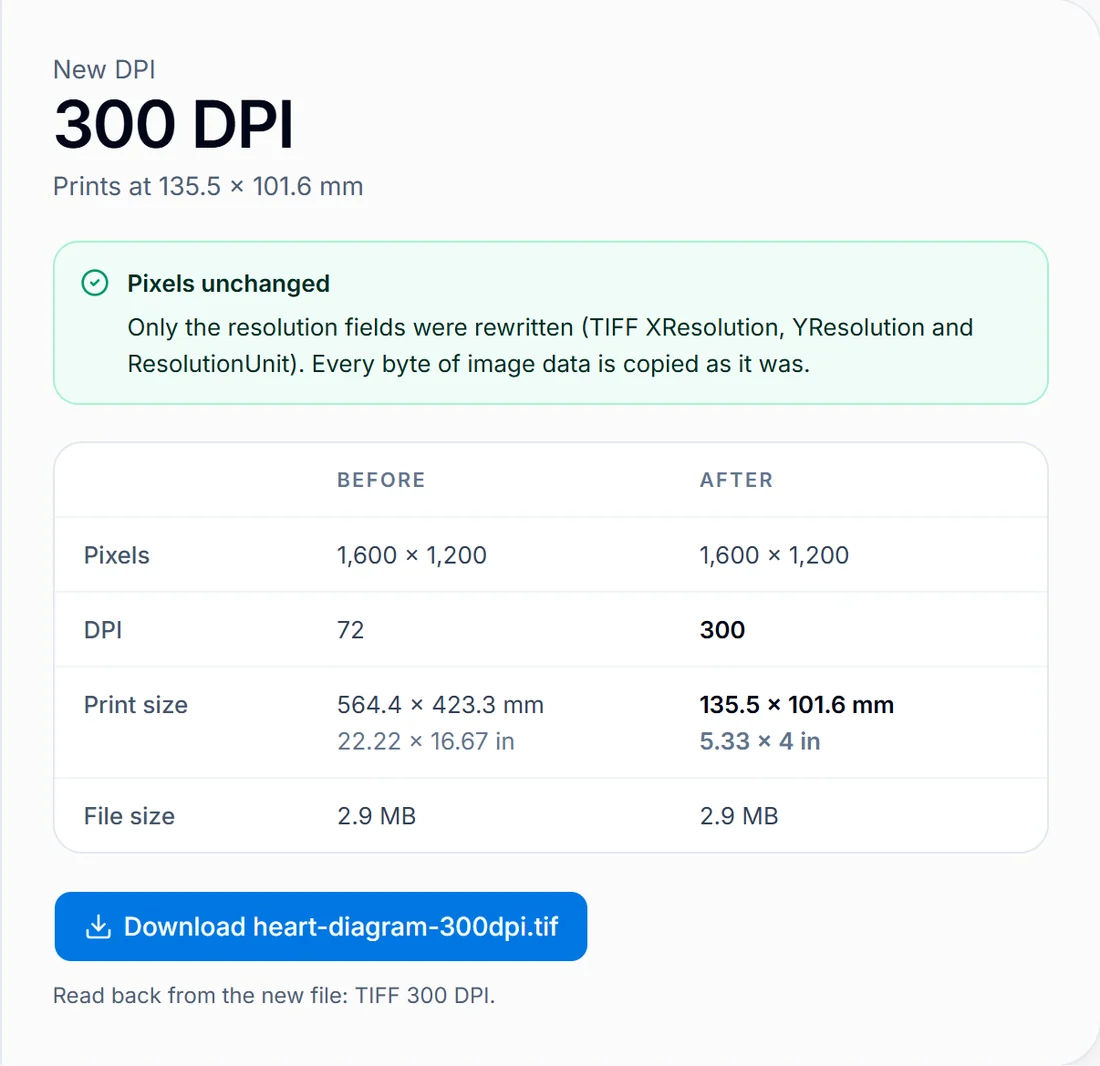
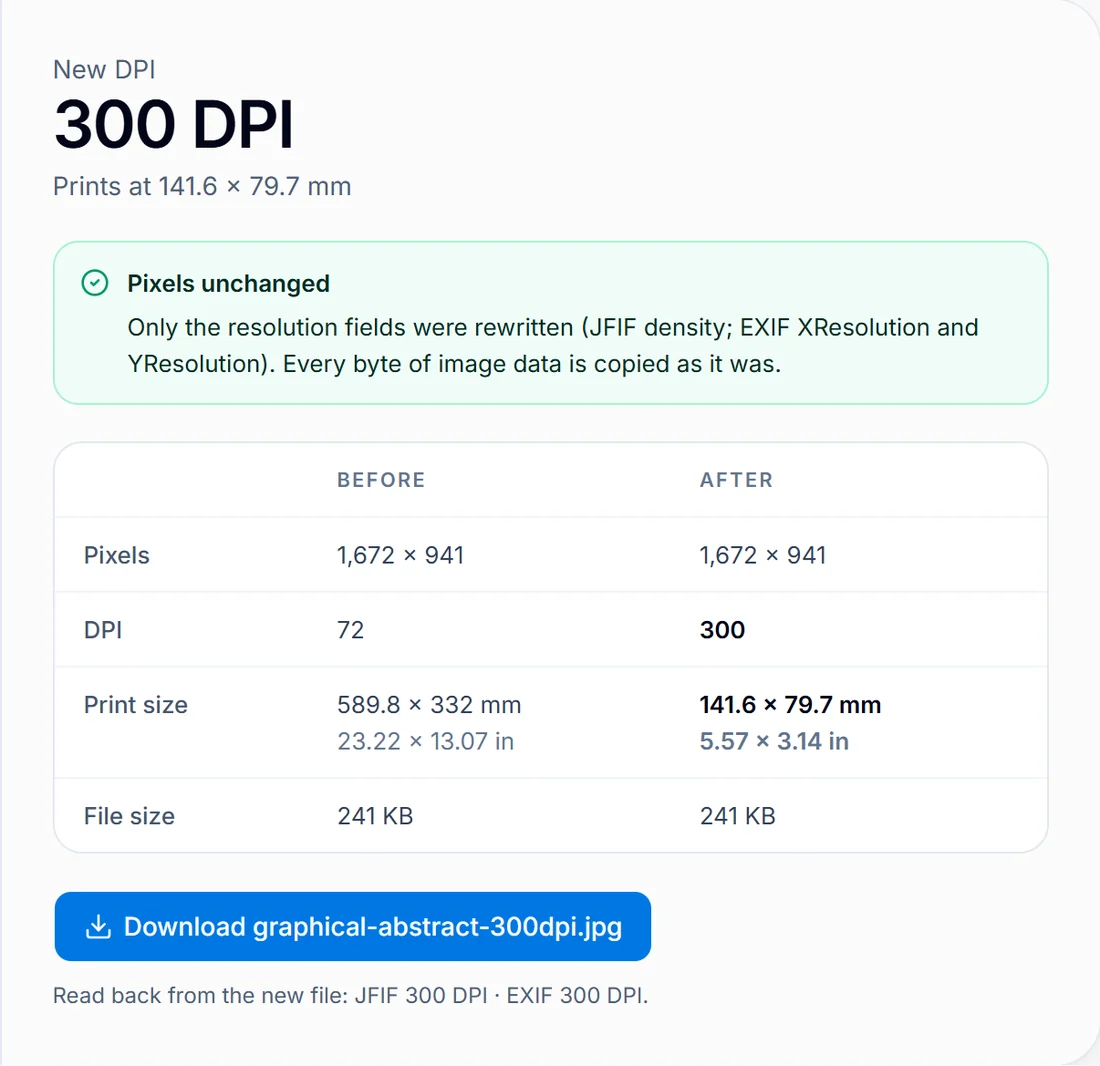
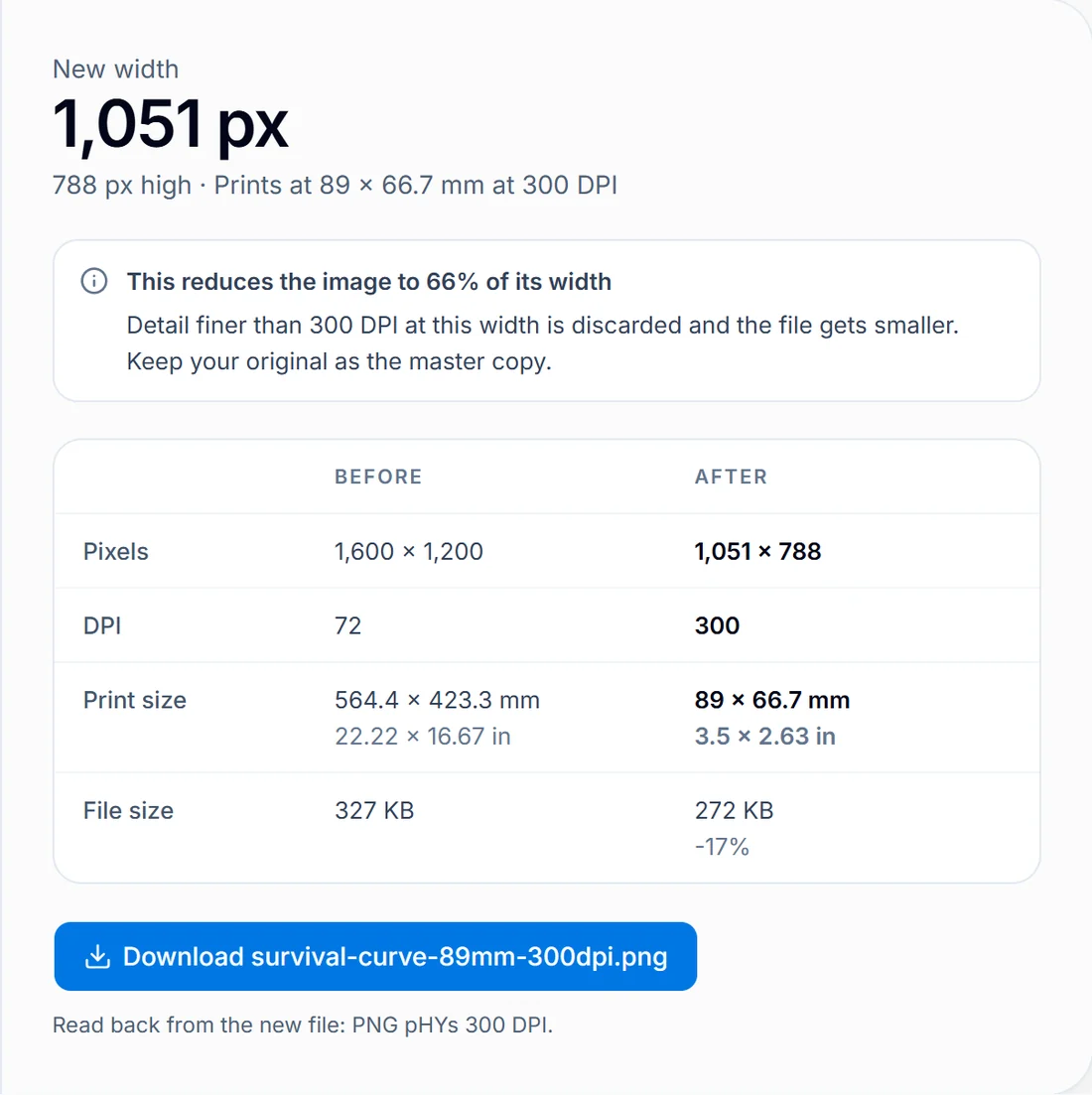
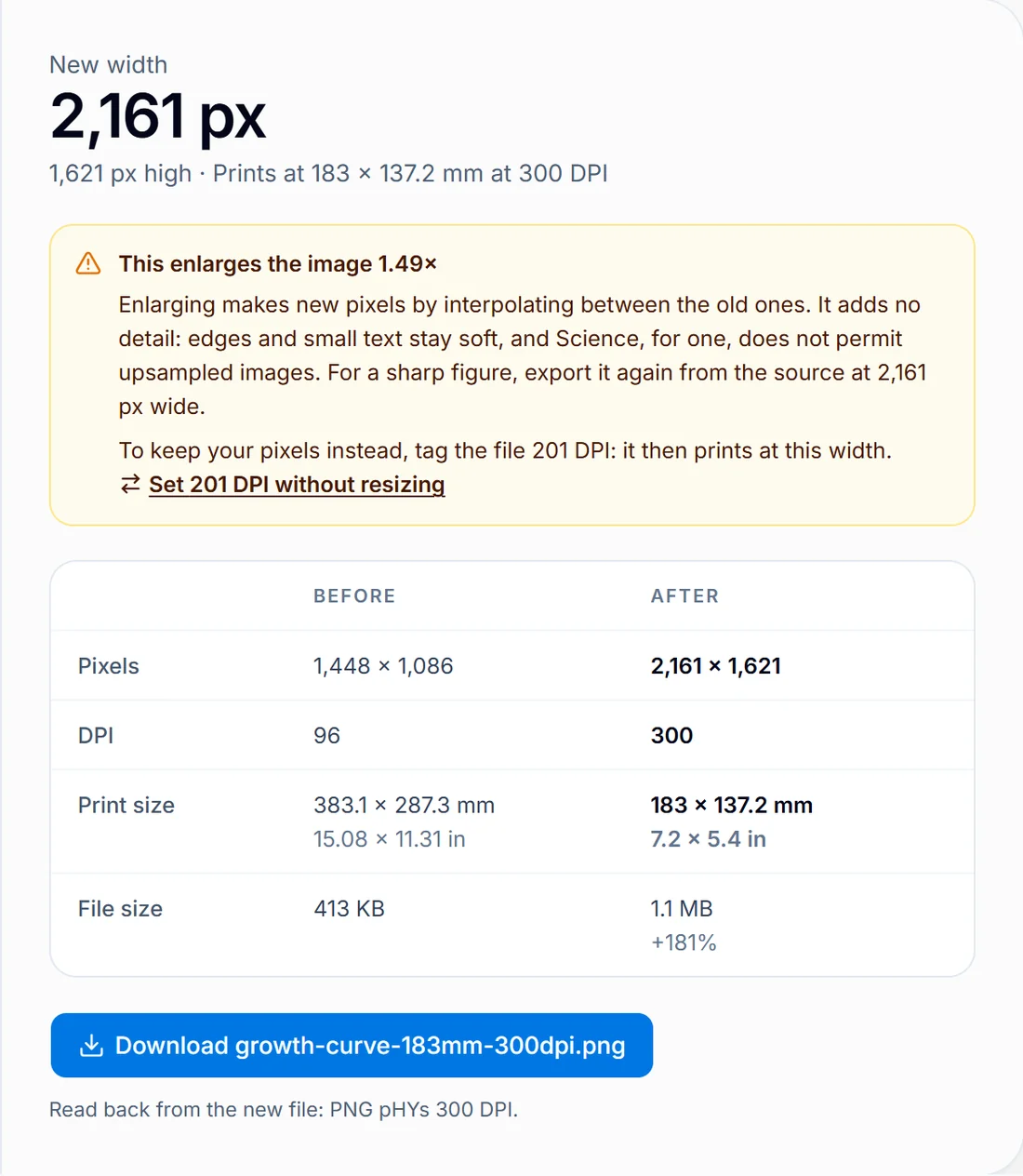
Real runs on our own figures: three DPI changes that leave every pixel alone, and two resizes for Nature Portfolio column widths.
Guide
What changing image DPI does, and when it is enough
Where each format stores its DPI, why pixels decide print quality, when to resize and when to export again, and how to do the same in Photoshop, GIMP and Preview.
What changing image DPI really does
DPI (dots per inch, often called PPI for digital images) is a number stored in the file that tells software how many pixels to place in each inch of print. Changing it changes the size the figure prints at by default, not the pixels: the sample figure on this page has 1,600 pixels across, which print 564.4 mm wide at 72 DPI, 135.5 mm wide at 300 DPI and 67.7 mm wide at 600 DPI. The same number lives in a different place in each format, and this tool rewrites every copy it finds so that all software reads the same value.
The sample figure, 1,600 × 1,200 px
Identical pixels under every tag
- 72 DPI564.4 mm
- 300 DPI135.5 mm
- 600 DPI67.7 mm
Only the default print width moves. In an 89 mm column these pixels reach 457 DPI, whatever the tag says.
- PNG: the pHYs chunk, which stores pixels per meter. 300 DPI is stored as 11,811 pixels per meter, so some programs report 299.9994 DPI.
- JPEG: the density in the JFIF header, the XResolution and YResolution fields of an EXIF block when there is one, and the resolution block Photoshop adds to files it saves.
- TIFF: the XResolution, YResolution and ResolutionUnit tags, and the Photoshop resolution block when present.
- Files that store no DPI get the field added: a 21-byte pHYs chunk for a PNG, an 18-byte JFIF header for a JPEG, or the three tags for a TIFF.
Pixels decide print quality, not the DPI number
What a journal sees is effective resolution: the pixels across the figure divided by the width it is printed at. The 1,600-pixel sample reaches 457 DPI in an 89 mm (3.50 in) single column, which passes a 300 DPI minimum, but only 222 DPI across a 183 mm (7.20 in) page, whatever DPI its file states. Writing 300 into a figure that is too small for its width only shrinks its default print size; it adds no detail.
Worked examples
- 1,600 px ÷ 3.50 in = 457 DPI89 mm single column: passes 300 DPI
- 1,600 px ÷ 7.20 in = 222 DPI183 mm page width: below 300 DPI
- 300 DPI × 7.20 in = 2,161 pxPixels for 300 DPI at 183 mm
- Effective DPI = pixel width ÷ print width in inches (1 inch = 25.4 mm).
- Pixels needed = target DPI × print width in inches. At 300 DPI, an 89 mm column needs 1,051 px and a 183 mm page needs 2,161 px.
- The common guideline for figures at final print size is 300 DPI for photographs, 500 to 600 DPI for figures that combine images with text, and 1,000 DPI or more for line art. Elsevier, for example, lists 300, 500 and 1,000 DPI.
Check before you change
The image DPI checker shows the effective DPI of your figure at every journal column width, so you know whether the tag is enough or the source needs more pixels.
When to resize for a print width, and when not to
Resizing works out the pixels a print width needs and resamples the image to that size with the browser’s high-quality scaling, then writes the DPI into the new file. Shrinking a large export to exactly what the column needs is safe and makes the file smaller. Enlarging is different: the new pixels are interpolated from the old ones, so edges and small text stay soft, and Science’s instructions for revised manuscripts state that upsampling of images is not permitted.
Resizing the sample for 300 DPI
- Has1,600 px
- 89 mm column needs1,051 px
Shrink: safe, the file gets smaller
- 183 mm page needs2,161 px
Enlarge: interpolated, no new detail
For the page width, export the figure again at 2,161 px or more instead of enlarging it.
- Shrinking: detail finer than the target DPI at that width is discarded. Keep the original as your master copy.
- Enlarging: the tool says so and offers the alternative, a DPI tag that prints your current pixels at the same width without resampling.
- The real fix for a figure that is too small is to export it again from the source at the size you need, or as a vector file for charts and line art.
- Resized PNGs and TIFFs are lossless. A resized JPEG is saved again at quality 95, which loses a little detail each time.
How to change the DPI of an image in common software
Every editor can do what the first mode of this tool does, as long as resampling is turned off. Otherwise the editor changes the pixel count to keep the print size.
# Python · matplotlib
fig = plt.figure(figsize=(3.5, 2.5))  # 89 mm wide
fig.savefig("fig1.tiff", dpi=300)
# R · ggplot2
ggsave("fig1.tiff", width = 89, height = 60,
       units = "mm", dpi = 300,
compression = "lzw")- Photoshop: Image > Image Size, untick Resample, then type the new Resolution.
- GIMP: Image > Print Size, then set the X and Y resolution. Print Size never resamples.
- Preview on a Mac: Tools > Adjust Size, untick Resample image, then set the Resolution.
- matplotlib and ggplot2: set the size in inches or millimeters and the dpi when you save, and both the pixels and the DPI come out right in one step.
What this tool changes in your file
The file is read with your browser’s File API and processed in the page, so nothing is uploaded. When only the DPI changes, the new file is the old one byte for byte apart from the resolution fields: the compressed image data is copied unchanged, so nothing is recompressed and a JPEG loses no quality. After writing, the tool reads the new file back and lists the DPI each field now holds. The file keeps its format and its name, with the DPI added to the end.
Frequently asked questions
Quick answers on setting 300 DPI, image quality, increasing DPI, PNG’s 299.9994 and journal requirements.
How do I change the DPI of an image to 300?
Load the PNG, JPEG or TIFF, keep Change the DPI tag only selected, choose 300 and download. The pixels stay exactly the same; the figure now prints at its pixel width divided by 300 inches by default.
Does changing the DPI reduce or increase image quality?
Neither. Changing only the DPI leaves every pixel as it was, so quality does not change; only the default print size does. Effective resolution at a given width depends on how many pixels the image has.
How do I increase the DPI of an image without losing quality?
If the image already has enough pixels for its print width, set the DPI tag and you are done. If it does not, export it again from the source (your plotting software, microscope or camera file) at more pixels, or as a vector file. Enlarging with resampling only interpolates, and some journals, such as Science, do not permit upsampled images.
Why does my PNG show 299.9994 DPI instead of 300?
PNG stores resolution as whole pixels per meter. 300 DPI becomes 11,811 pixels per meter, which converts back to 299.9994 DPI. Software that shows decimals reports that value; for printing it is 300 DPI.
Is this an image DPI converter? Does it change the file format?
It converts the DPI, not the format: a PNG stays a PNG, a JPEG stays a JPEG and a TIFF stays a TIFF. To turn a PNG or JPEG into a TIFF with the DPI you choose, use the PNG to TIFF converter.
What DPI do journals require for figures?
Common minimums at final print size are 300 DPI for photographs, 500 to 600 DPI for combination figures and 1,000 to 1,200 DPI for line art. PLOS asks for 300 to 600 DPI, and Elsevier lists 300, 500 and 1,000 DPI. Check the journal figure requirements table and your journal’s own guide.
Is my image uploaded anywhere?
No. The image is read and rewritten in your browser with its File API, and nothing is sent to a server.
Related tools
Check, convert and compress figure files for journal submission.
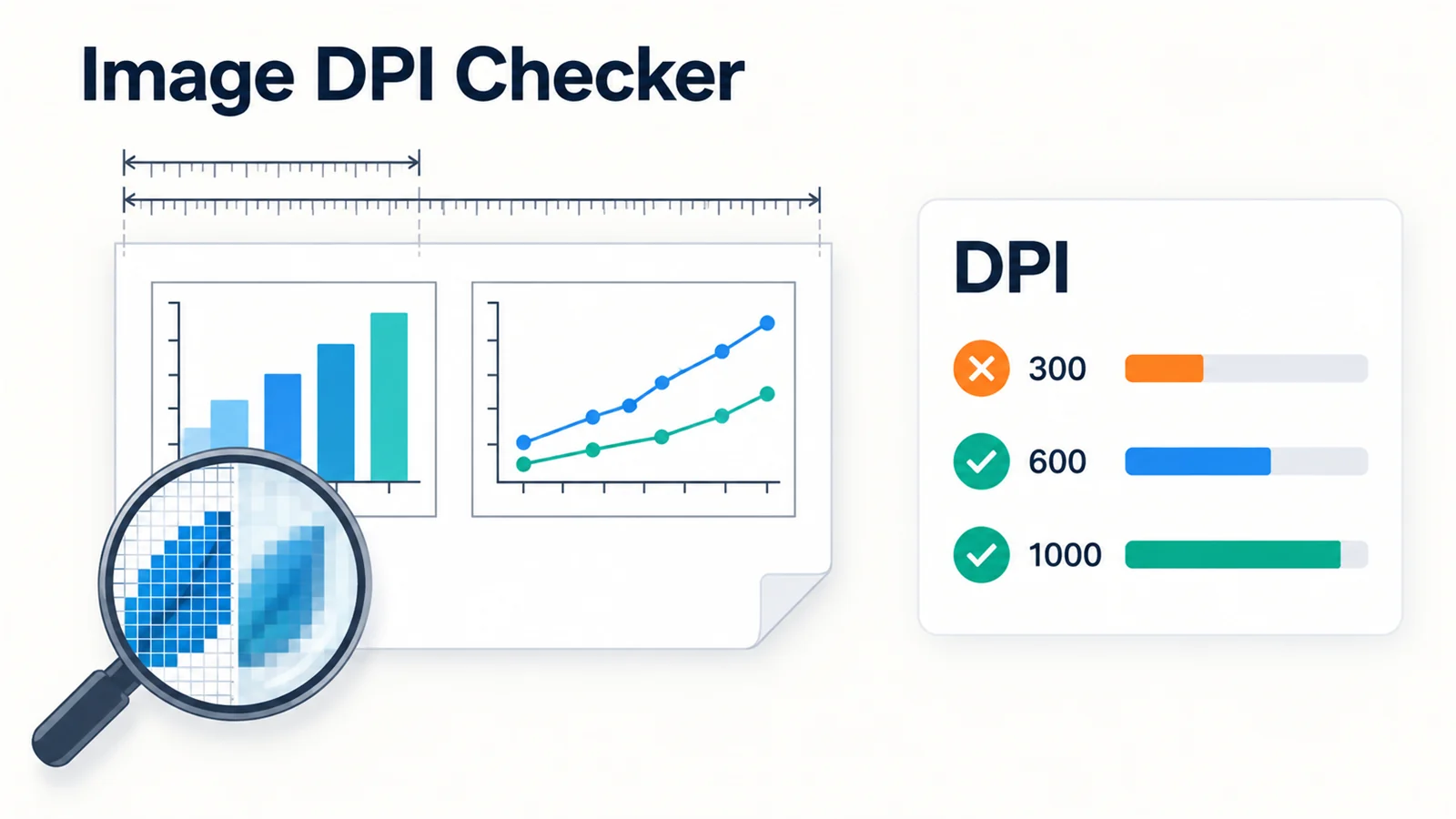
Image DPI checker
See the effective DPI of a figure at any journal column width before you change anything.
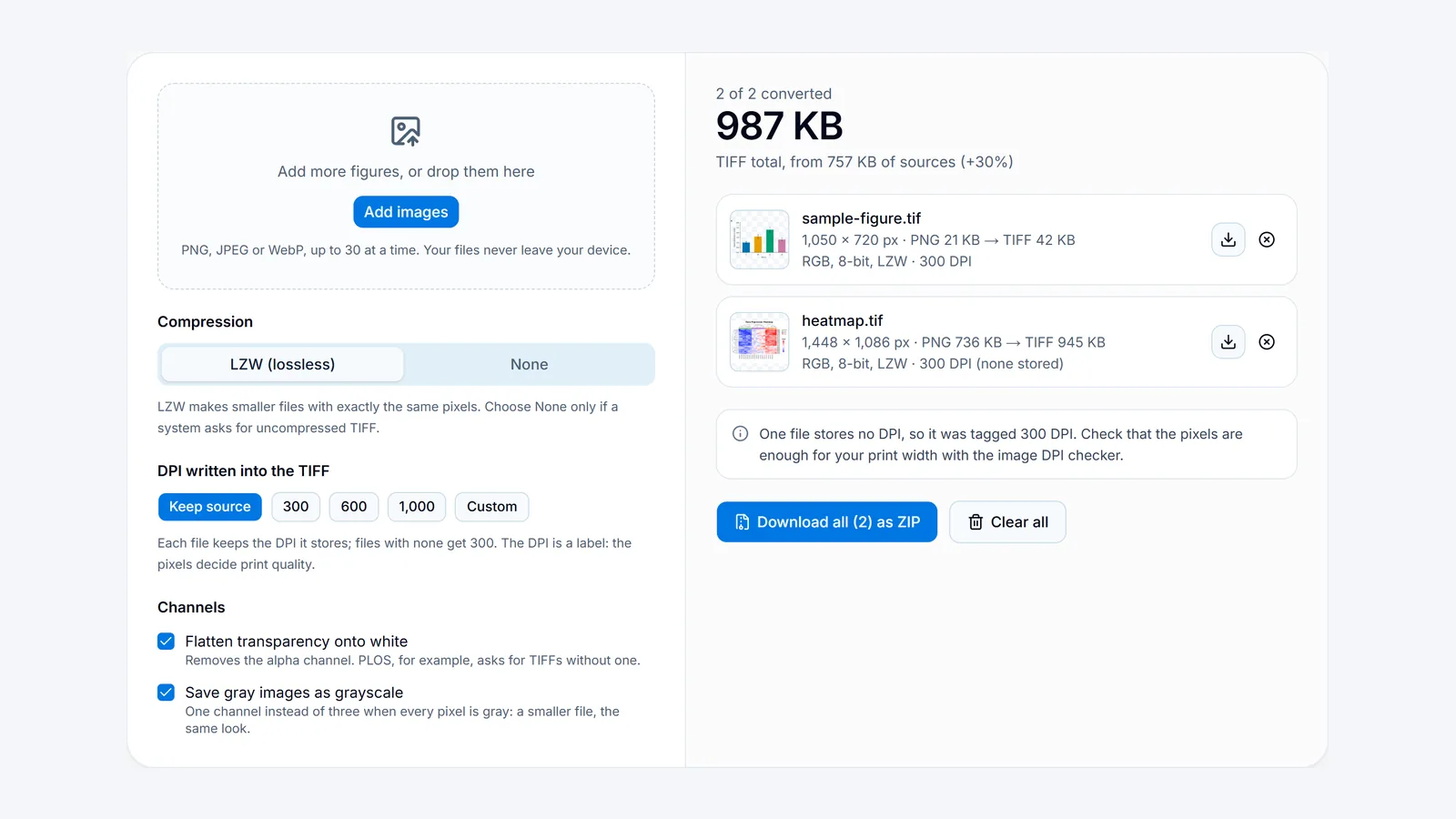
PNG to TIFF converter
Convert PNG, JPEG or WebP figures to TIFF with LZW compression and the DPI you choose.
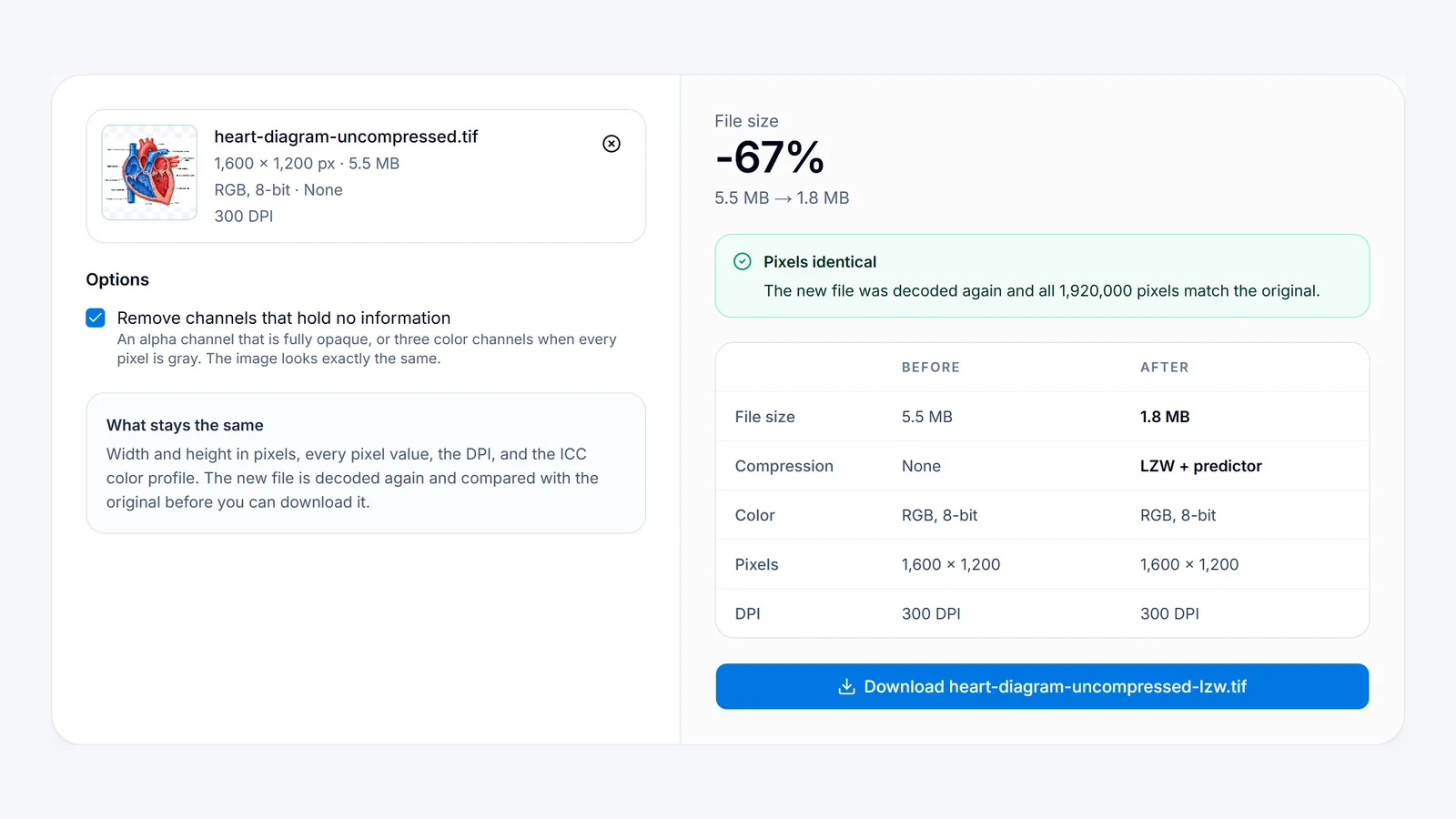
Compress TIFF
Shrink a TIFF figure with lossless LZW and check that every pixel stays the same.
Journal figure requirements
Column widths, DPI, file formats and fonts for 14 publishers, with official sources.
Nature figure guidelines
Nature Portfolio’s figure sizes, resolution, formats and fonts in one page.
Vectorize image
Turn a PNG or JPG chart or line drawing into an SVG that stays sharp at any size.
Make the chart at the right size from the start
SciFigure chart generators turn CSV or Excel data into publication-style charts for 5 credits each, and free credits work for charts.
Browse chart generators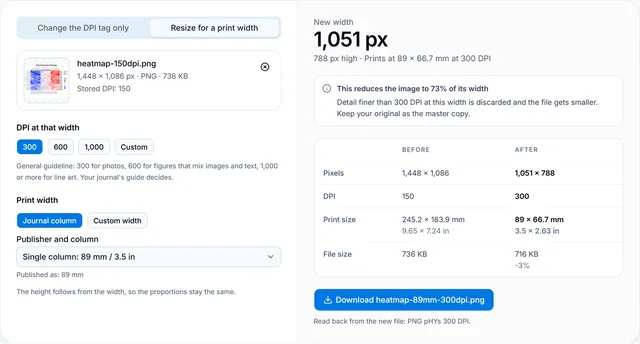
Last checked: November 25, 2026. Sources: W3C, PNG Specification: pHYs; ITU-T T.871, JPEG File Interchange Format; Library of Congress, TIFF Revision 6.0; Science, instructions for revised manuscripts; Elsevier, artwork sizing; PLOS ONE, figures.