
Free tool for multi-panel figures
Combine images into one multi-panel figure
Drop in 2 to 12 images, pick a grid, and this image combiner lays them out as one figure with even gutters and A, B, C labels, at a journal column width such as Nature's 89 or 183 mm. Save it as a PNG or JPEG at 300 or 600 DPI, with the DPI written into the file. Your images never leave your browser.
- Runs in your browser
- Nothing is uploaded
- Journal widths and DPI
- Labels in points, gutters in mm
Drop 2 to 12 images here, or paste them with Ctrl+V (Cmd+V on a Mac)
PNG, JPEG or WebP. Your images stay in your browser and are never uploaded.
How to use it
Combine images into one figure in three steps
Add your images, pick a grid, and download the figure at the width and DPI you need. Nothing is uploaded.
 1
Add your images
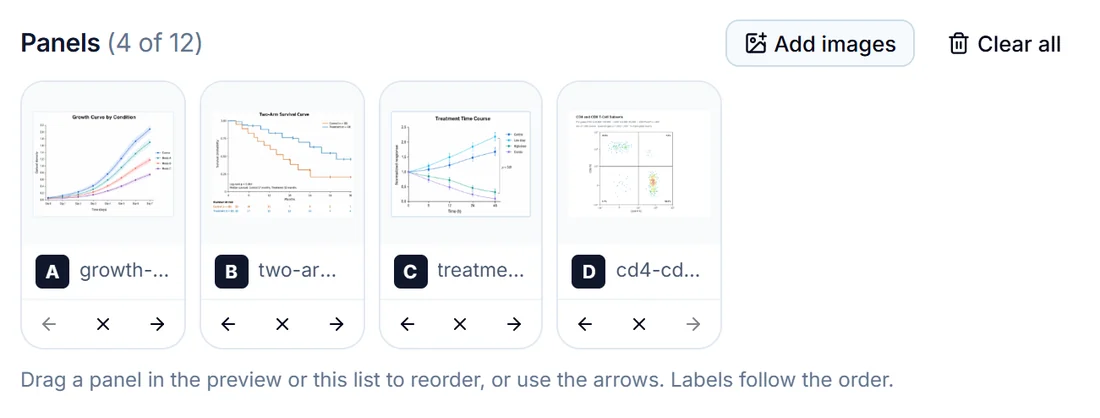
Drop in 2 to 12 images or paste them. Reorder by dragging in the preview or the list, or with the arrows; the labels follow the order.
 2
Pick a layout
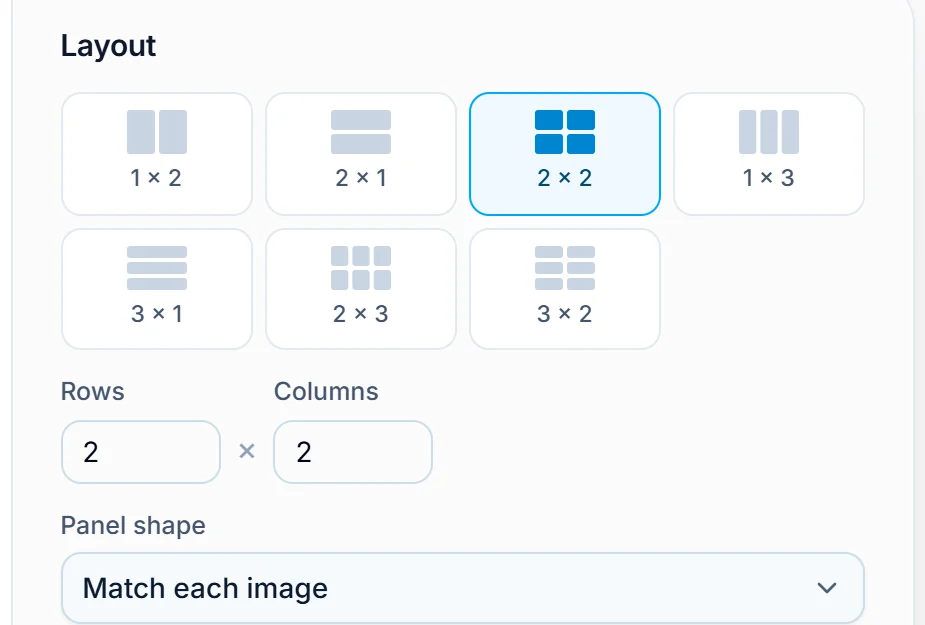
Choose a preset such as 2 × 2 or set rows and columns, then the panel shape, gutter, background and labels.
 3
Set the size and download
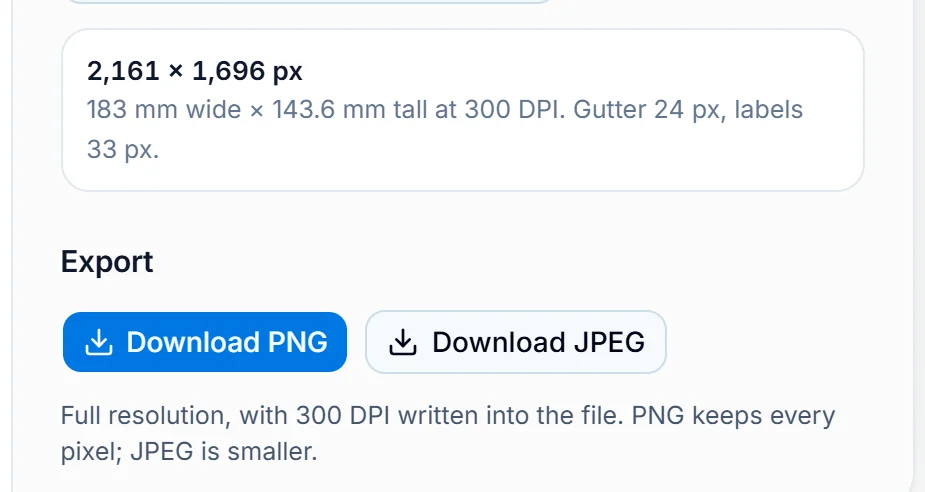
Pick a journal width or type one in mm, choose 300 or 600 DPI, check the pixel size, and download a PNG or JPEG with the DPI written in.
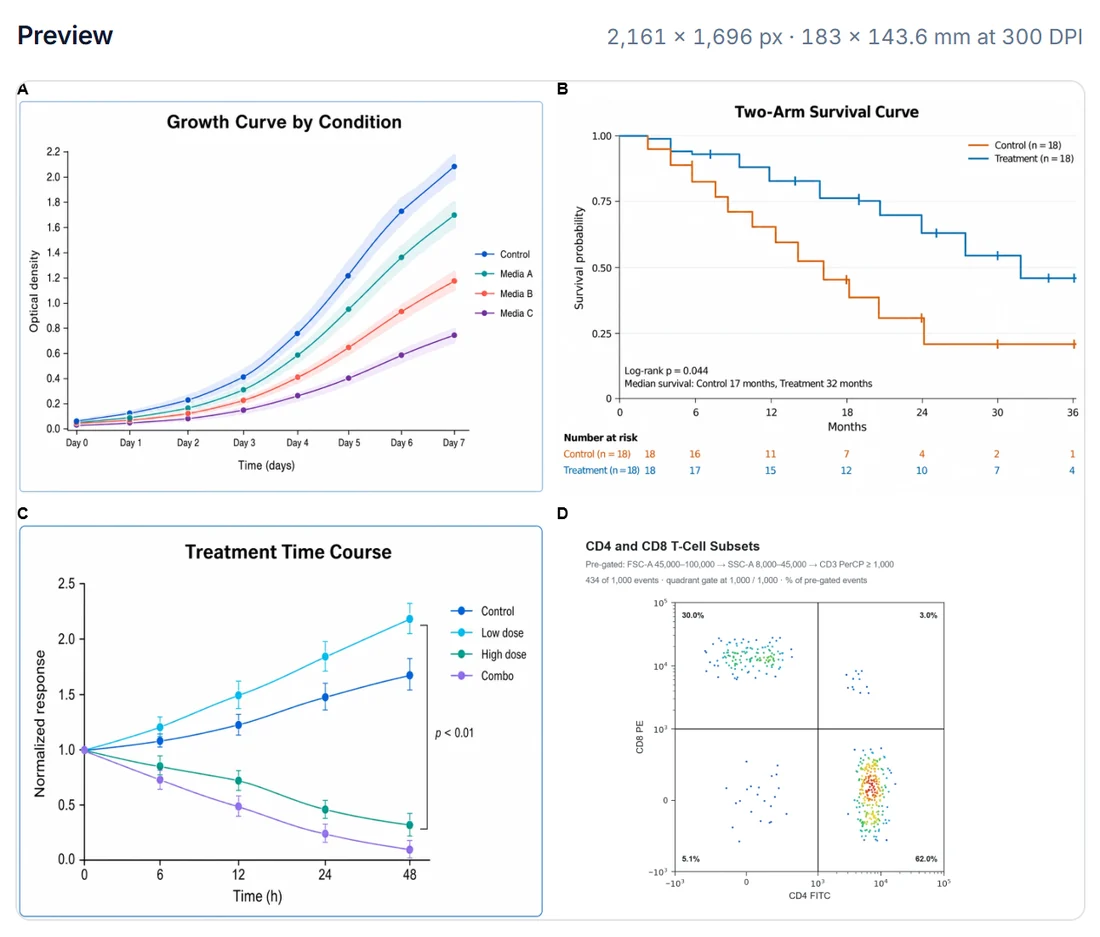
Four figures combined with different settings
Real runs of the tool on charts and diagrams from this site, each in the live preview with the size it saves at.
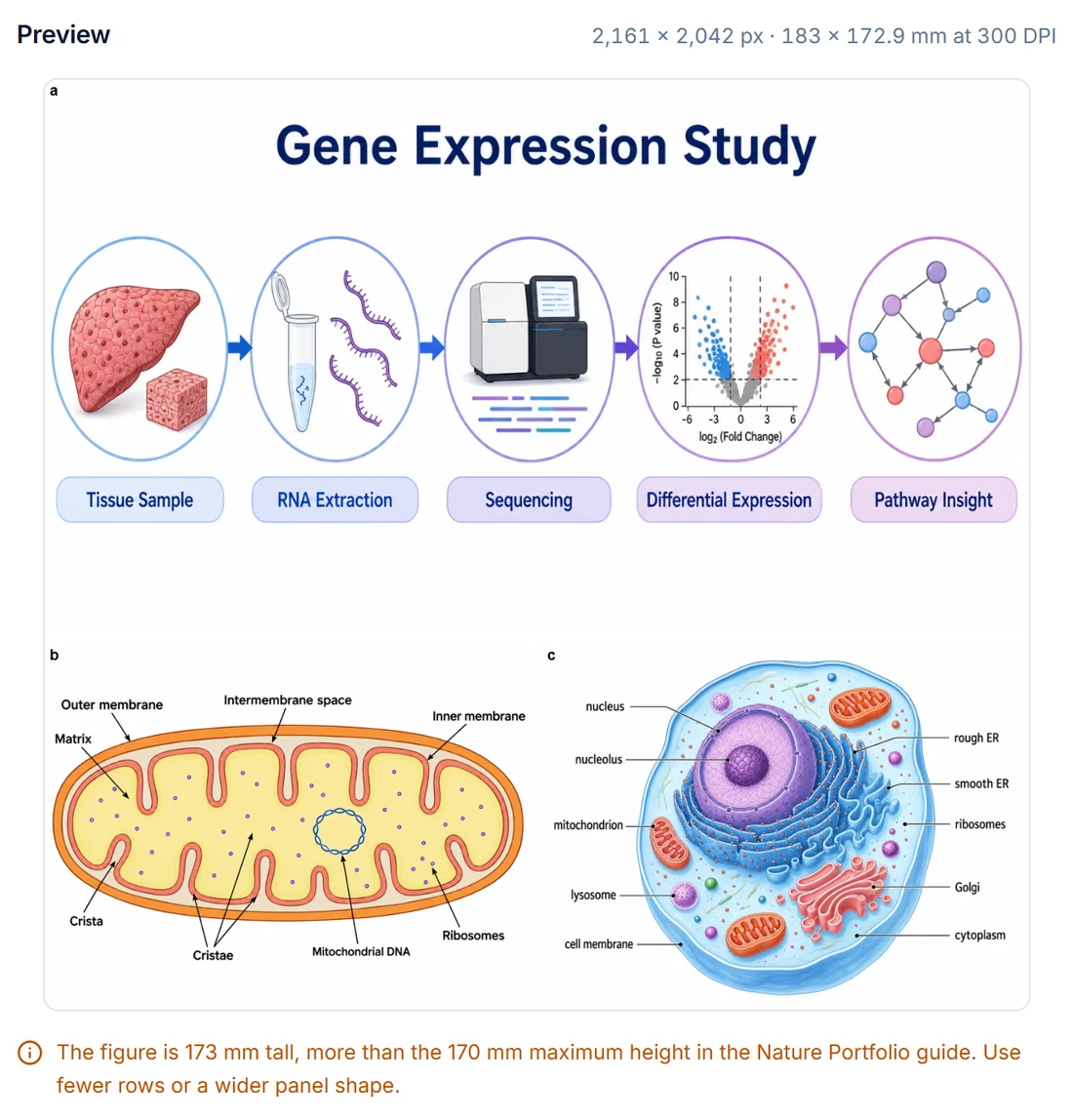
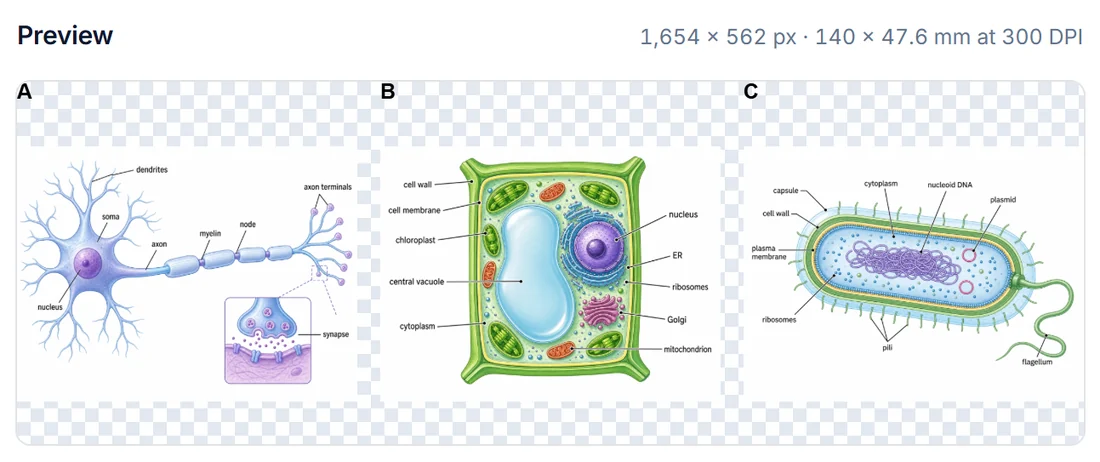
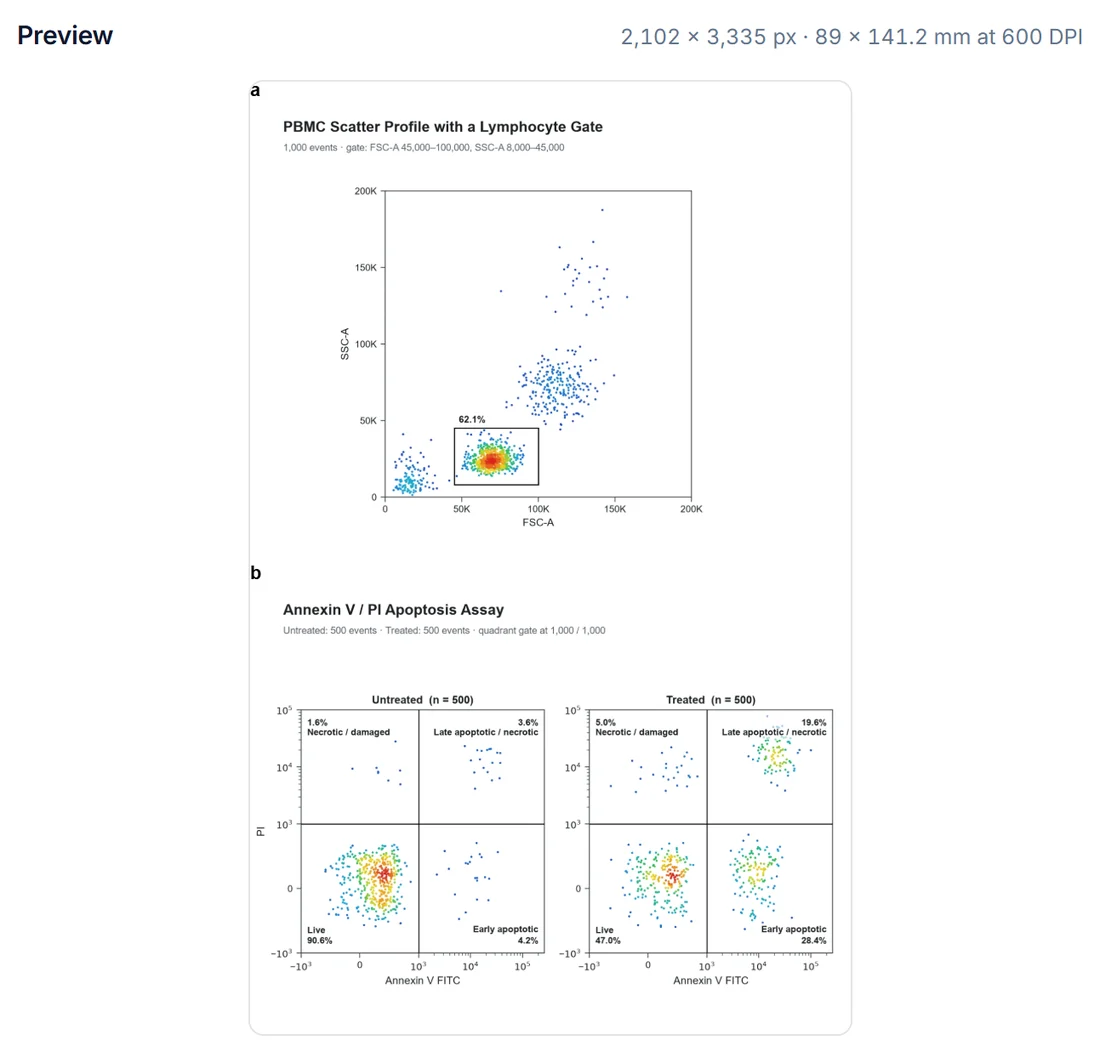
Guide
How to build a multi-panel figure journals accept
Start from the printed width, label panels the way your journal does, keep gutters even, fit each image on purpose, respect image integrity rules, and save in the right format.
Start from the final width
A journal prints a figure at a fixed width, so set that first. Publishers list column widths: Nature uses 89 mm for one column and 183 mm for two, Science 5.7, 12.1 and 18.4 cm, and Elsevier 90, 140 and 190 mm. Width and resolution together give the pixel size: pixels = width in mm ÷ 25.4 × DPI.
Pixels at journal widths
- Nature single column89 mm
300 DPI
1,051 px
600 DPI
2,102 px
- Nature double column183 mm
300 DPI
2,161 px
600 DPI
4,323 px
pixels = mm ÷ 25.4 × DPI, rounded to whole pixels.
- 183 mm at 300 DPI is 2,161 pixels wide, and 4,323 at 600 DPI.
- 89 mm at 300 DPI is 1,051 pixels wide, and 2,102 at 600 DPI.
- The height follows from the grid and the panel shape. Nature's guide allows figures up to 170 mm tall, and the tool warns when a figure is taller than the chosen journal's limit, where its guide gives one.
- Every journal guide checked for this site asks for at least 300 DPI for photographs at final size. Wiley, Springer and PNAS ask for 600 DPI for combination figures that mix images with text or line art, and Elsevier for 500.
Rule of thumb
At 300 DPI every 10 mm of width is about 118 pixels; at 600 DPI, about 236.
Panel labels: A, B, C or a, b, c
Labels let the legend and the text point to each panel. Journals differ on letter case: Nature's figure guide asks for 8 pt bold, upright, lowercase a, b, c, while many other journals print capitals. Whatever your journal uses, keep one size and one position for every label in the paper.
Above, outside
a
b
Top left, inside
8 pt at 300 DPI is 33 px type. Same size and place on every panel.
- Size is set in points at the final print size. A point is 1/72 inch, so 8 pt type is 33 pixels at 300 DPI and 67 at 600.
- Above, outside puts each letter in a strip above its panel, so it never covers data. Top left, inside saves that strip and suits photographs and micrographs; use white letters on dark images.
- Labels are set in a bold Arial or Helvetica style sans-serif, the family Nature, Springer and ACS name for figure text.
Even gutters and aligned edges
Readers notice the alignment of a multi-panel figure before its content. Here every column has the same width, every gutter the same number of pixels, and panel edges line up across rows, because the layout is worked out in whole output pixels from the gutter you set in millimeters.
Gutter 2 mm
24 px at 300 DPI
Gutters tinted. Columns share the width exactly and every gutter is the same number of pixels.
- A gutter of a few millimeters at final size separates panels without wasting space. Set it to 0 for panels that should touch.
- A wide panel can span two columns, and its edges line up with the panels below it.
- With the panel shape Match each image, every row is as tall as its tallest image at panel width, so no image is shrunk to fit. A fixed shape such as 4:3 gives every panel the same box.
- Keep scale bars, axis ranges and fonts the same in panels that readers compare.
Whole image, or fill and crop
Images of different shapes cannot all fill identical boxes without cropping, so each panel has its own fit.
Whole image
All of it, with background
Fill and crop
Fills the panel, trims the sides
- Whole image scales the picture to fit inside its panel and centers it, leaving background above and below or at the sides.
- Fill and crop fills the panel and trims the overflow evenly from both sides. Use it for photographs whose edges do not matter, never for charts whose axes would be cut off.
- Images are resampled to the panel size when you save. Keep the original files for any measurement, and remember that enlarging a small image adds no detail.
Image integrity when you combine images
Placing separate images side by side is layout, not editing, but journals have rules on how it is shown. Nature's figure guide says that images gathered at different times or from different samples should not be combined into a single image, and that if juxtaposing images is essential, the borders should be clearly demarcated in the figure and described in the legend.
- Give every separately acquired image its own panel with a visible gutter, rather than joining crops into one picture.
- Apply adjustments such as contrast to the whole image, and equally to controls, before you combine, as Nature's guide asks.
- Describe each panel in the legend and keep the unprocessed originals.
PNG, JPEG, TIFF and the DPI tag
The PNG file is lossless and can keep a transparent background. JPEG is smaller but lossy, so it suits photographs better than charts. Both carry the DPI you chose, in the PNG pHYs chunk or the JPEG JFIF header, so they open at the intended print size; the tag itself changes no pixels.
- Some journals do not take PNG or JPEG for final figures. PLOS accepts TIFF or EPS only, and Science asks for TIFF for raster images, so convert the PNG with the PNG to TIFF converter.
- Nature's guide wants main figures as editable AI, EPS or PDF files and lists PNG, JPEG and TIFF as not accepted for them; Extended Data takes JPEG, TIFF or EPS.
- Check the saved figure at its print width with the image DPI checker.
Frequently asked questions
Quick answers on combining images, journal figures, side-by-side layouts, quality, privacy, label case and DPI.
How do I combine images into one?
Drop 2 to 12 images on the tool or paste them, pick a grid such as 1 × 2 or 2 × 2, and reorder the panels by dragging. Choose the width, resolution, gutter and labels, then download the combined image as a PNG or JPEG.
How do I make a multi-panel figure for a journal?
Pick the journal's column width and 300 or 600 DPI, set the labels to the journal's style, for example 8 pt bold lowercase for Nature, and keep a gutter of a few millimeters. Save as PNG, then convert it to TIFF if the journal asks for TIFF.
Can I put images side by side or one above the other?
Yes. 1 × 2 places two images side by side and 2 × 1 stacks them. Any grid up to 12 panels works, and a panel can span two columns for a wide image.
Does combining images reduce quality?
Each image is resampled once to its panel size at the chosen DPI, from the original file rather than the preview. Shrinking keeps as much detail as the new size allows, but enlarging cannot add any. PNG saves the result without loss; JPEG adds compression.
Are my images uploaded?
No. The images are opened, laid out and saved in your browser, and they are not sent to a server.
Should panel labels be uppercase or lowercase?
Follow your journal's guide. Nature asks for 8 pt bold, upright, lowercase a, b, c; many other journals use capitals. Use the same case, size and position throughout the paper.
What DPI should a combined figure be?
At least 300 DPI at the final width for photographs, which every journal guide checked for this site asks for. Figures that mix photographs with charts or text are often asked for at 500 or 600 DPI. The image DPI checker shows the requirement for each journal.
Related tools
Check, convert and describe the combined figure, or look up a journal’s rules.
Image DPI checker
Check the effective resolution of a figure at a journal column width.
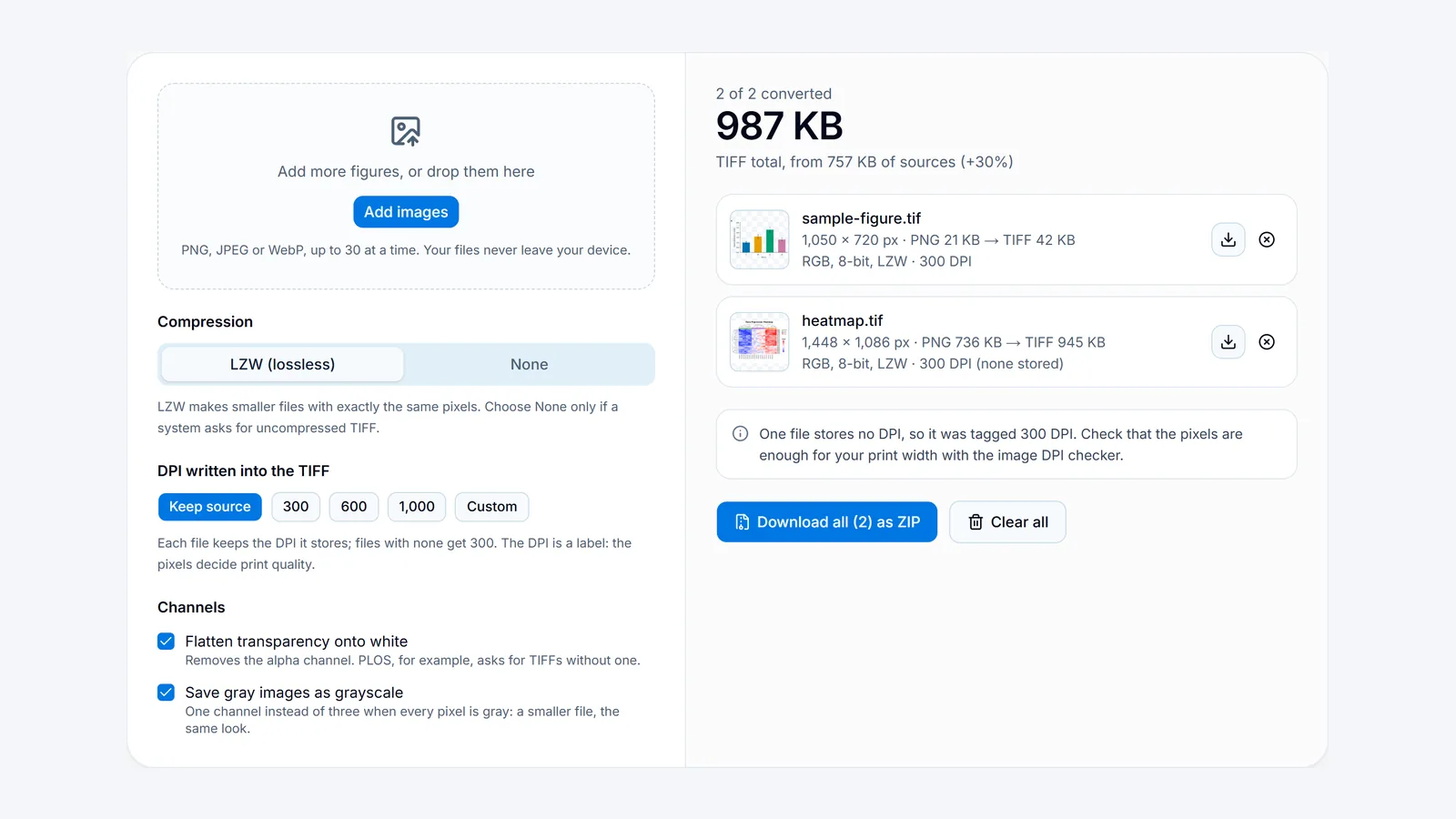
PNG to TIFF converter
Convert the combined PNG to an LZW-compressed TIFF at the DPI journals ask for.
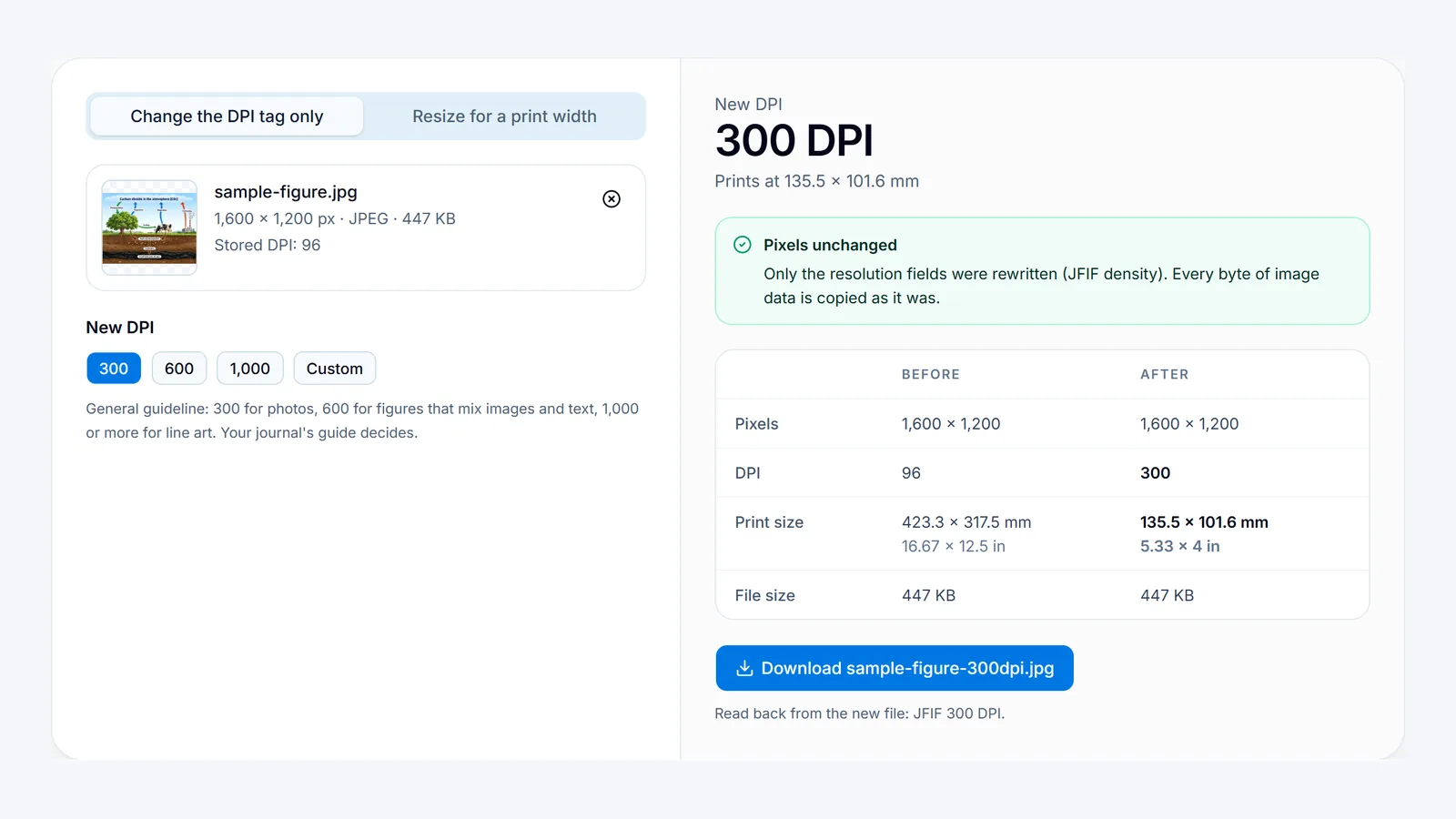
Change image DPI
Set a figure to 300 DPI without resampling, or resize it for a print width.
Nature figure guidelines
Nature's widths, fonts, panel labels, resolution and file formats in one place.
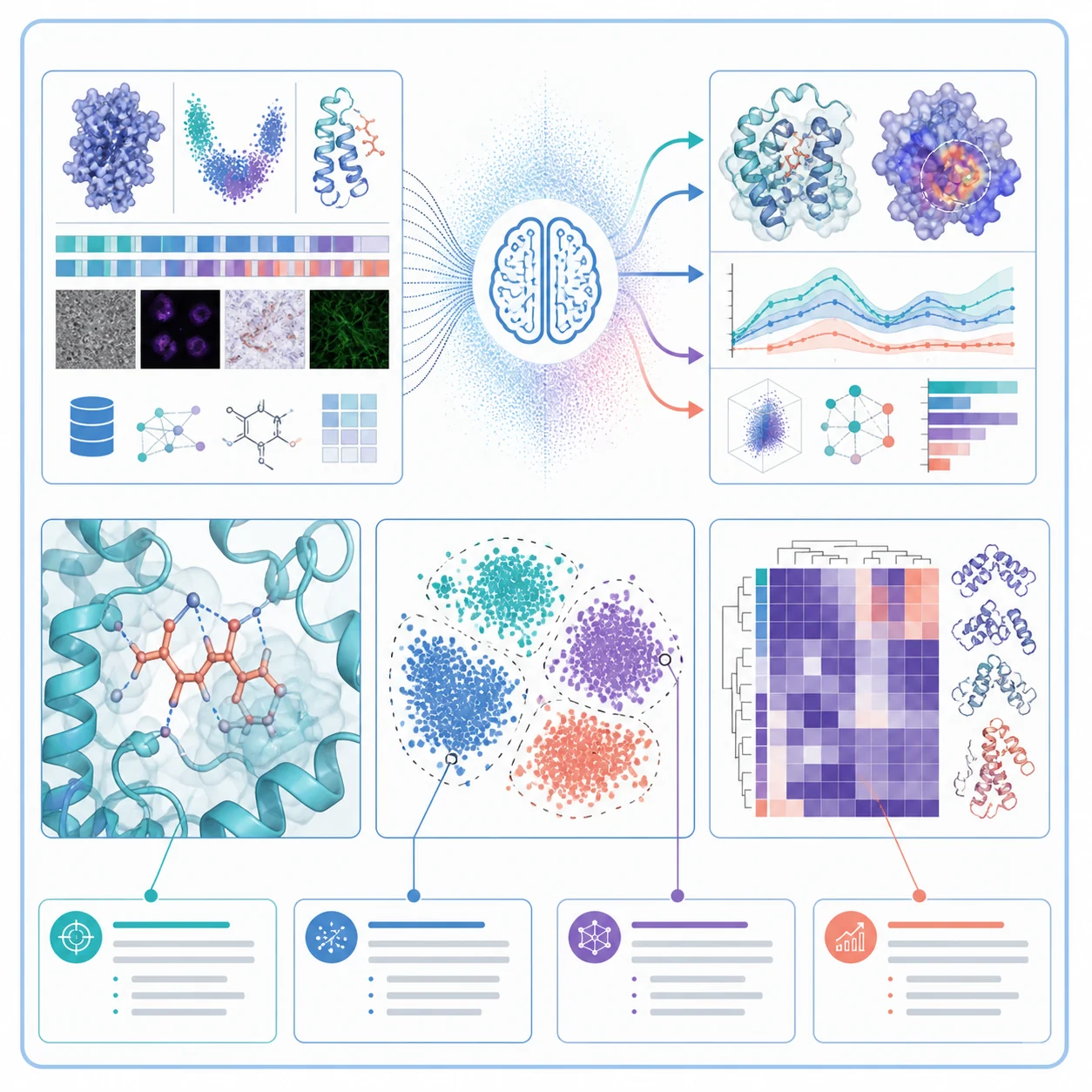
Figure legend generator
Write a legend that describes every panel, statistic and scale bar.
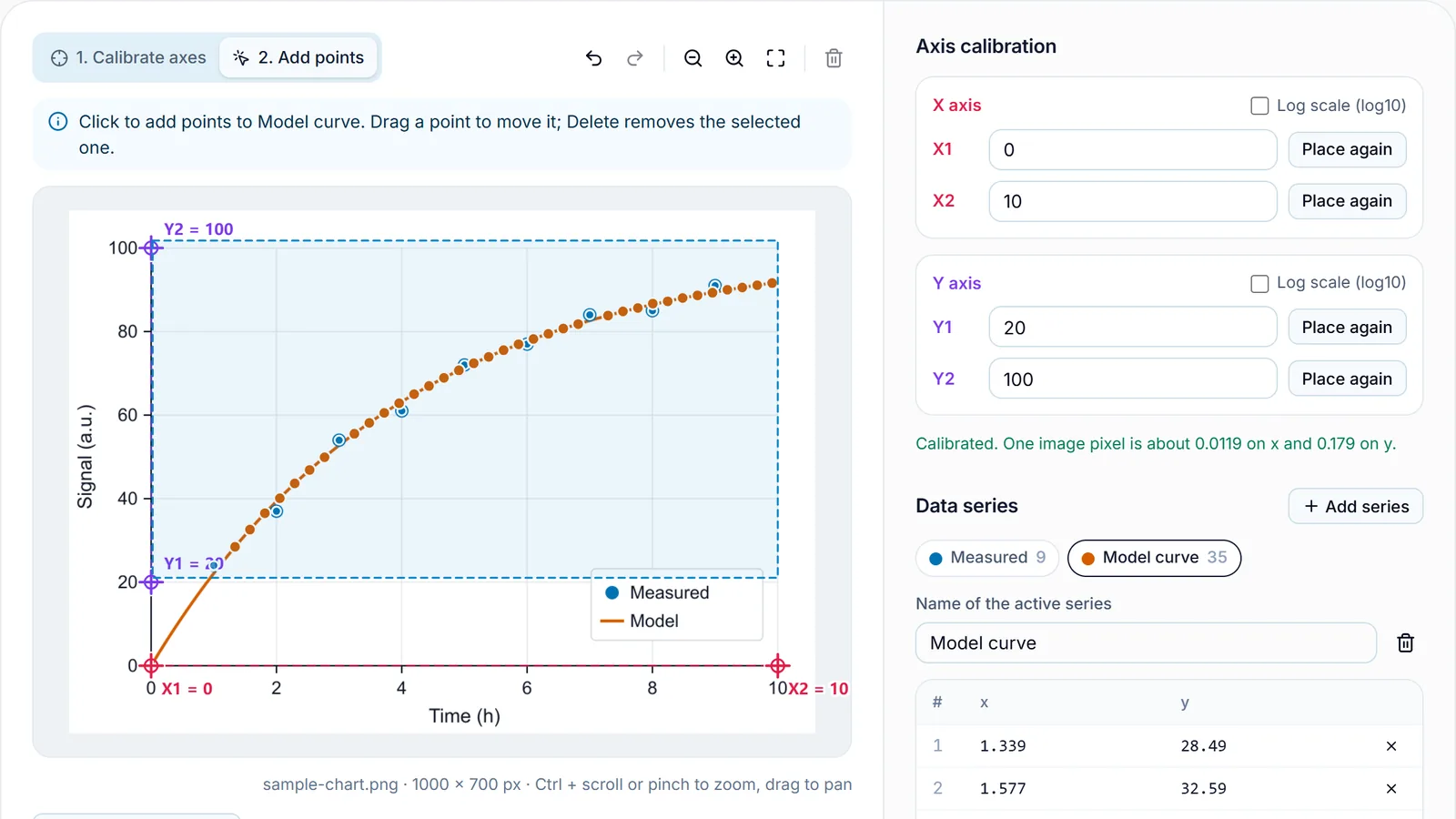
Plot digitizer
Extract data points from a chart image to re-plot them in a matching style.
Need the panels themselves?
Describe a figure to the SciFigure scientific figure maker and it draws publication-style panels you can combine here.
Open the scientific figure maker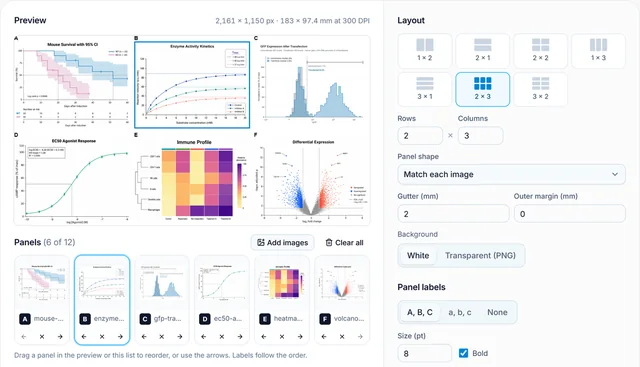
Last checked: November 25, 2026. Sources: Nature research figure guide: preparing figures; Nature research figure guide: image integrity; Science: preparing a revised manuscript; PLOS ONE figure guidelines.