
Free tool
Compress TIFF Figures Without Losing a Pixel
Compress a TIFF losslessly: drop in an uncompressed or loosely compressed TIFF and get the same image back with LZW compression, the same pixel dimensions, DPI and ICC color profile, in a smaller file. Before you download, the new file is decoded again and compared with the original pixel by pixel. It all runs in your browser, so nothing is uploaded.
- Runs in your browser, nothing uploaded
- Lossless LZW, every pixel checked
- Keeps the DPI and color profile
- Removes alpha channels that hold nothing
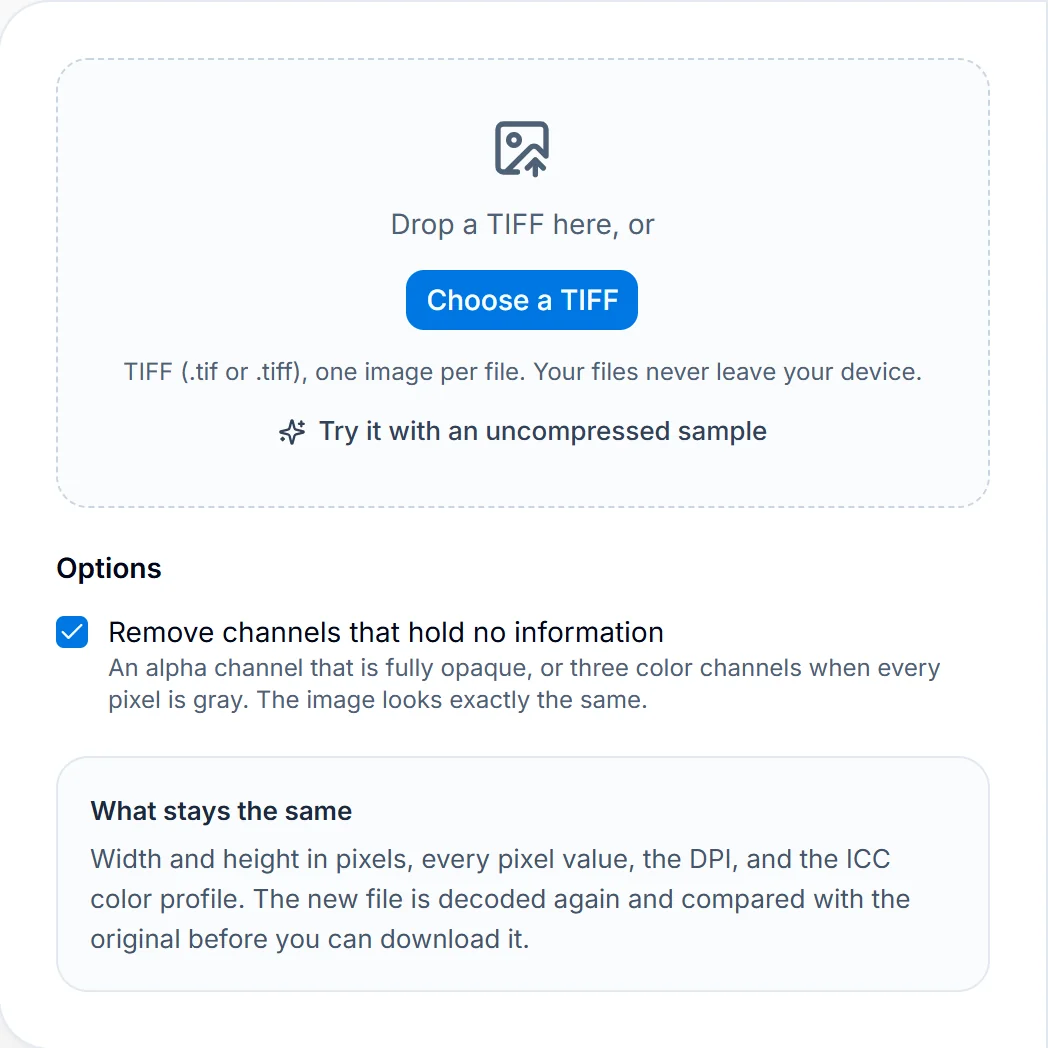
Drop a TIFF here, or
TIFF (.tif or .tiff), one image per file. Your files never leave your device.
What stays the same
Width and height in pixels, every pixel value, the DPI, and the ICC color profile. The new file is decoded again and compared with the original before you can download it.
How this compresses a TIFF
- 1Reads the pixels of your TIFF in this browser tab.
- 2Writes them again with LZW, trying it with and without the horizontal predictor and keeping the smaller file.
- 3Decodes the new file and checks that every pixel matches the original.
How to use it
Compress a TIFF in three steps
Drop in a TIFF, let the tool compress it and check every pixel, then download the smaller file. Nothing is uploaded.
 1
Drop in a TIFF
Choose or drop one TIFF, or try the uncompressed sample. Removing channels that hold no information is on by default.
 2
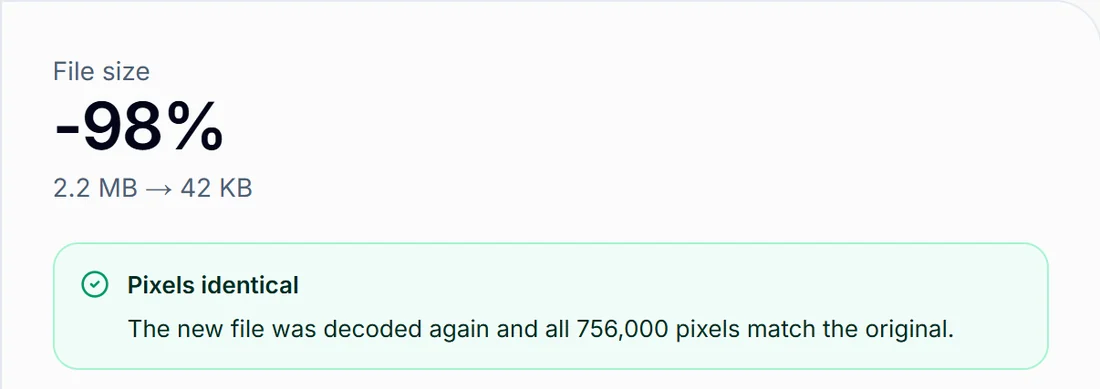
Compress and check
The tool writes the image with LZW and decodes the result again. Here the uncompressed sample shrinks 98% and all 756,000 pixels match.
 3
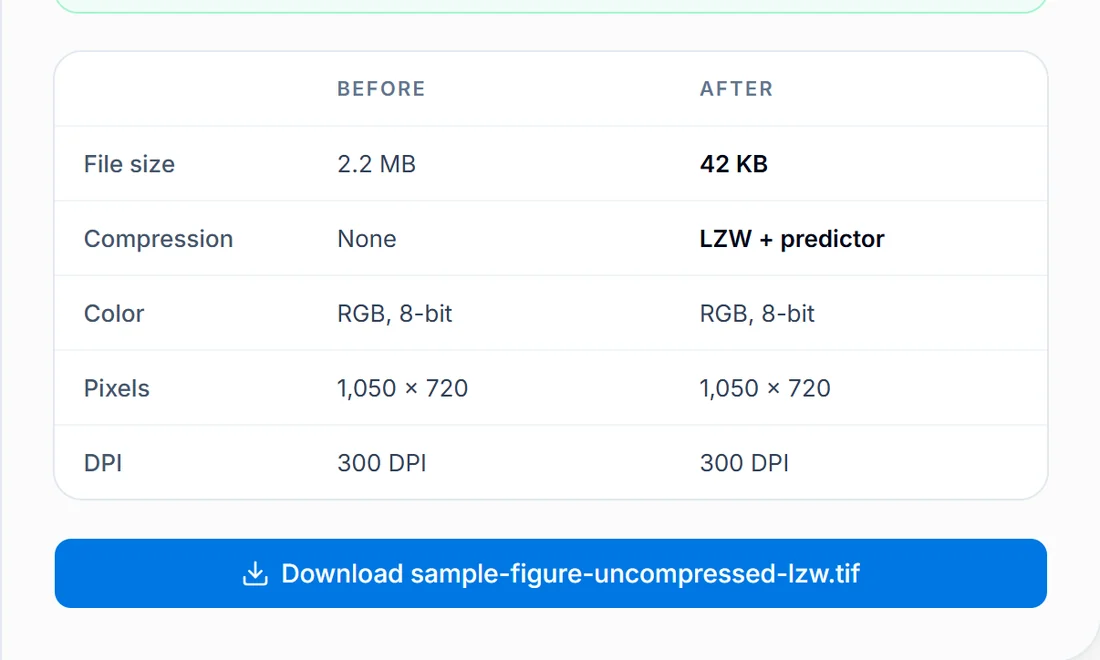
Download the smaller TIFF
The table shows what changed and what did not: the compression and the size change, the pixels and the DPI stay. Then download.
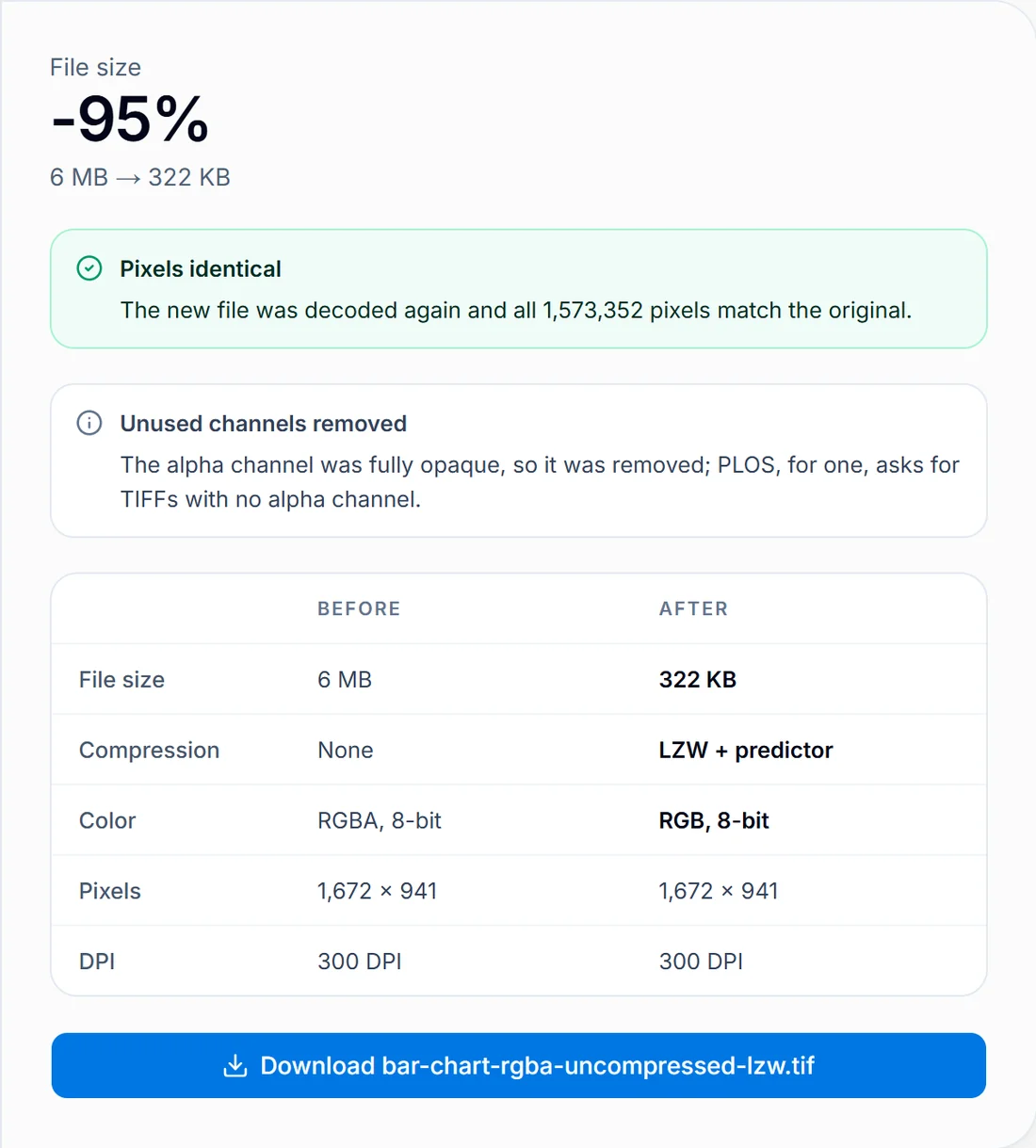
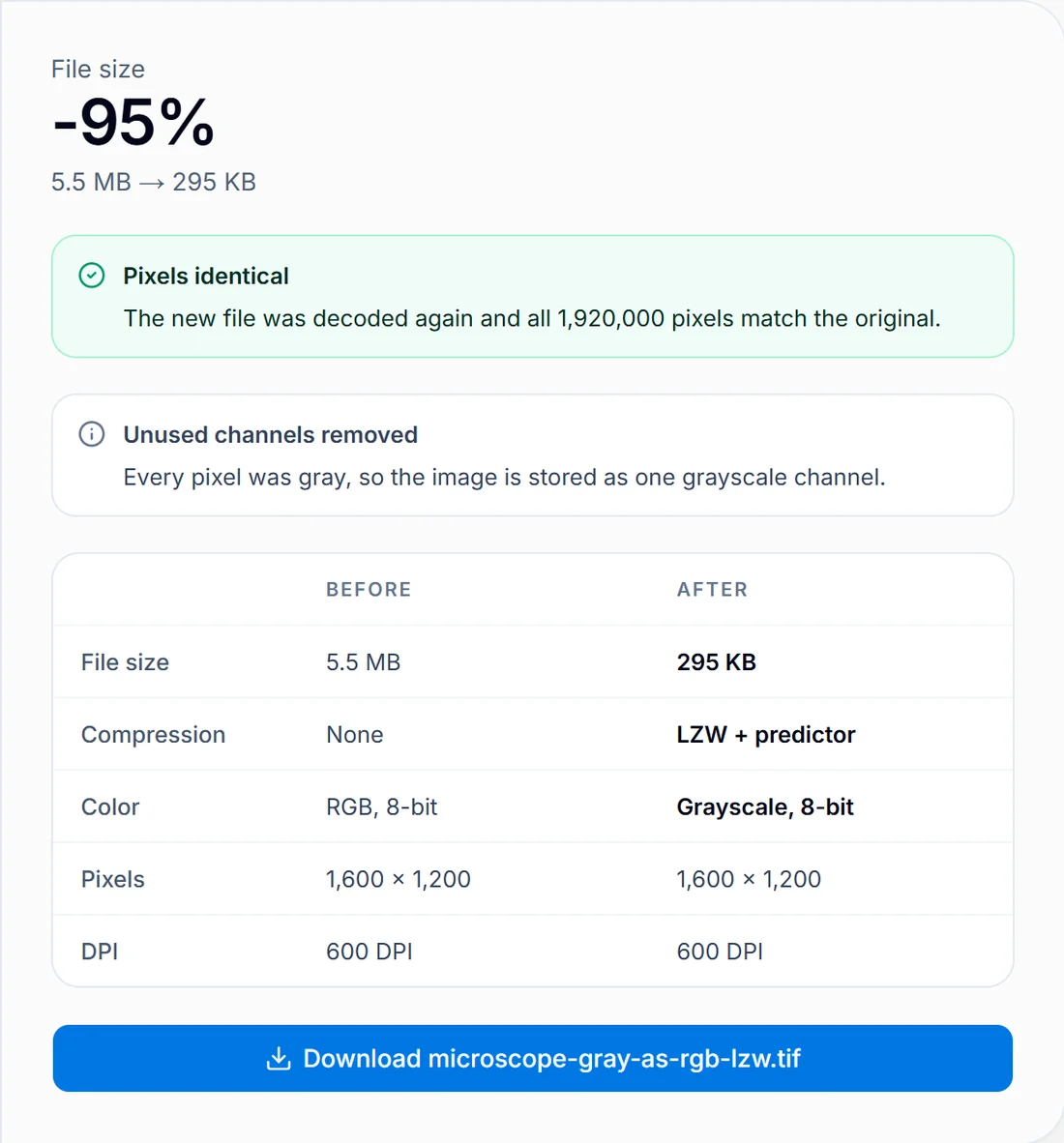
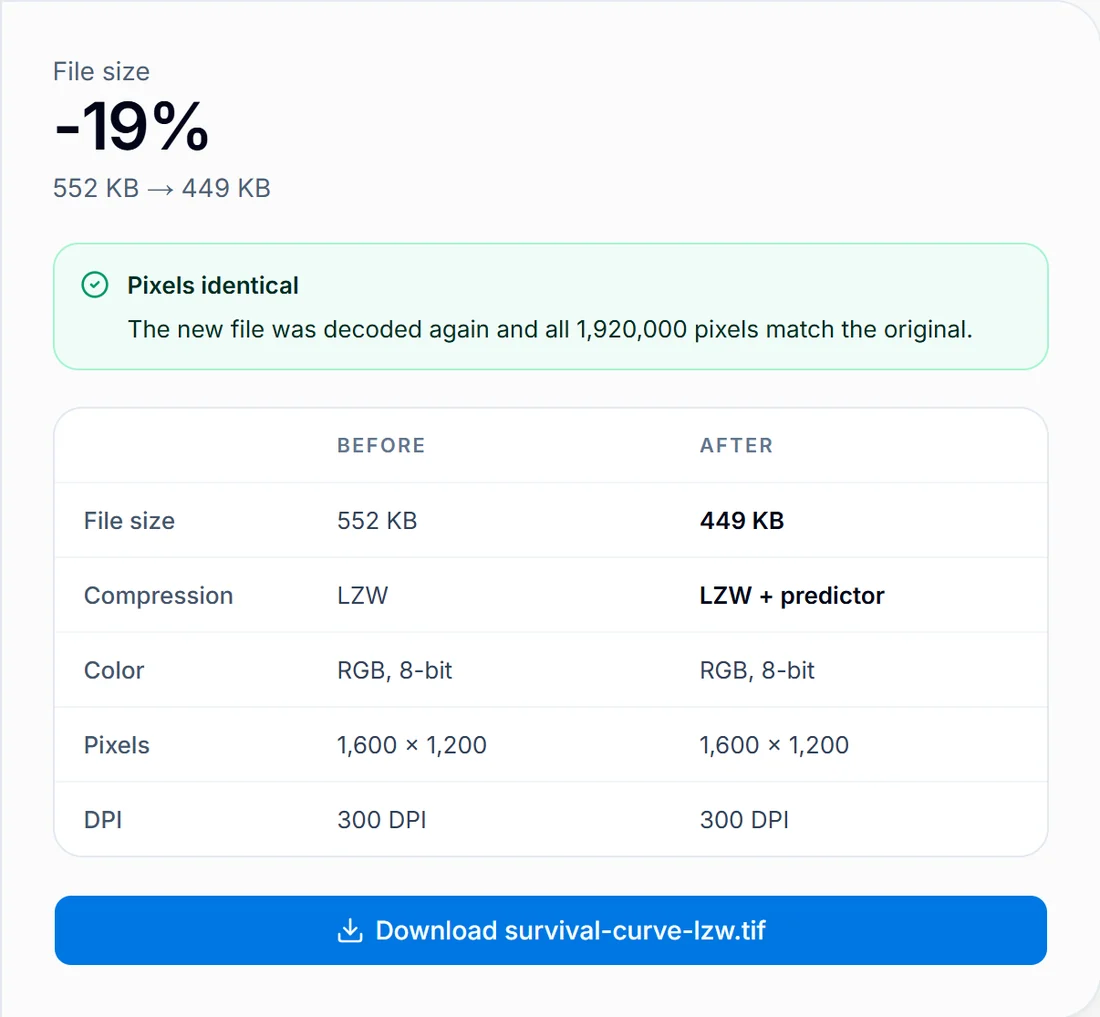
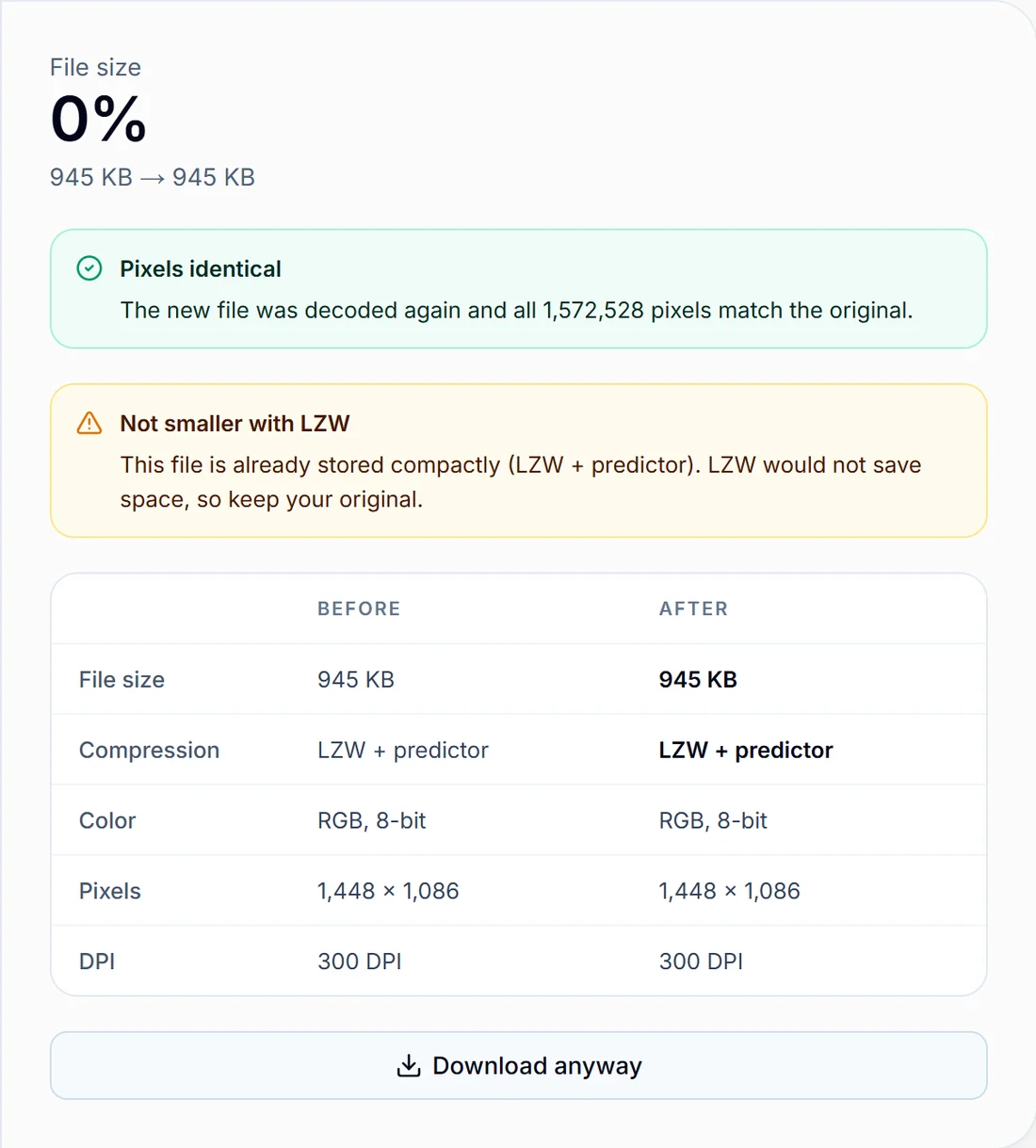
Six TIFFs through the compressor
Real runs on TIFFs made from our own figures, saved the ways programs commonly save them.
Guide
Compressing TIFF figures losslessly
How LZW and the predictor shrink a TIFF without changing it, how much to expect, which channels can go, what metadata stays, and which TIFFs need another route.
How lossless TIFF compression works
A TIFF can store its pixels uncompressed or compressed. LZW, the method this tool writes, replaces byte sequences it has already seen with short codes from a dictionary it builds as it goes; the reader rebuilds the same dictionary and restores every byte, so nothing is lost. Before LZW, the horizontal predictor can store each value as the difference from the pixel to its left. Flat areas and smooth gradients then become runs of zeros and small numbers, which LZW codes well. The tool writes the file both ways and keeps the smaller one.
One row of red values, stored two ways
As stored
With predictor 2
Each value becomes its difference from the left neighbor (modulo 256). The reader adds them back.
- Lossless: decoding gives back exactly the bytes that went in.
- Widely supported: common image editors, ImageJ and Microsoft Office open LZW TIFFs.
- Required by some journals: PLOS asks for LZW-compressed TIFFs.
How much smaller will the TIFF get?
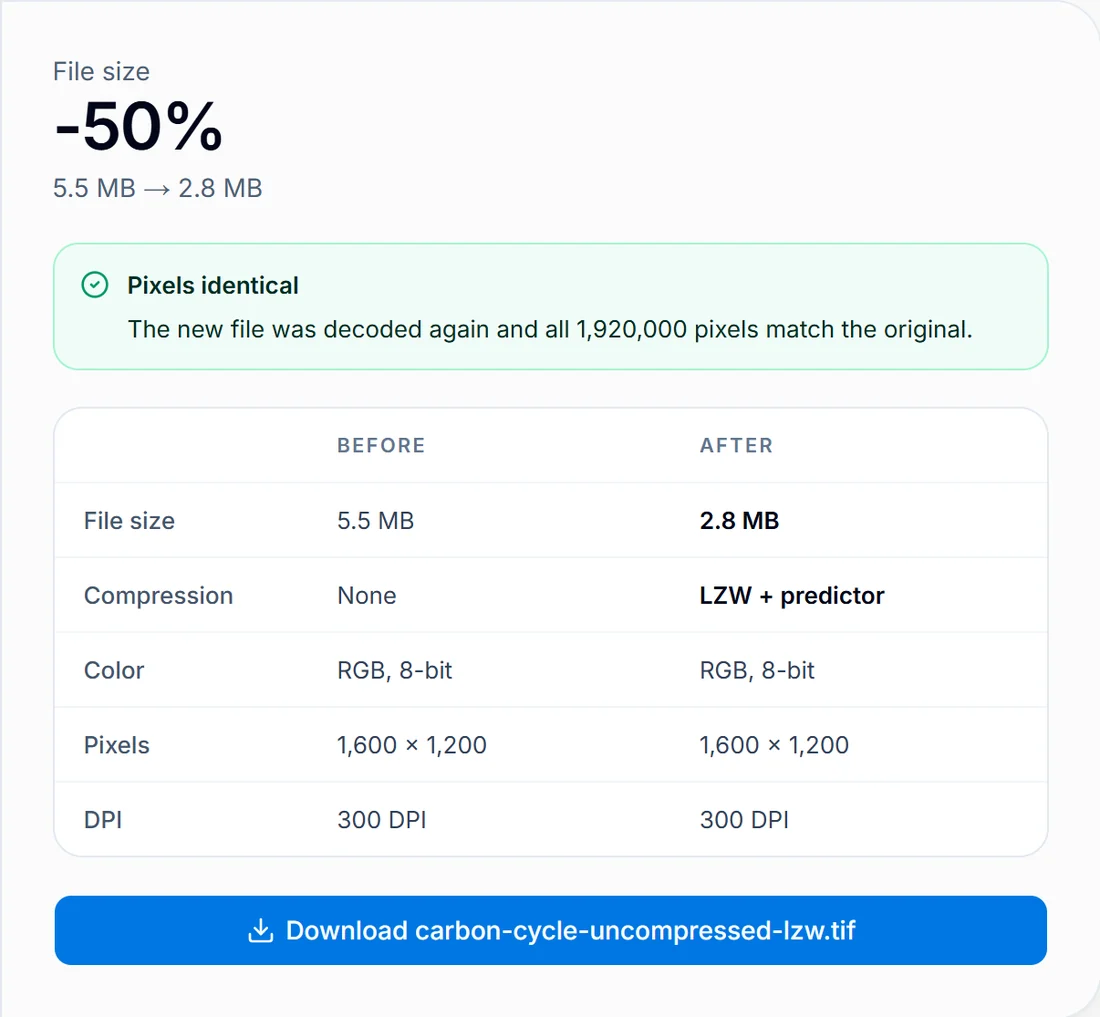
It depends on the picture. Charts, diagrams and schematics with flat colors shrink dramatically; detailed illustrations and photographs with texture or noise shrink much less. Two figures of ours, each saved first as an uncompressed RGB TIFF, show the range.
Bar chart, 1,050 × 720 px-98%
Uncompressed2.2 MBLZW42 KBTextured illustration, 1,600 × 1,200 px-50%
Uncompressed5.5 MBLZW2.8 MB
Measured with this tool on two figures of ours. Bars share one scale per figure.
- A 1,050 × 720 px bar chart: 2.2 MB uncompressed, 42 KB with LZW, 98% smaller.
- A 1,600 × 1,200 px illustration full of texture: 5.5 MB uncompressed, 2.8 MB with LZW, 50% smaller.
- A TIFF that is already compressed with LZW or Deflate (ZIP) rarely gets smaller. The tool tells you so, and you can keep the original.
Channels that carry nothing
Many TIFFs exported from slides, drawing programs and some plotting tools are RGBA: they have an alpha channel even when every pixel is fully opaque. That channel adds a quarter to the uncompressed size and holds no information. With the option on, the tool removes an alpha channel that is opaque everywhere, and stores an image whose pixels are all gray as one grayscale channel instead of three. The look of the image does not change, and the check compares every pixel’s color and transparency.
An RGBA TIFF whose alpha is 255 everywhere
R G B A
R G B
Same look, one channel fewer
- The textured illustration above as an RGBA TIFF: 7.3 MB uncompressed, 3.1 MB with LZW, and 2.8 MB with the empty alpha channel removed.
- PLOS asks for TIFFs with no alpha channel, so removing an empty one also meets that rule.
- An alpha channel with any transparency is kept, and so are extra channels such as spot colors.
What is kept and what is left out
The new file is a fresh, single-image TIFF written from the decoded pixels. Everything that defines how the image looks comes along; data that only some programs use stays behind.
- Kept: pixel dimensions, every pixel value, the DPI exactly as stored (including centimeter units), the ICC color profile, XMP metadata, orientation, and text fields such as description, software, artist, copyright and date.
- Left out: Photoshop layer data (the flattened image you see is kept), Photoshop’s settings block, EXIF and GPS camera data, and sub-images such as thumbnails. The tool lists what it left out of your file.
- PLOS asks for flattened TIFFs and notes that a figure with a single layer named Layer 0 or Layer 1 is still layered. Saving through this tool leaves one flat image.
TIFFs this tool cannot compress
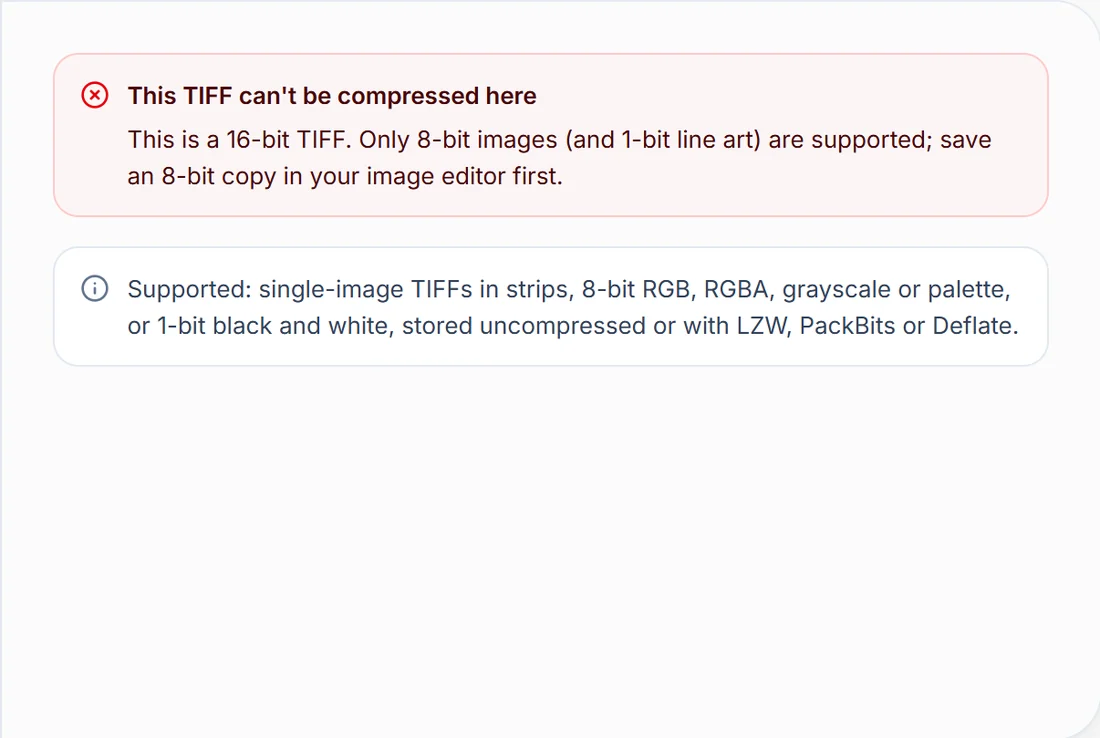
Some TIFF variants are refused with a message, and nothing is changed: 16-bit and floating-point images, CMYK, YCbCr and Lab color, tiled TIFFs, files with several pages, JPEG-compressed TIFFs (lossy already, so no lossless copy exists), CCITT fax compression (1-bit line art, usually compact already) and BigTIFF. For those, use your image editor’s own TIFF export.
The same result in an image editor
In GIMP, use File > Export As, save as .tif and choose LZW. In Photoshop, Save a Copy as TIFF with LZW image compression, and discard layers if the journal wants a flattened file.
Frequently asked questions
Quick answers on lossless compression, quality, files that do not shrink, the PLOS size limit and Deflate.
Is TIFF LZW compression lossless?
Yes. LZW decoding restores exactly the bytes that were encoded, so every pixel comes back unchanged. This tool also decodes the new file and compares it with the original before offering the download.
Will compressing a TIFF reduce its quality or resolution?
No. The pixel dimensions, every pixel value and the DPI stay the same. Only the way the pixels are stored changes, which is why the file gets smaller.
Why did my TIFF not get smaller?
It was probably compressed already, with LZW or Deflate (ZIP), or it is a detailed photograph whose noise leaves little for lossless compression to remove. The tool says when the new file is not smaller, so you can keep your original.
How do I get a TIFF under 10 MB for PLOS?
Compress it with LZW first, which PLOS requires anyway. If it is still too large, it probably has more pixels than its printed size needs: PLOS figures are at most 19.05 cm (7.5 in) wide, which takes 2,250 px at 300 DPI. Resize it for that width with Change Image DPI, then compress again.
Is Deflate (ZIP) compression better than LZW?
Deflate is also lossless and often gives a smaller file, but LZW is the method journal guidelines name, and PLOS requires it. That is why this tool writes LZW.
Can it compress 16-bit, CMYK or multi-page TIFFs?
No. Those files get a message explaining why, and nothing is changed. It reads single-image 8-bit RGB, RGBA, grayscale and palette TIFFs and 1-bit black and white ones, uncompressed or with LZW, PackBits or Deflate.
Are my files uploaded?
No. The TIFF is decoded, compressed and checked in your browser, and nothing is sent to a server.
Related tools
Free tools for getting figure files ready for submission.
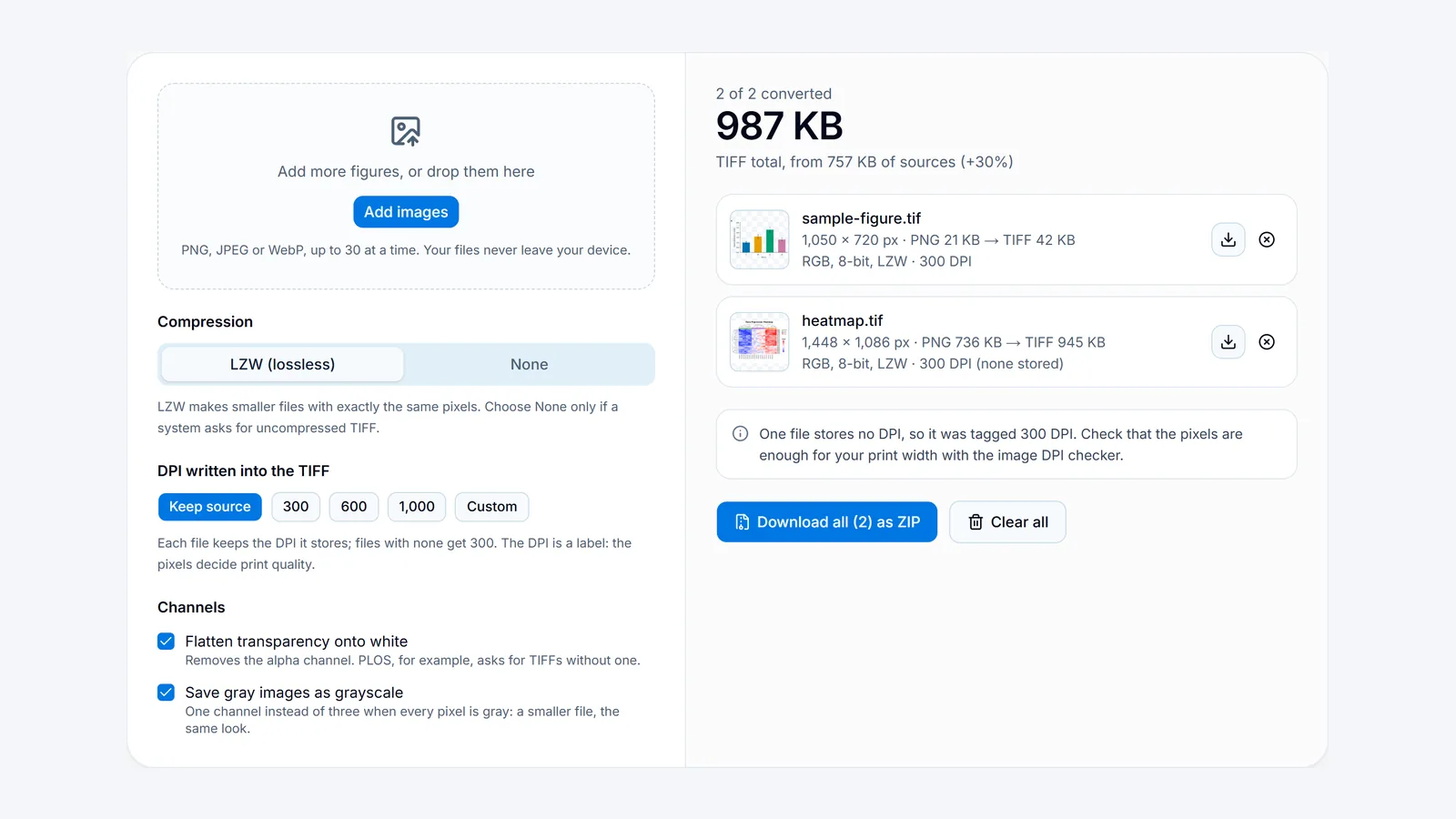
PNG to TIFF converter
Convert PNG, JPEG or WebP figures to TIFF with LZW compression and the DPI you choose.
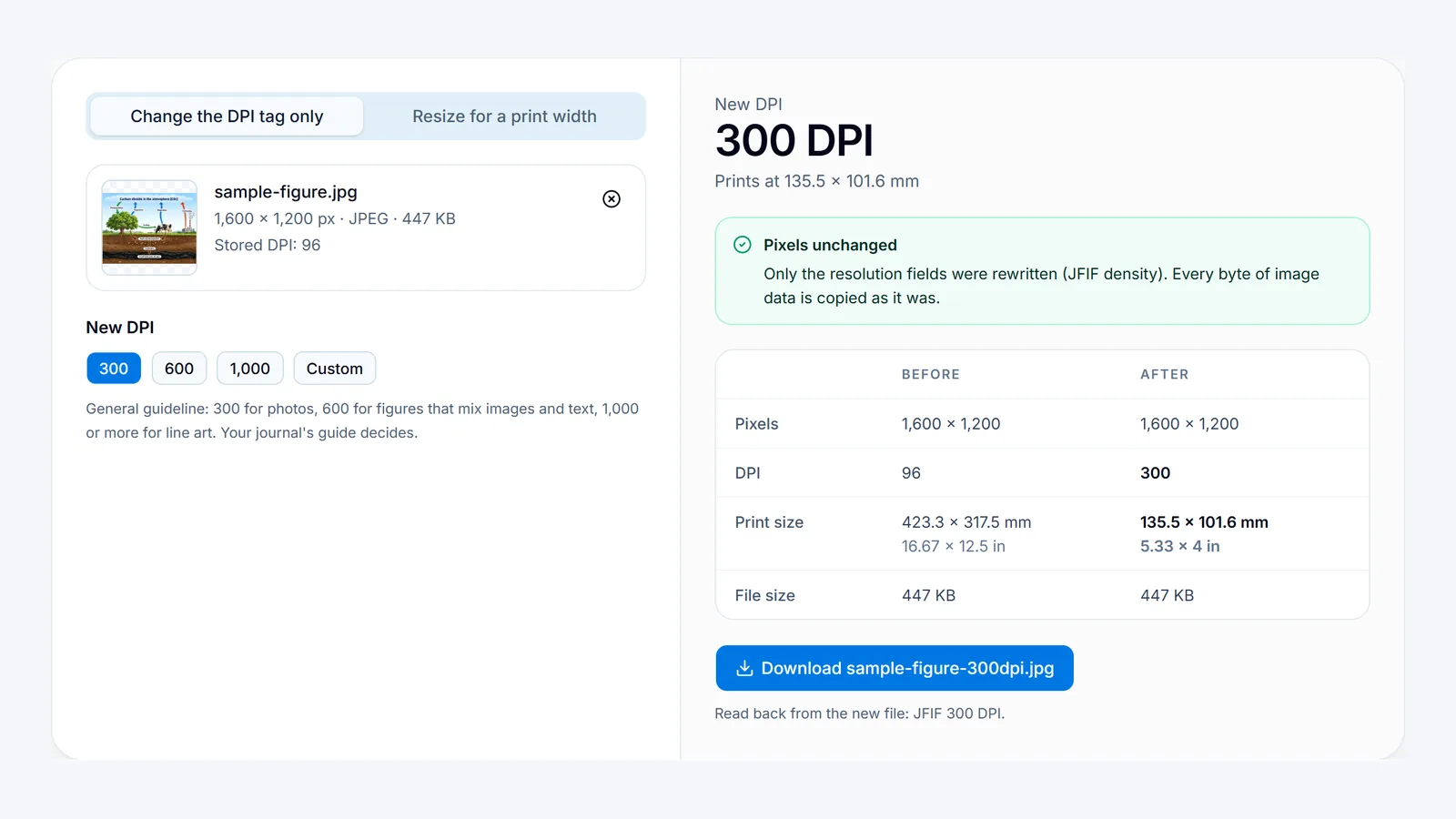
Change image DPI
Set 300 DPI or any value without resampling, or resize a figure for a print width.
Image DPI checker
See the effective DPI of a figure at any journal column width.
Journal figure requirements
Column widths, DPI, file formats and fonts for 14 publishers, with official sources.
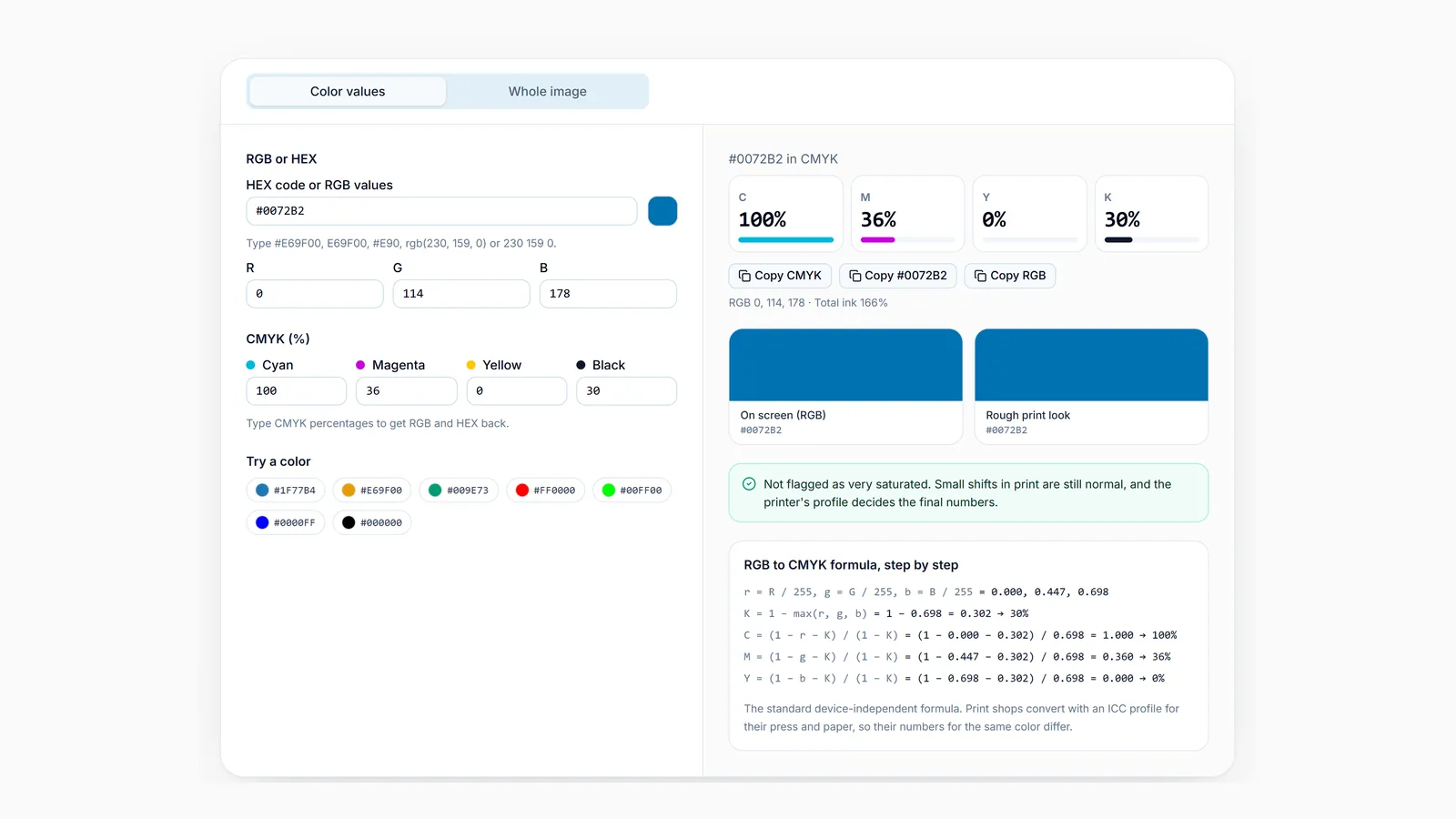
RGB to CMYK converter
Convert RGB and HEX colors to CMYK values, or a whole figure to a CMYK TIFF.
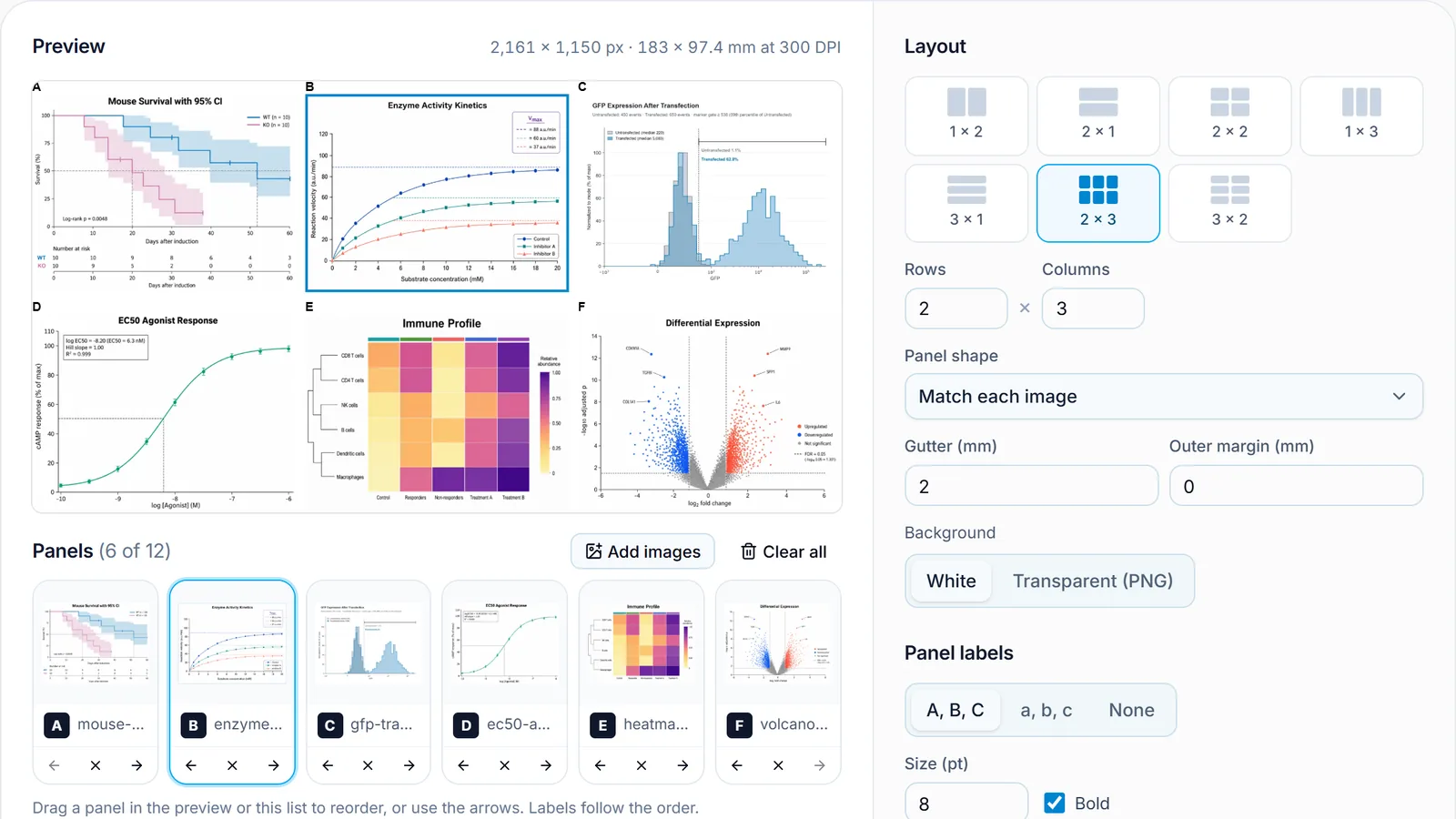
Combine images into one figure
Lay out several images as one multi-panel figure with A, B, C labels, then export.
Charts that are small and sharp from the start
SciFigure chart generators turn CSV or Excel data into publication-style charts for 5 credits each, and free credits work for charts.
Browse chart generators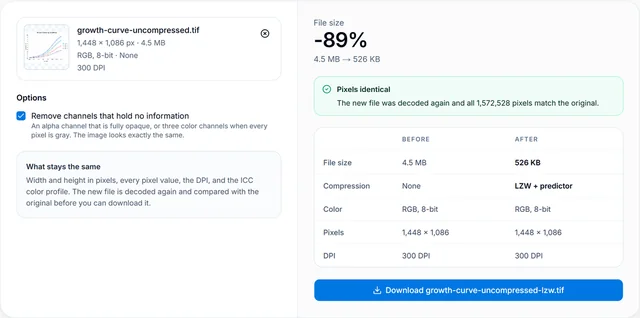
Last checked: November 25, 2026. Sources: Library of Congress, LZW compression; Library of Congress, TIFF Revision 6.0; PLOS ONE, figures.